

A laptop promising long battery life can still run down before lunch. Real-world runtime depends on the brightness of the screen, the apps running, battery age, and how hard the processor is working. A video call, game, or large file export can consume far more power than reading a document. Before spending money on a replacement battery, try these practical checks.
1. Lower screen brightness to a comfortable level
The display is a major power consumer on many laptops. On Windows, use Settings > System > Display or the brightness control. On a Mac, use Control Center or the keyboard brightness controls. Choose a comfortable setting instead of keeping the display at maximum brightness indoors.
Also shorten the screen-off timer when you're away from the computer. A screen left on during breaks quietly spends battery energy without helping you finish any work. When appropriate, turn off unnecessary keyboard backlighting as well.
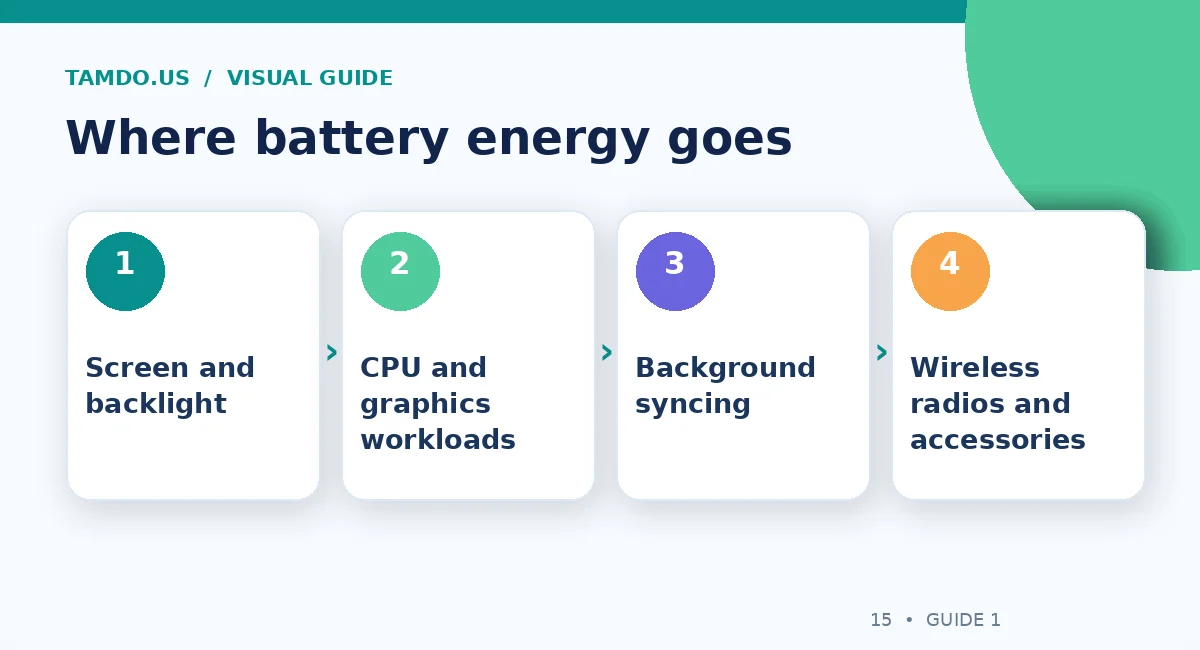
Where battery energy goes — original educational illustration created for TamDo.us.
2. Use Energy Saver on Windows or Low Power Mode on Mac
Windows 11 includes power and battery controls under Settings > System > Power & battery. Current releases offer Energy saver and power-mode settings; labels and options can vary by Windows version and hardware. Microsoft's Energy recommendations can help you spot settings that use more power than necessary.
On supported Mac hardware, Low Power Mode reduces energy use. The exact location and supported options depend on your macOS version and model. These modes can slightly reduce performance or background activity, which is often a reasonable trade during browsing, studying, and travel.
3. See which apps are consuming battery
On Windows, open the battery usage view under Power & battery. Look for apps consuming disproportionate power, especially those operating in the background. On macOS, Activity Monitor and the Battery settings provide useful clues. A single browser tab playing video or an app continuously syncing files can make the entire laptop seem inefficient.
Close apps you do not need, pause large downloads when unplugged, and check that cloud sync is not repeatedly failing. Avoid random “battery optimizer” software promising impossible improvements. Operating-system tools are a better starting point.
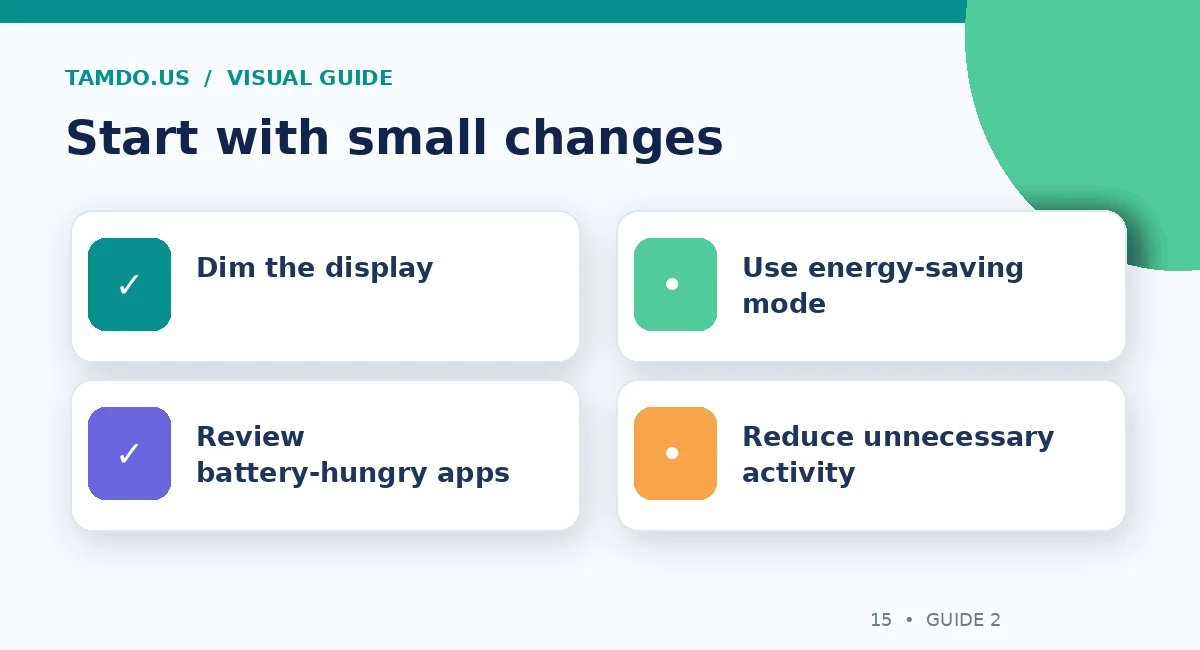
Start with small changes — original educational illustration created for TamDo.us.
4. Adjust Wi-Fi, accessories, and refresh rate
Wi-Fi, Bluetooth, external drives, and high-refresh displays can add to battery use, though the impact varies. Disconnect power-hungry USB accessories when they are not necessary. If your Windows screen supports multiple refresh rates, choosing a lower setting while traveling may help. Microsoft documents this option in its battery-saving guidance.
Wireless radios should not be disabled blindly if you need them for work or safety. The goal is to remove unused activity, not make the laptop inconvenient to operate.
5. Watch what heavy workloads do to runtime
Games, 3D rendering, video editing, and many AI tasks demand significant CPU and GPU power. It is normal for them to reduce battery runtime substantially compared with light office tasks. Some laptops also limit performance on battery to manage heat and power. Compare the laptop under similar workloads before concluding that something is wrong.
If the machine becomes unusually hot or the fan is constantly loud at idle, investigate background processes, blocked vents, and dust. Keep the laptop on a firm surface that does not block ventilation. Do not dismantle or puncture a swelling battery; stop use and seek professional service.
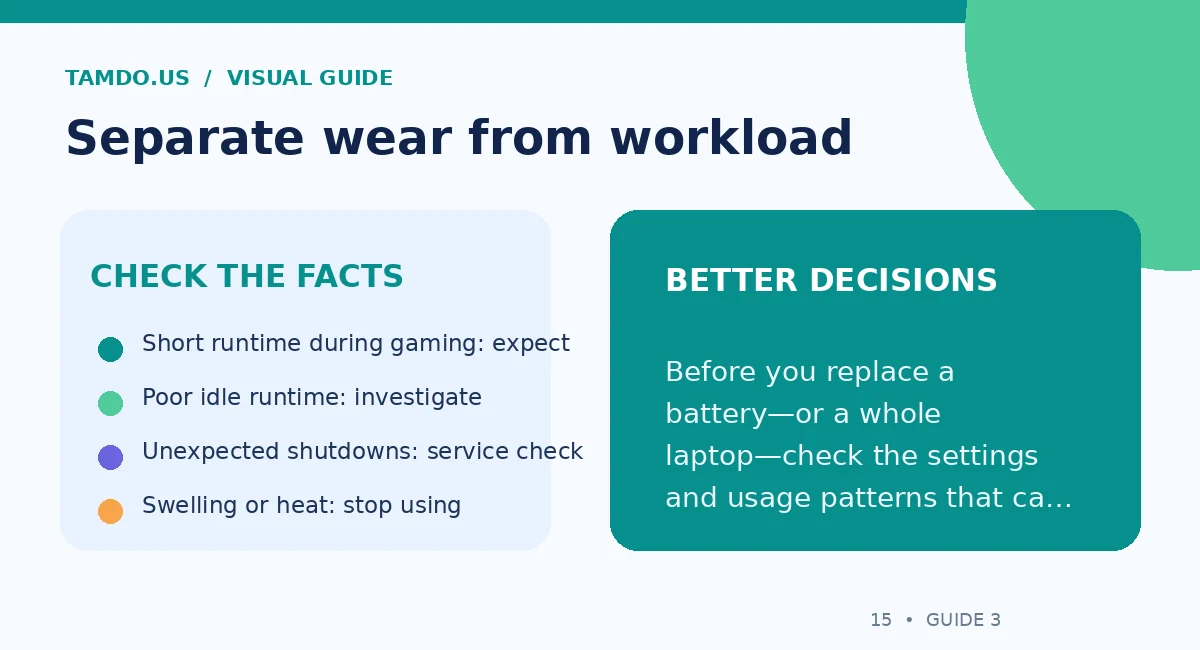
Separate wear from workload — original educational illustration created for TamDo.us.
6. Check battery health and charging behavior
Batteries wear with time and use. On Windows, the built-in battery report can provide estimates of design and full-charge capacity on supported devices; on Mac, System Information and Battery settings may report condition or cycle information. These numbers are clues, not guaranteed estimates of how many hours you will get every day.
If the system shuts down unexpectedly, the battery swells, or the charge percentage behaves erratically, get the device inspected. A worn battery cannot be restored to new capacity by changing an app setting. If replacing it, use a compatible quality part and follow manufacturer safety guidance.
7. Use the right charger for the laptop
Underpowered or incompatible chargers can lead to slow charging or declining battery level during heavy use. Match connector type, supported voltage, and wattage to the manufacturer's specification. USB-C charging is not universal across all laptops or all USB-C ports, and the cable rating may also matter for high power delivery.
A replacement charger is an accessory worth selecting carefully. Review the exact laptop model and compatible accessories rather than assuming any similar-looking plug will do.
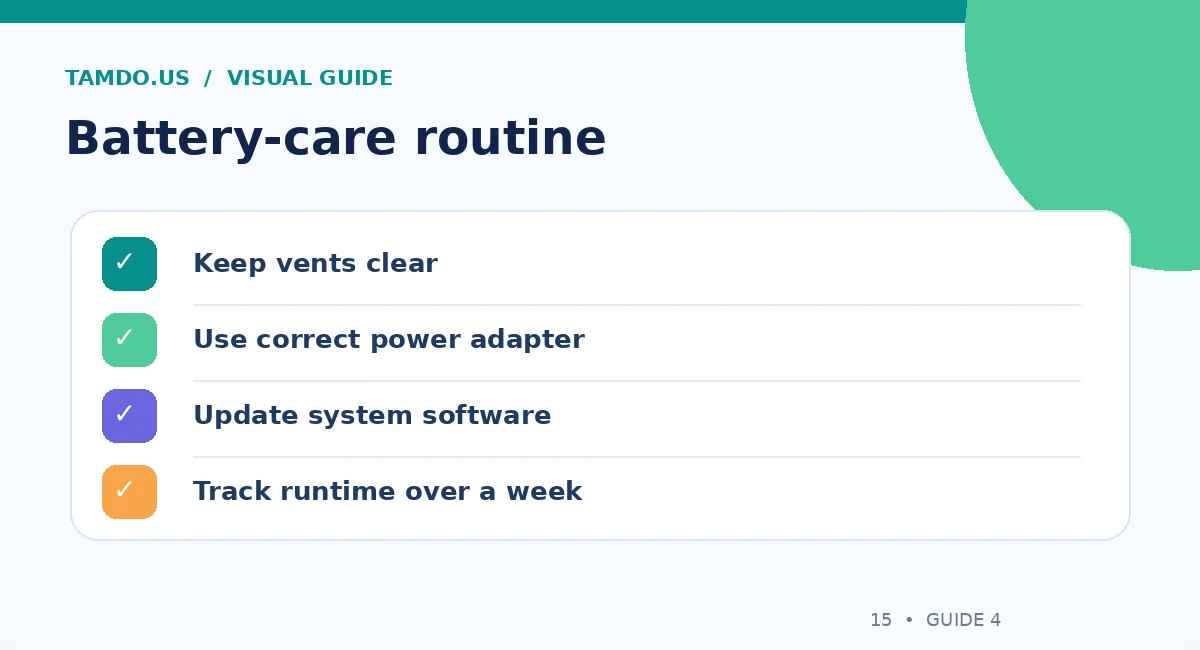
Battery-care routine — original educational illustration created for TamDo.us.
8. Keep software updated; restart when needed
Operating-system updates can include bug fixes and power-management improvements. Before a large update, save your work and connect power. A restart may also clear a hung background process that was draining the battery. If runtime suddenly worsens after a software change, review recently installed apps and driver updates.
9. Decide when battery replacement makes sense
If the laptop performs well and has a user-serviceable battery, a compatible replacement may be economical. If it also has a damaged screen, unreliable charging board, and inadequate performance, compare the total repair cost with a tested pre-owned laptop. Judge the whole device, not only the battery number.
Final takeaway
Measure your usual workload, reduce preventable power use, check health, and investigate unusual heat or shutdowns. Smart settings can improve runtime, but they cannot reverse actual battery wear.
Frequently Asked Questions
Does dark mode always save laptop battery?
It depends on the screen technology and settings; lowering brightness is a more broadly useful first step.
Does gaming drain batteries faster?
Yes, graphics-intensive tasks usually consume much more power than light office work.
When should I replace the battery?
When capacity or reliability no longer meets your needs and a compatible, safe replacement is practical.