
A laptop that once felt quick can become frustrating after several years. The temptation is to buy a new machine immediately, but two common upgrades—more memory and faster storage—may extend the useful life of some older laptops. The important word is some: a great upgrade for one model may be impossible or barely noticeable on another.
1. Understand the difference between RAM and storage
RAM is short-term working memory used by the operating system and currently running programs. When the system has too little, switching between browser tabs, spreadsheets, video calls, and editing apps can become sluggish. Storage holds Windows or macOS, applications, and your files even when the laptop is turned off. An SSD is a type of storage device that generally responds much faster than a mechanical hard drive.
These upgrades solve different bottlenecks. More RAM does not directly make a weak processor faster, and a larger SSD does not fix severe memory pressure. Temperature, aging batteries, outdated software, and background apps can also affect performance, so diagnose before ordering parts.
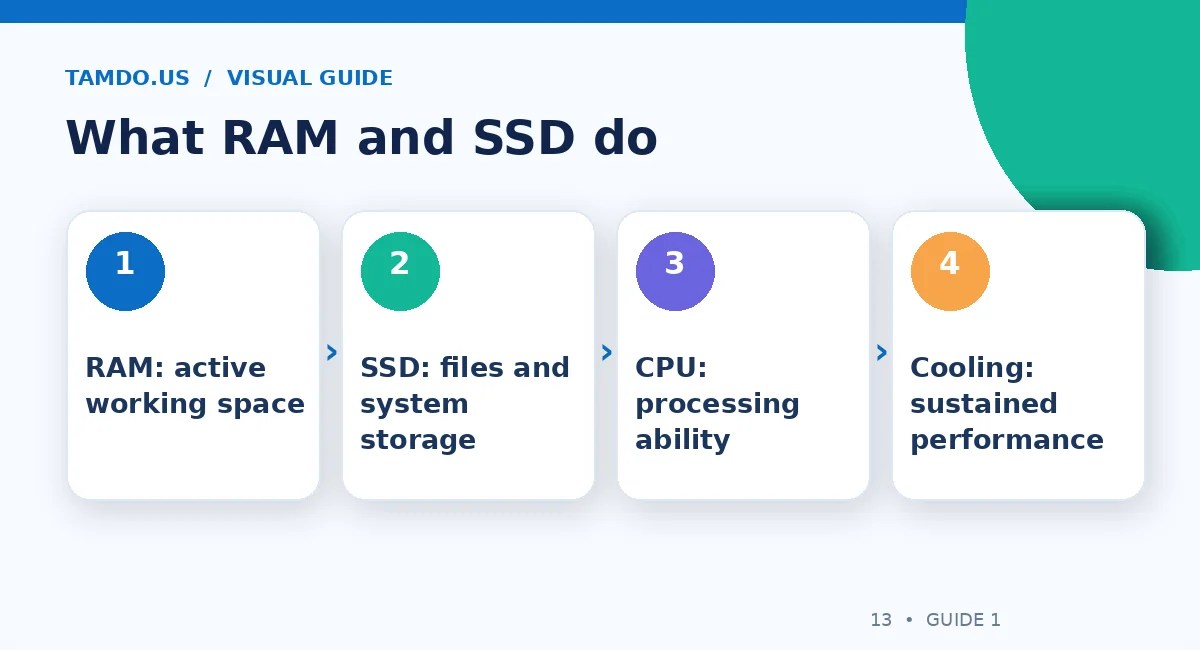
What RAM and SSD do — original educational illustration created for TamDo.us.
2. Choose an SSD upgrade when the hard drive is the bottleneck
If a laptop still uses a mechanical HDD, replacing it with a compatible SSD is often one of the most noticeable upgrades. Startup, opening apps, file searches, and system updates can feel more responsive because an SSD does not wait for spinning platters and moving read heads. An SSD may also be quieter and less vulnerable to mechanical shocks, although all storage devices can fail.
Before shopping, identify whether your machine uses a 2.5-inch SATA drive, an M.2 SATA SSD, or an M.2 NVMe drive. M.2 describes a form factor, not a guarantee of NVMe support. Check the exact laptop service manual, drive length, storage interface, and any BIOS limitations. Back up valuable files before replacing a drive; do not assume a clone or migration will finish without problems.
3. Choose more RAM when multitasking runs out of room
If Windows reports memory utilization close to full during normal work, or applications keep reloading after you switch away, extra compatible RAM may help. The need depends on workload: basic browsing and documents are different from heavy creative software or several virtual machines. Adding RAM is most useful when the system is actually short of it.
Some Windows laptops have removable SO-DIMM memory modules; others have partially or fully soldered memory. Many modern MacBooks cannot have RAM upgraded after purchase. Check the model number, generation, memory slot count, supported speed and capacity, and whether changing modules affects warranty terms or service policy.
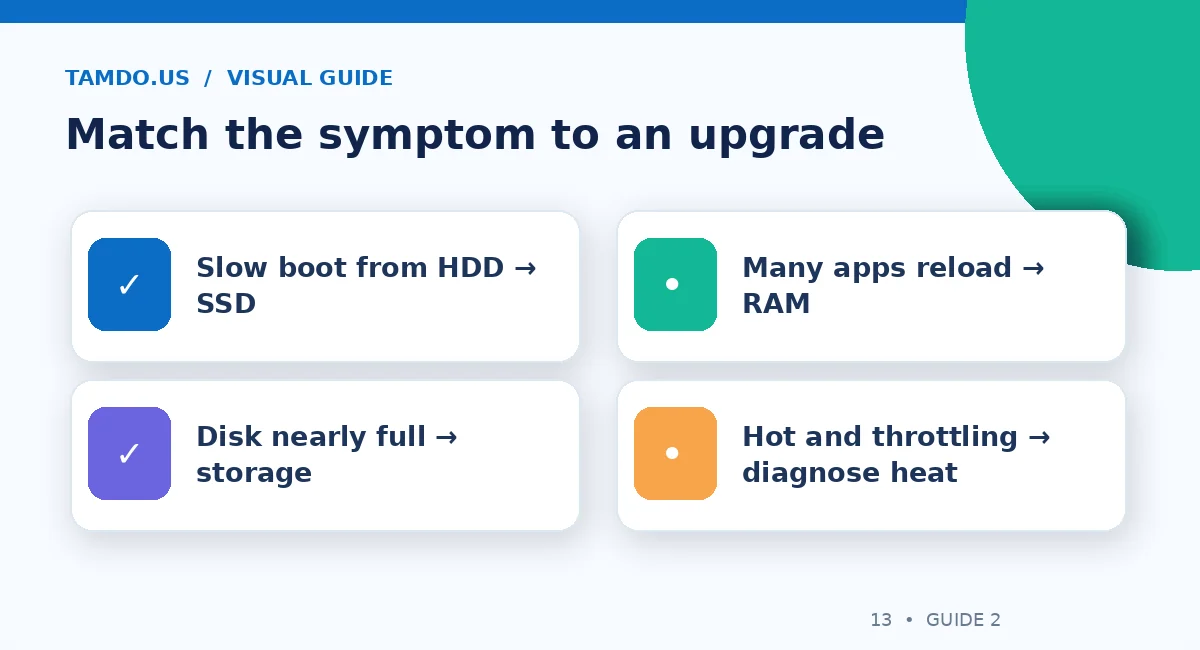
Match the symptom to an upgrade — original educational illustration created for TamDo.us.
4. Use Task Manager and a storage check before paying
On Windows, open Task Manager and look at the Performance tab while running your normal programs. Watch memory and disk usage, not just their idle numbers. A disk showing sustained heavy activity while a mechanical HDD is installed suggests storage may be a practical target. High memory pressure with frequent app switching suggests RAM may matter more.
Also check free disk space. A nearly full drive can disrupt updates and temporary-file operations. On macOS, Activity Monitor's memory-pressure indicator can help show whether the system is constrained by memory. These checks are clues rather than guaranteed diagnoses: malware, failing drives, thermal throttling, and software problems can produce similar symptoms.
5. When upgrading is not a good investment
If a laptop has a worn-out battery, cracked hinge, unsupported operating system, damaged charging port, and a slow processor, spending on multiple upgrades can exceed its real-world value. A soldered-memory Chromebook or a thin ultrabook with inaccessible components might not have a practical internal upgrade path at all.
Compare total cost, including parts, labor, data migration, and the risk of an older machine failing later. A ready-to-use used business laptop with sufficient RAM and an SSD may be a smarter purchase than restoring a computer with several independent issues. Do not judge cost by the upgrade part price alone.
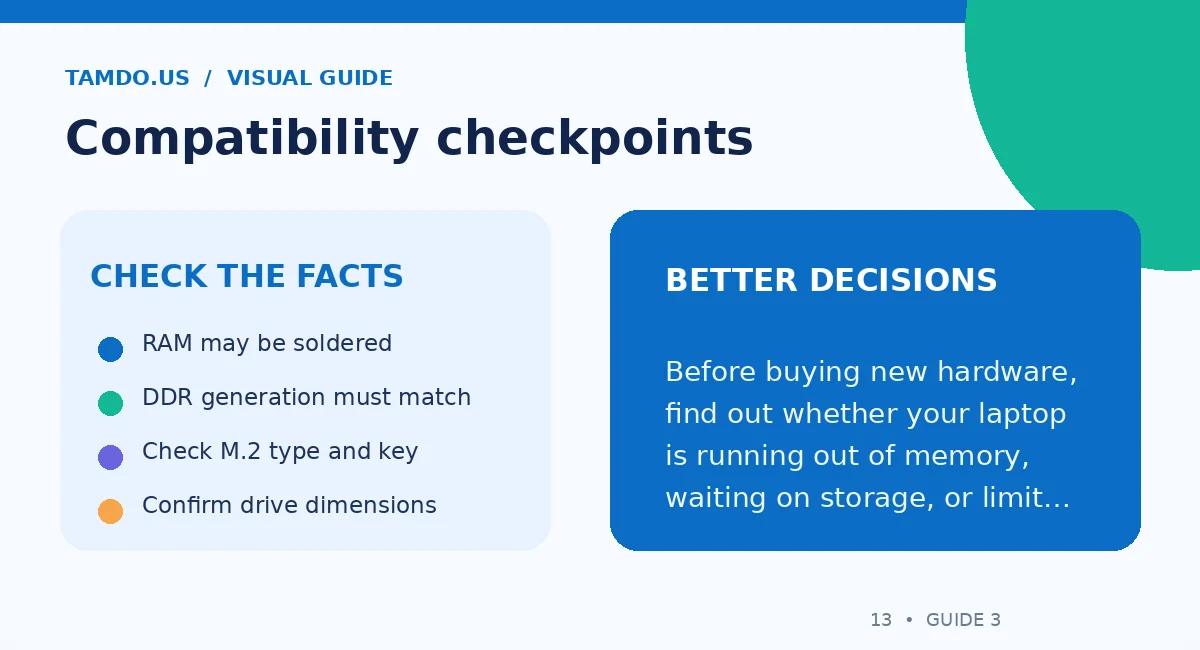
Compatibility checkpoints — original educational illustration created for TamDo.us.
6. A safe upgrade checklist
Confirm the machine model from its official documentation. Back up files and recovery keys, use the correct tools, disconnect power, and follow the manufacturer instructions for battery handling and electrostatic precautions. If you are unfamiliar with laptop service, seek qualified assistance rather than forcing an internal connector or removing a glued battery.
After an upgrade, confirm the BIOS or operating system recognizes the installed memory or drive. Run normal workloads, check system stability and temperatures, and keep your backup until the new installation has proven reliable. Watch for sudden crashes or storage errors before deleting the old drive.
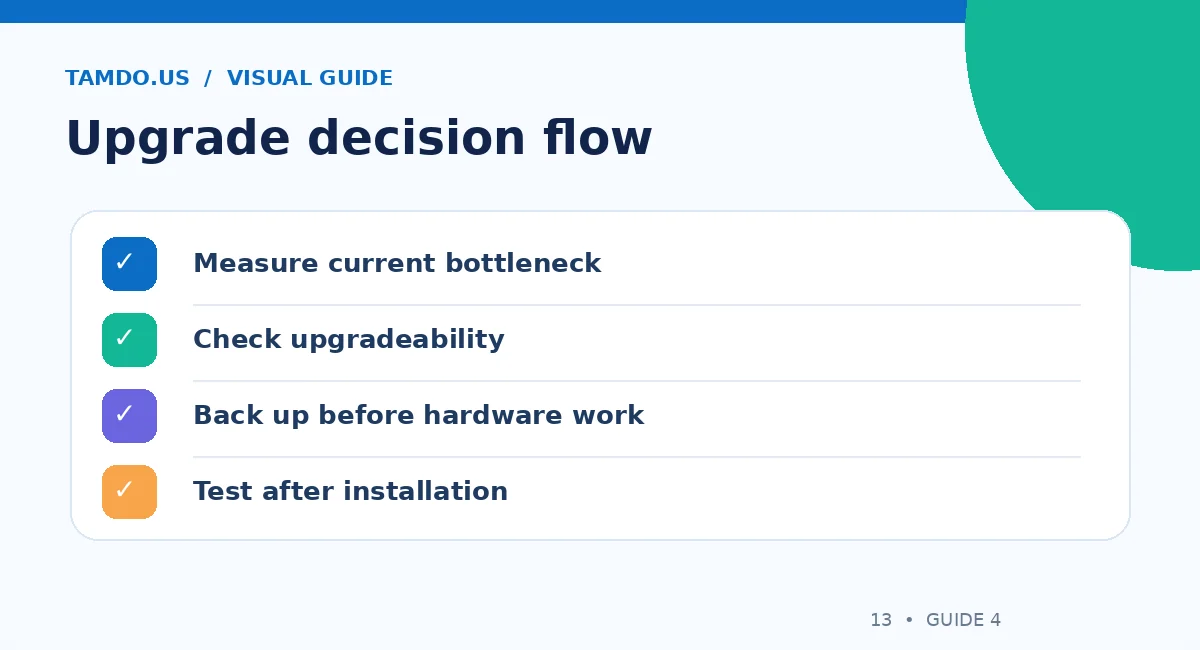
Upgrade decision flow — original educational illustration created for TamDo.us.
7. What about desktops and gaming PCs?
The same basic rules apply, but desktops often offer more room for upgrades. For gaming, the GPU and CPU can matter more than a small memory increase once RAM capacity is already adequate. A faster SSD can improve game loading but does not automatically increase frame rates. Prioritize the real problem instead of buying the part with the biggest advertised speed number.
Explore computer parts and upgrades alongside storage options to compare available components. Match every part to the exact motherboard or laptop model before purchase.
Final takeaway
Choose an SSD when storage responsiveness is the problem, RAM when your workload exceeds available memory, and a different computer when multiple expensive limitations remain. The right upgrade begins with evidence—not a guess.
Frequently Asked Questions
Does an SSD increase game FPS?
Typically not by itself; it mainly affects load times and storage responsiveness.
Can I add RAM to any laptop?
No. Many modern models use soldered memory or fixed configurations.
Is an M.2 SSD always NVMe?
No. M.2 is a physical format, and the interface must match the device.