
The most valuable part of a phone is often not the hardware. It is years of photos, text conversations, contacts, and access to accounts. Fortunately, both iPhone and Android offer guided transfer tools. The key is to choose the right method, prepare both devices, and resist erasing the old phone until your important content has been checked on the new one.
1. Start with a backup—not just a transfer
Charge both phones and connect them to reliable Wi-Fi. Check available storage on the new device, know the passwords to your Apple or Google accounts, and confirm you can receive account verification codes. Update your old phone if a supported update is needed for the transfer method.
A phone-to-phone transfer is convenient, but a separate backup helps protect you against an interrupted transfer or a device that stops working. Consider iCloud or a computer backup for iPhone, and your Google backup or other manufacturer-supported method for Android. For especially important files, make an additional copy of photos and documents to a trusted computer or external drive.
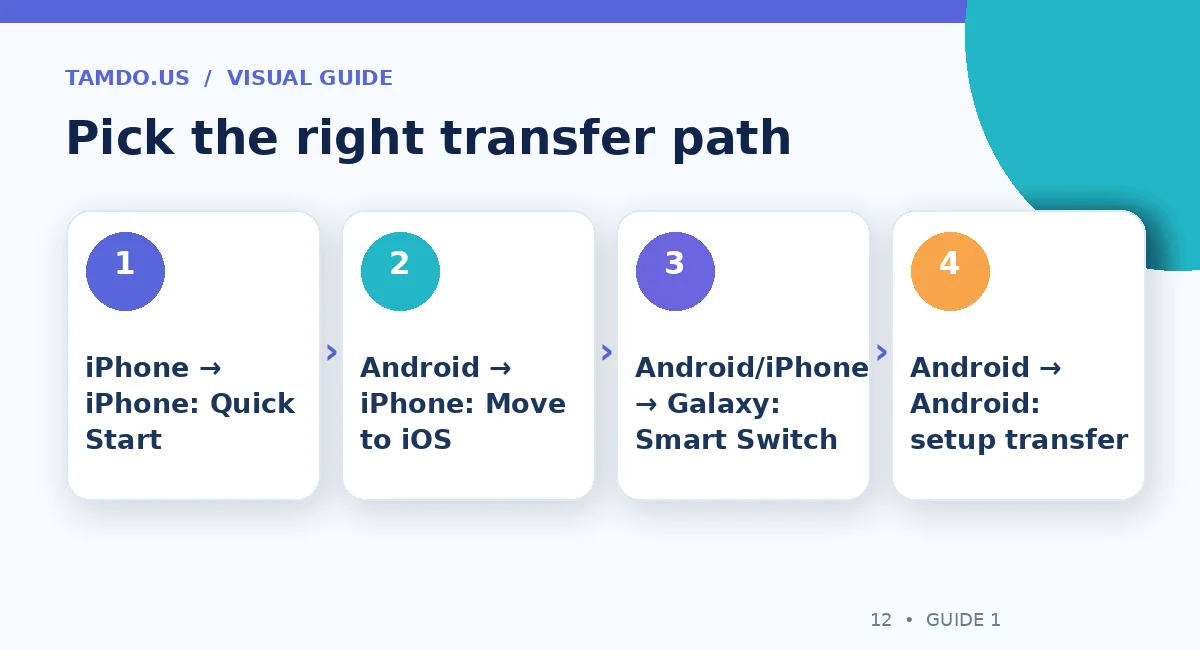
Pick the right transfer path — original educational illustration created for TamDo.us.
2. iPhone to iPhone: use Quick Start
Apple's Quick Start can set up a new iPhone by placing it near your current iPhone. Enable Wi-Fi and Bluetooth on the old phone, start the new one, and follow the on-screen prompts. Depending on your choices, data can move directly between devices or from an iCloud backup. Keep both devices nearby and powered until the process finishes.
If your previous iPhone is unavailable, you may be able to restore from an existing iCloud or computer backup. Remember that apps and media can continue downloading after initial setup. Before treating the migration as complete, open Photos, Contacts, Messages, and a few essential apps on the new device.
3. Android to iPhone: use Move to iOS during setup
Apple provides the Move to iOS app to help transfer supported content from Android while the new iPhone is being set up. On the iPhone's transfer screen, select the Android transfer option; install or launch Move to iOS on the old phone and follow the pairing instructions. Wired transfer may be an option depending on the devices and cables.
Some data types, app purchases, and app-specific histories require separate steps. If you have already completed iPhone setup, the official automated path may require erasing the new iPhone and starting setup again, or manually transferring content instead. Verify your WhatsApp or other messenger migration instructions before proceeding, because chat history is not always included in a general backup.
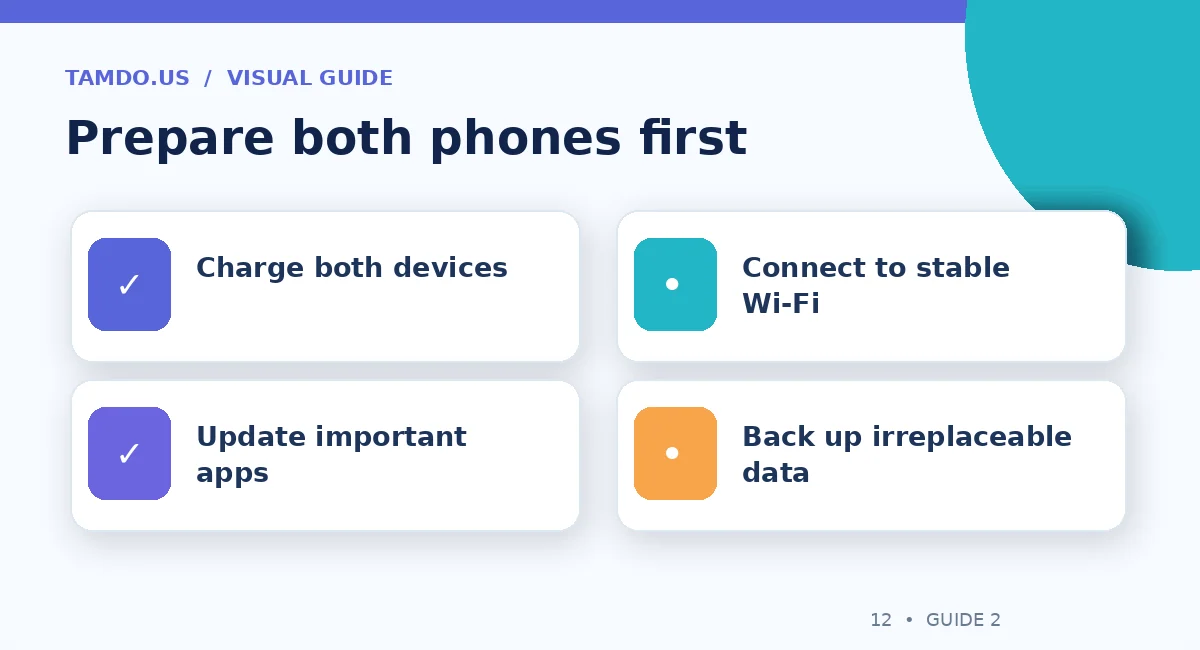
Prepare both phones first — original educational illustration created for TamDo.us.
4. Moving to a Samsung Galaxy or another Android phone
For a new Galaxy, Samsung Smart Switch can import supported data from many Android and iOS devices by cable or wirelessly. On other Android phones, the initial setup process often offers a cable or wireless copy from the old device. Features vary by manufacturer, Android version, and source phone, so follow the instructions on the specific device.
Do not confuse copying an app with signing in to the app. Banking, work, payment, and two-factor authentication apps may require fresh verification or device enrollment. Plan for those before changing phones, especially if your old phone is the only place you can approve sign-ins.
5. Transfer your phone number and eSIM separately
Moving photos and apps does not necessarily move your cellular service. If the new phone uses eSIM, ask your carrier whether it supports direct eSIM transfer, an app activation, or a new QR code. Keep the old phone active until the new phone receives calls and verification texts. If you are changing from iPhone to Android, Apple also provides instructions for deregistering iMessage when appropriate.
A good test is to disable Wi-Fi on the new phone and confirm a cellular call, an SMS, and mobile data. If one fails, contact your carrier before you reset the old device. It is easier to fix account issues while both phones remain available.
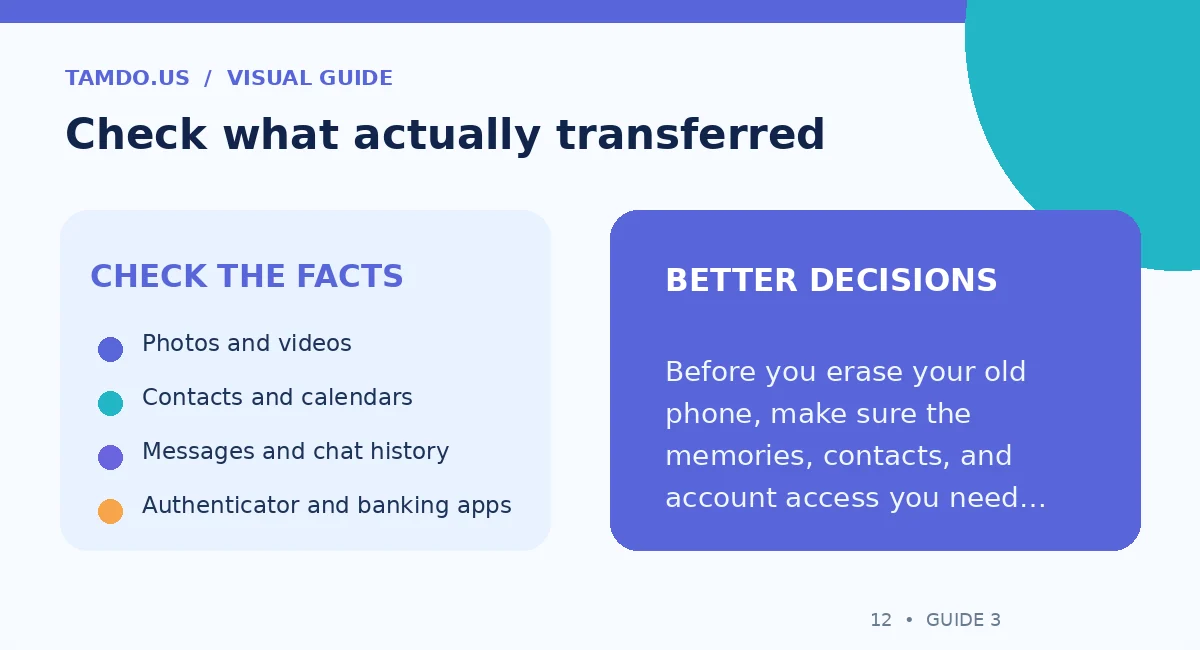
Check what actually transferred — original educational illustration created for TamDo.us.
6. Five things people forget to move
Photos are obvious; less visible items are what cause frustration later. Check downloaded files, offline maps, saved Wi-Fi passwords, voice recordings, and app-specific documents. Review family-sharing settings, accessibility preferences, paired watches, and Bluetooth accessories. Move your authenticator accounts using the service's approved procedure; a simple phone backup may not restore every token.
Open a sample of old photos and videos at full resolution, not just thumbnail previews. Search for a few older contacts, confirm calendars contain future events, and review a recent conversation. This verification is especially important when your previous phone had nearly full storage or a damaged screen.
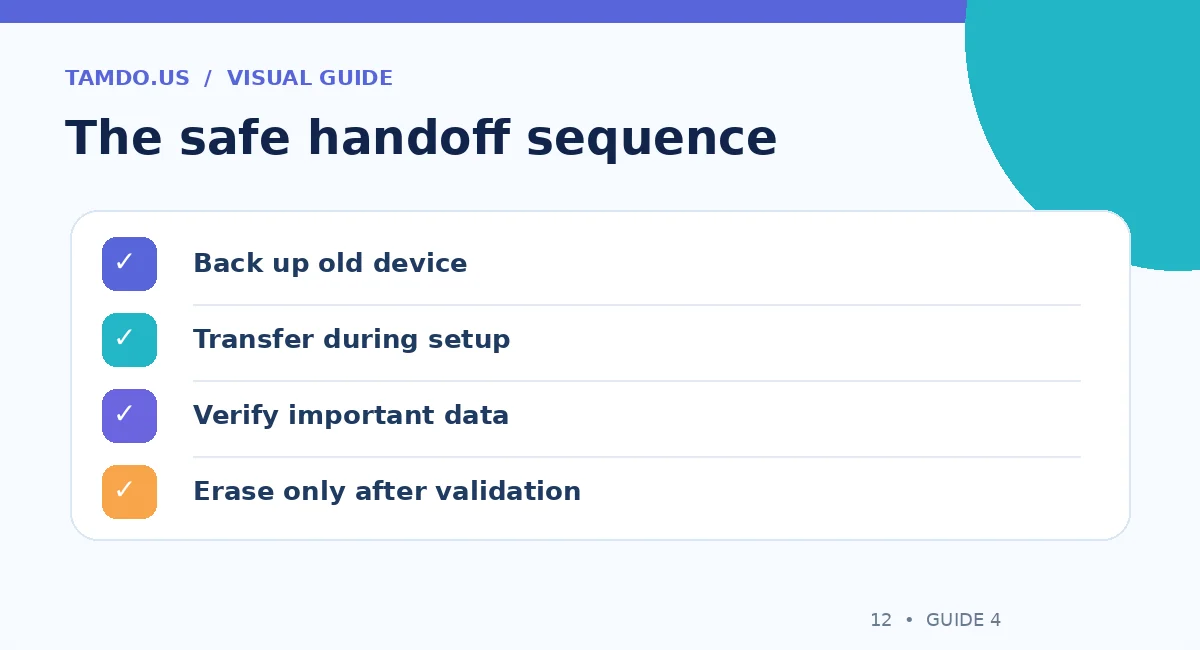
The safe handoff sequence — original educational illustration created for TamDo.us.
7. Only then erase the old phone
Once everything important works, sign out of the appropriate accounts and use the manufacturer's official erase procedure. For iPhone, review Apple's trade-in instructions and Activation Lock removal steps. For Android, use the device maker's account removal and factory reset guidance. Remove physical SIM and microSD cards when applicable.
If you're buying a replacement, compare storage, wireless compatibility, and the condition notes before deciding. Browse phones at TamDo.us and make sure the model you choose has enough capacity for your photo library and everyday apps.
Final takeaway
Back up first, use the official migration tool, verify your accounts and cellular connection, and reset the old phone last. A careful transfer is worth much more than a rushed setup.
Frequently Asked Questions
Will all my apps and passwords transfer automatically?
Not always. Many apps need a fresh sign-in, and security-sensitive apps may require separate migration.
Can I transfer data after I finish setup?
Some content can be copied manually, but certain guided migrations work best during initial setup.
When is it safe to factory reset the old phone?
Only after you verify important files, conversations, authentication methods, and cellular service on the new one.