

Your child says, “Just five more minutes.” Suddenly it is another half hour. If that scene feels familiar, the answer may not be a stricter lecture. A clear phone routine, backed by the right iPhone settings, is usually easier to follow than a rule that changes from day to day.
Apple's parental controls can help families choose when apps are available, how much leisure time to allow and which contacts are approved. The controls are useful, but they work best when children understand why the limits exist and know what they can expect.
1. Agree on the purpose before choosing a limit
Start by separating useful phone activities—school messages, family calls, homework research—from endless short videos or games. Ask your child which apps are most important to them and which moments of the day feel hardest to put the phone down.
Write down two or three non-negotiable family routines, such as keeping phones out of the bedroom at night or putting them away during shared meals. Choose limits that suit your child's age and responsibilities instead of copying an arbitrary number from the internet.
2. Use a separate child Apple Account with Family Sharing
If you manage your child's device, start with Family Sharing and a child-specific Apple Account rather than sharing your personal sign-in. On the family organizer's iPhone, open Settings → Family to review the family group and the child's account. Follow the on-screen setup prompts where needed.
This keeps parental settings and family approvals clearer. It also makes it easier to manage supported controls from a parent's device without continually borrowing the child's phone. Some options depend on age, country, system version and the accounts in the family group.
3. Set app limits using the interface on your version of iOS
On iOS 27 and compatible updated devices: open Settings → Family → [child] → Time Allowances. Set a time budget for entertainment, gaming or social media categories, then adjust the allowance for particular apps as needed.
On older iOS versions: open Settings → Screen Time, choose the child in your family if shown, and look for App Limits. Apple's labels have changed across releases, so do not worry if an older online screenshot looks different.
Start with a manageable adjustment rather than cutting access dramatically overnight. Let your child know what happens when their allowance ends and how they can ask for more time when there is a genuine reason.
4. Make a predictable daily schedule
In current Apple controls, Screen Time Schedule lets parents set availability windows, including different schedules for weekdays and weekends. Earlier iOS versions may describe a similar idea as Downtime.
For example, a family might allow leisure apps after homework and before dinner, then pause them at bedtime. Treat that as an illustration, not a universal recommendation. Include sensible exceptions for family communication, maps, accessibility tools or necessary school apps.
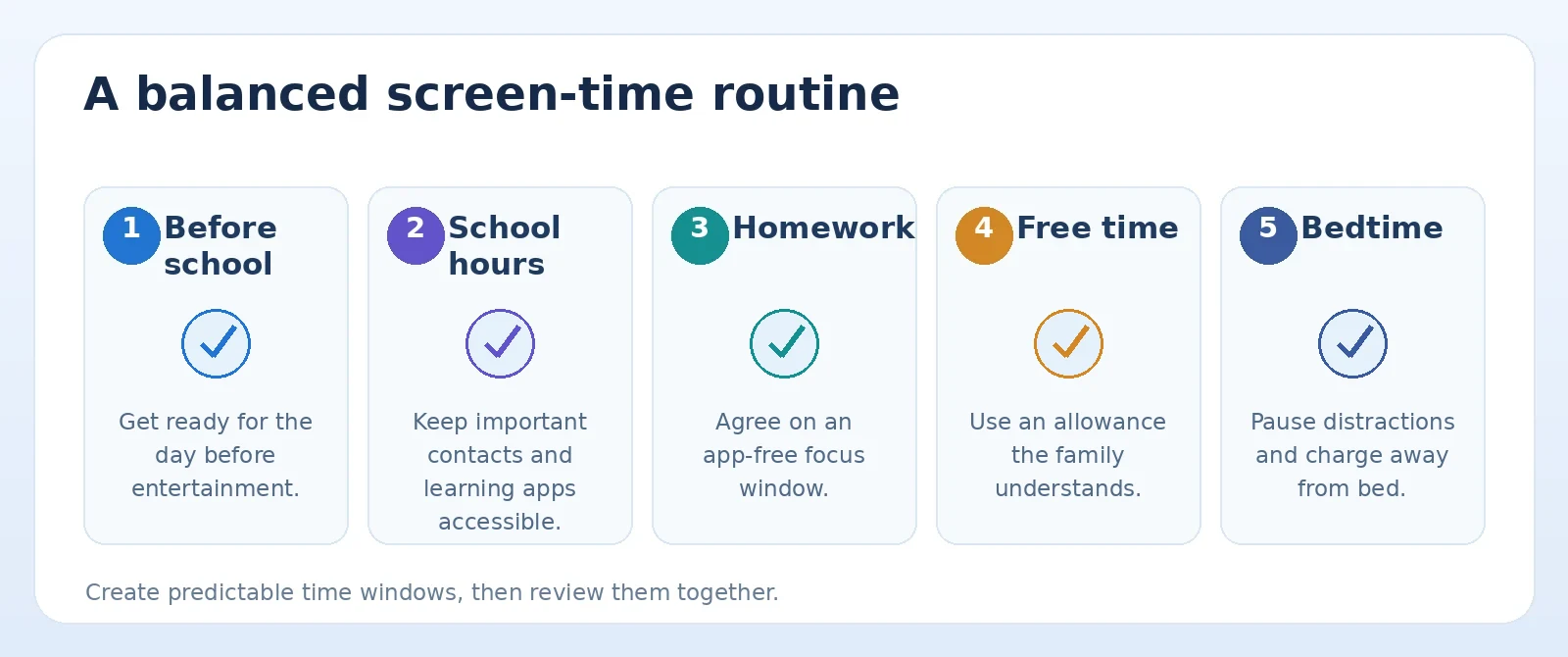
Original TamDo editorial graphic. Illustrations are not screenshots of a specific device or software version.
5. Create a school-hours plan that leaves essentials working
Recent parental controls can pause selected categories during school hours. Review the school-day schedule with your child, particularly if teachers use approved apps, educational websites or messaging tools.
Do not disable emergency or essential communication by accident. Apple warns that some communication settings can affect calls and messages when time restrictions apply. Test the routine together before relying on it.
6. Review content, purchases and privacy settings
From the child's family settings, open Content & Privacy Restrictions and choose age-appropriate settings for apps, online content and purchases. Consider Ask to Buy where supported, and review whether your child can install or remove apps without parental approval.
Apple's Communication Safety features may offer on-device warnings about sensitive content in supported services. These tools help add a layer of protection, but they are not perfect content filters or a replacement for a conversation about online safety.
7. Decide who can contact your child
With current supported family controls, parents can manage allowed contacts and, in some configurations, approve new contacts. Visit Settings → Family → [child] → Allowed Contacts to review the available options. Older versions place similar choices under Screen Time's Communication Limits.
Talk about unknown callers, group messages and what to do when a conversation makes your child uncomfortable. Make it easy for your child to report a problem without worrying that their entire device will be confiscated.
8. Review the results once a week—not every five minutes
Choose a brief weekly check-in to look at screen usage and discuss what actually worked. Is there one app consuming most of the time? Are the limits interfering with school activities? Did your child independently stop using their phone at the agreed time?
Make small changes together. A useful family plan can evolve as a child grows; it should not feel like a contest between clever workarounds and new restrictions.
An example family phone agreement
- School-related communication and important family calls stay accessible.
- Leisure apps are used during agreed windows, not automatically whenever a phone is nearby.
- Phones charge outside sleeping areas when practical for the family.
- Children can request extra time for a specific reason; parents respond consistently.
- The family reviews the routine each week and adjusts it as responsibilities change.
You may also want to read our existing guide to choosing an iPhone for kids. Choosing the device and agreeing on the rules are two different decisions, and both deserve attention.
Frequently asked questions
Can I control my child's iPhone from my own iPhone?
Yes, many supported settings can be managed using Family Sharing when the organizer and child's accounts are configured correctly. Availability varies with the family's devices and software versions.
Why can't I find App Limits on my child's iPhone?
Apple changed its parental-control interface in iOS 27. Look for Time Allowances and Screen Time Schedule under the child's Family settings. Older iOS versions retain different labels.
Will parental controls stop every distracting app?
No software rule is foolproof. Combine device settings with clear expectations, open conversations and regular adjustments.
Find the right device for your needs
The best phone for a child is one that fits the family’s needs, budget and support expectations—not automatically the newest model.
Feature names and availability can change by device model, operating system, region and software release. See the official sources below for current compatibility details.