
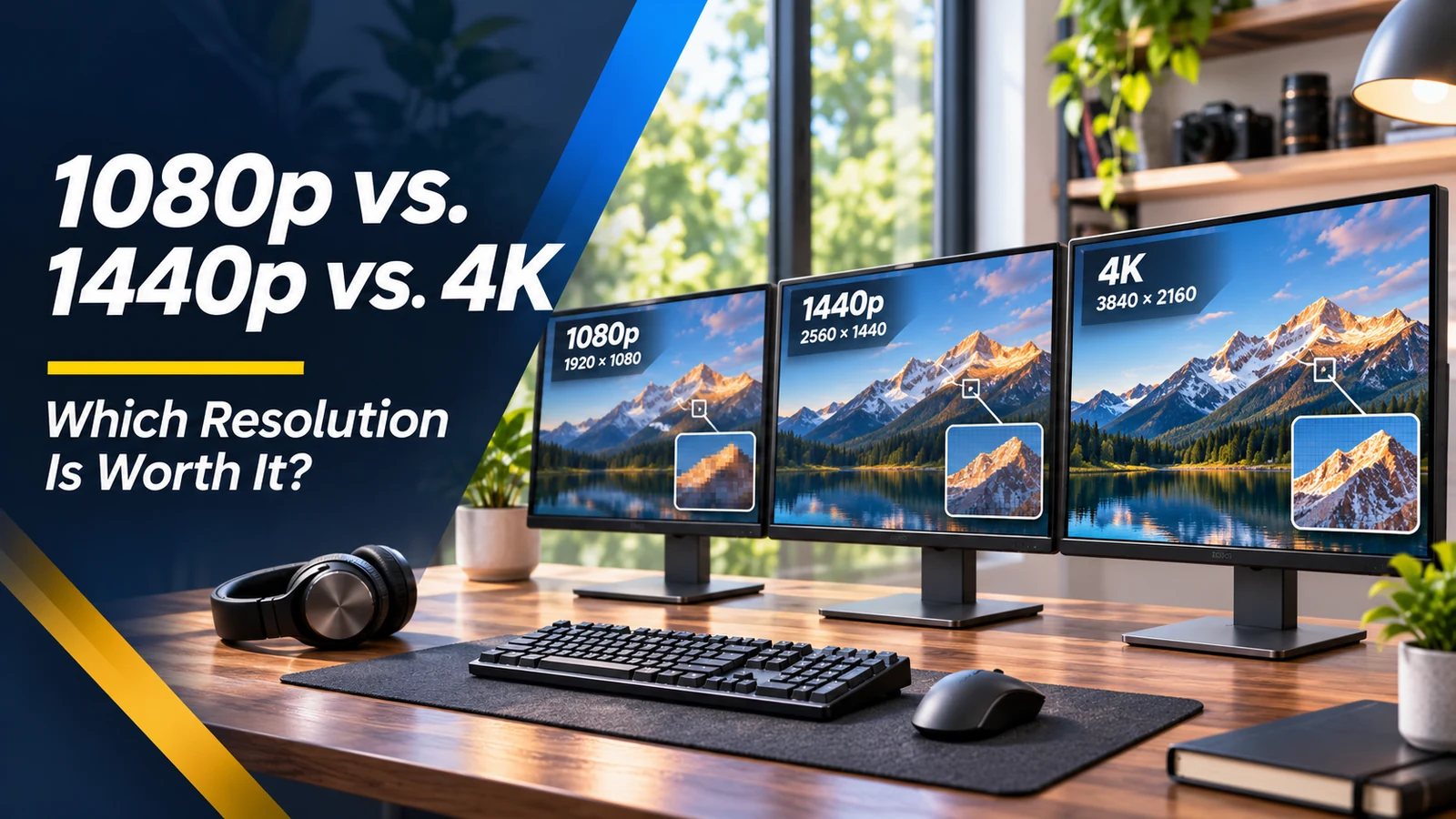
A monitor's resolution is one of the easiest specifications to compare and one of the easiest to misinterpret. Full HD (1080p), QHD (1440p) and 4K UHD all describe different pixel counts, but whether you notice the difference depends on screen size, viewing distance, scaling and what you do. A 4K label alone does not guarantee a better experience if the panel has poor contrast, limited brightness or the wrong ports. Here's how to choose based on daily use rather than chasing the largest number.
The pixel numbers behind the labels
A standard 1080p monitor shows 1920 by 1080 pixels, or about 2.1 million. A common 1440p monitor shows 2560 by 1440, about 3.7 million. A 4K UHD screen shows 3840 by 2160, about 8.3 million. More pixels can make text, photos and fine lines appear sharper, but the difference is spread over the monitor's physical dimensions. A 27-inch 1440p screen often strikes a comfortable balance of workspace and clarity for general use.
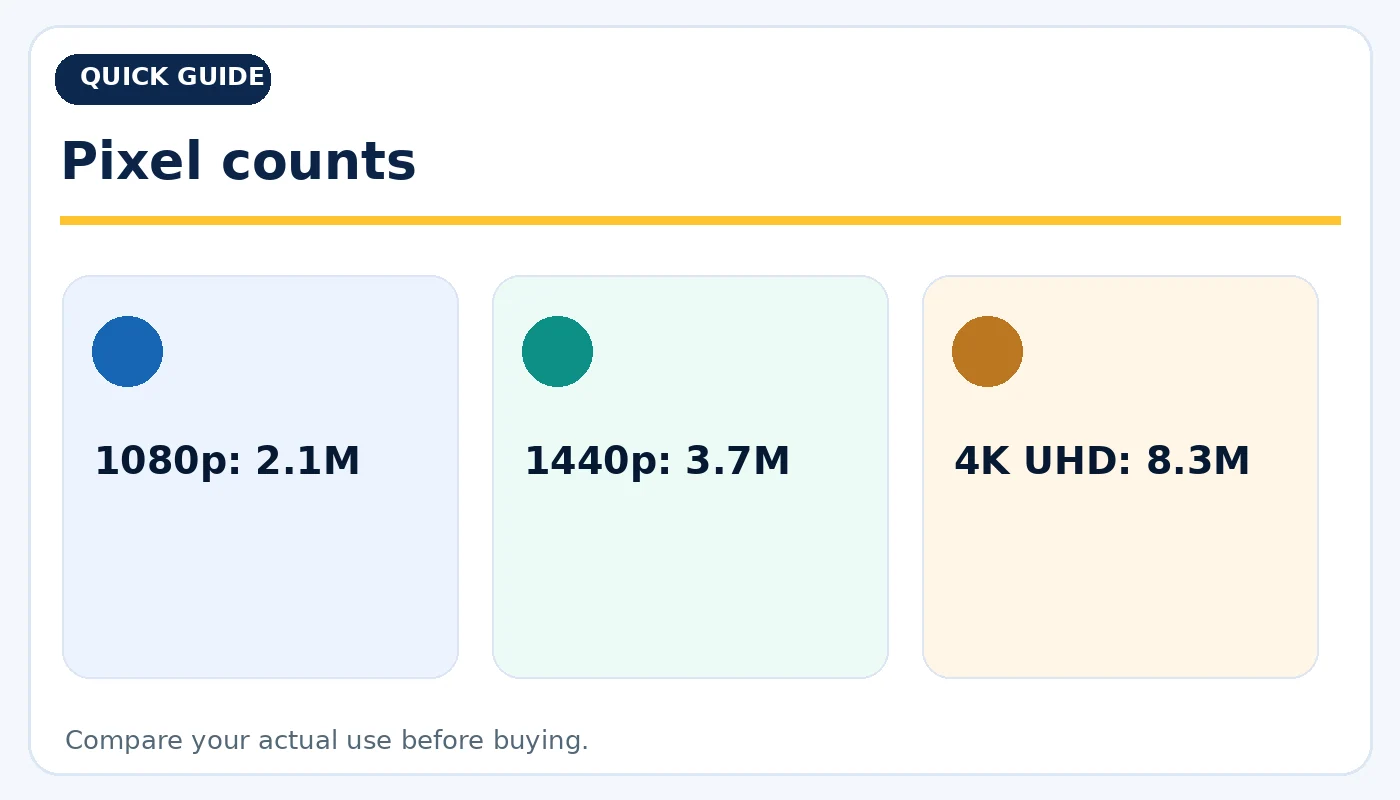
Pixel counts: practical considerations before buying.
Why screen size changes the recommendation
Pixel density affects how smooth lettering looks. A 24-inch 1080p monitor may be comfortable for a basic desk, while stretching 1080p across a larger screen makes individual pixels more obvious at the same distance. On a 27-inch display, 1440p provides extra room for documents and timelines. A 27- or 32-inch 4K monitor gives especially crisp text and detailed imagery, but some interface elements will look tiny unless you enable scaling. Try the real viewing distance before judging.
Workspace and operating-system scaling
A higher-resolution monitor can fit more content, but the practical usable space depends on operating-system display scaling. At 4K, using 150% or 200% scaling makes icons and text comfortable while still improving visual smoothness. Check whether your favorite older apps handle scaling well. For dual monitors, mixing different resolutions and scaling settings can take a little adjustment. If you primarily use spreadsheets, side-by-side documents or code, prioritize readable text and ergonomics over the raw pixel count alone.
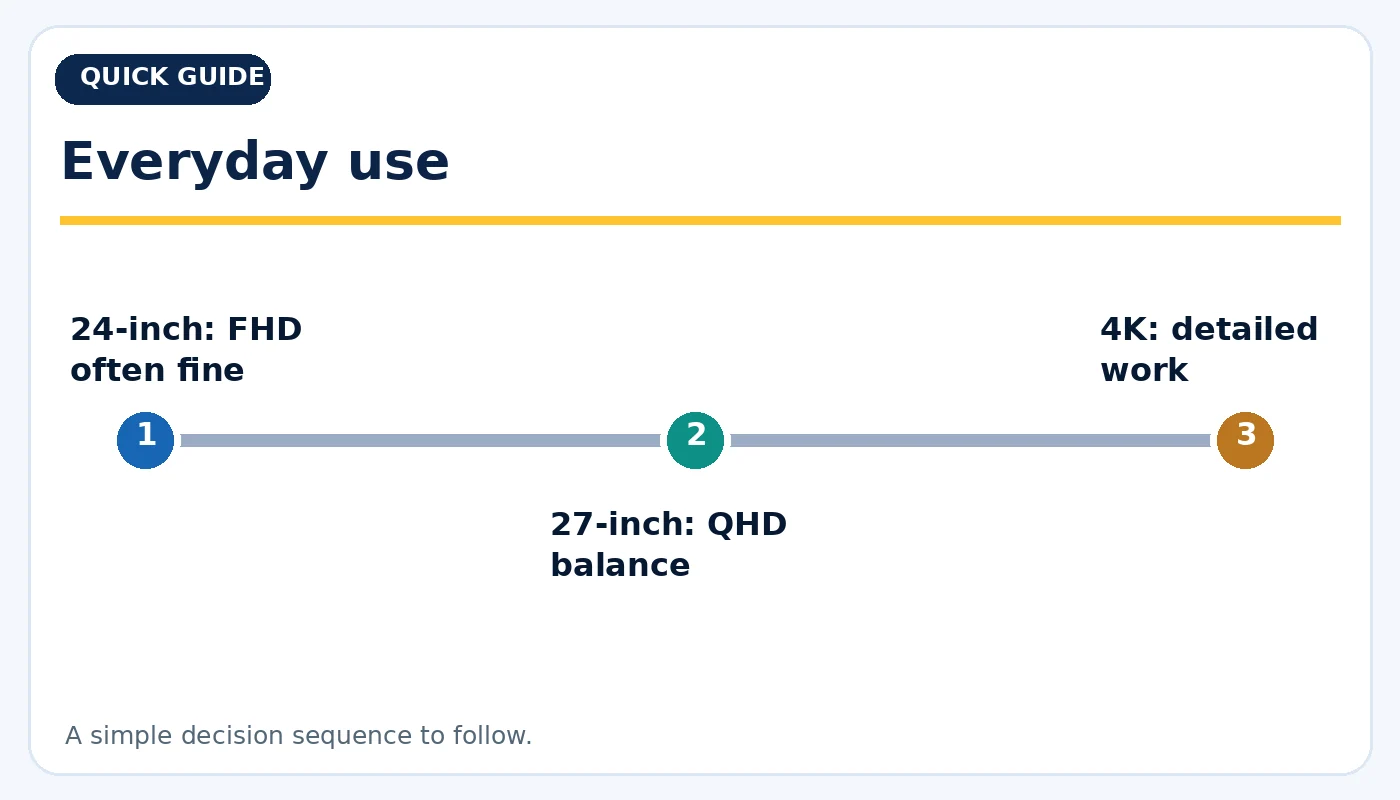
Everyday use: practical considerations before buying.
What gamers should know about performance
More pixels mean more work for the graphics card. At native 4K resolution a game draws about four times the pixels of 1080p; maintaining the same frame rate can require a significantly stronger GPU, although performance varies by title and settings. This is separate from refresh rate, which determines how many updates the panel can show per second. Some players prefer 1440p at higher frames per second over 4K at lower frames per second. Match the monitor to the GPU and the games you play.
Creative work: color matters as much as pixels
Photographers and video editors benefit from resolution, but also need consistent color, suitable brightness and a panel that can be calibrated when accuracy matters. A basic 4K display may look sharper than a good 1440p screen yet deliver worse color consistency. Examine the stated color gamut, panel type, uniformity and available input formats. HDR marketing labels deserve scrutiny; support for an HDR signal is not the same as genuinely high dynamic-range performance. Consider budget for calibration tools or an external reference display.
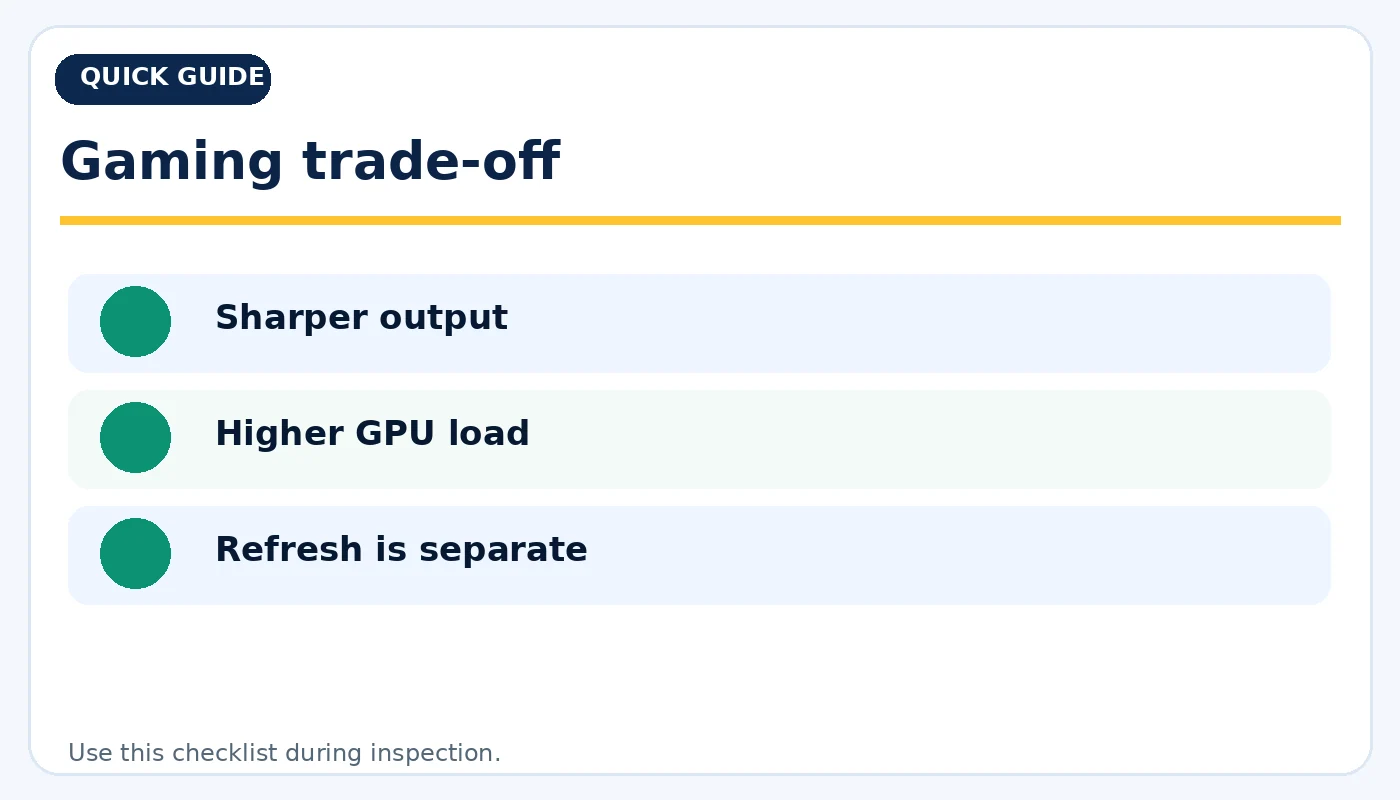
Gaming trade-off: practical considerations before buying.
Ports, cable and refresh-rate compatibility
Confirm the monitor's HDMI and DisplayPort capabilities and what your laptop or graphics card can output. Some older devices cannot drive a new 4K screen at the desired refresh rate. USB-C on a laptop may support data only, video, or video plus charging; its shape does not establish the features. If using a dock, bandwidth is shared across displays and accessories. Ask for the exact display model and supported connection modes when buying a used monitor.
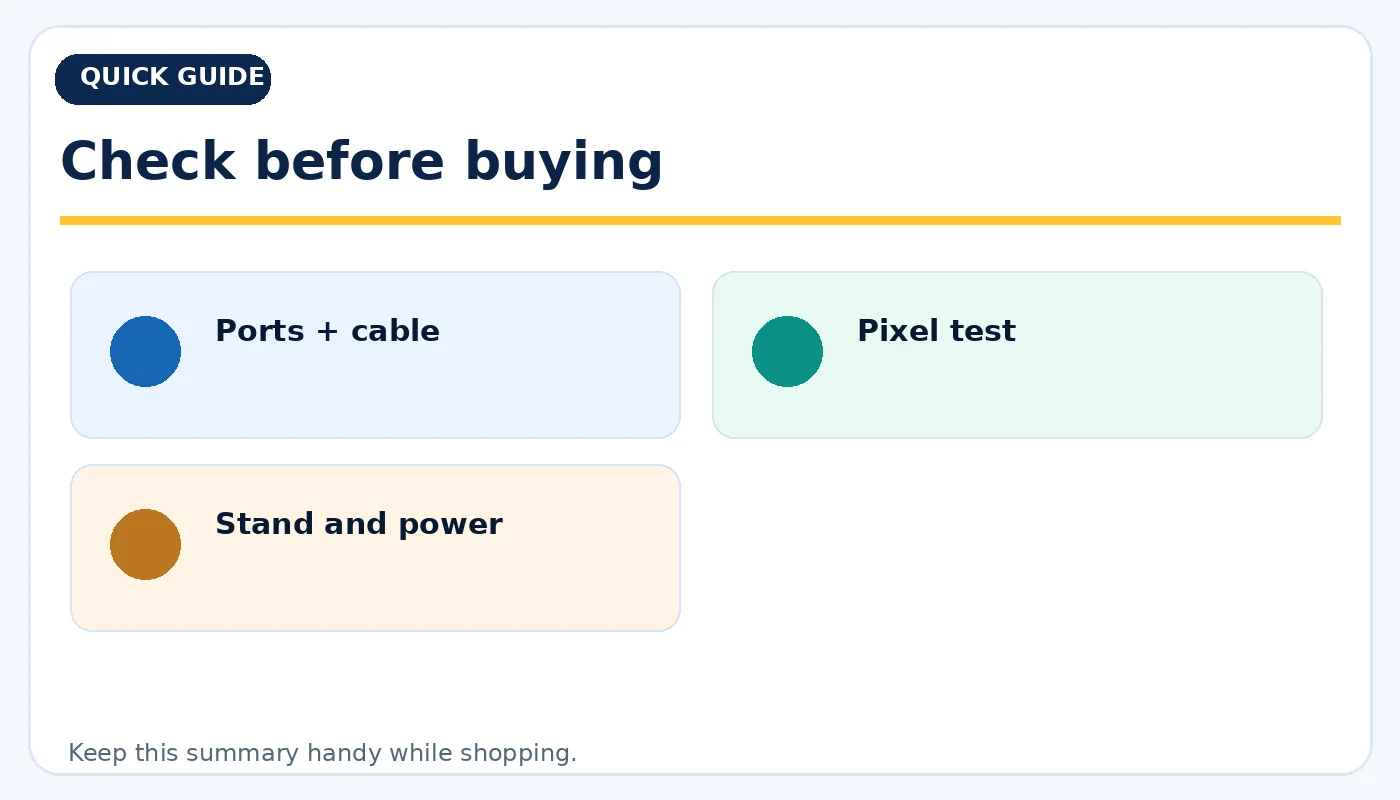
Check before buying: practical considerations before buying.
Buying a used monitor: test the panel
Inspect the screen on bright, dark and uniform gray backgrounds for dead pixels, bright spots, damage, image retention or uneven backlight. Check stand adjustment, VESA mounting, included power adapter and cable. Confirm the native resolution and advertised refresh rate in the monitor's on-screen menu and on the computer. A clean 1440p monitor that fits your desk can be a better purchase than a scratched 4K display whose benefits you cannot use.
Quick buying checklist
- 1080p: 2.1M
- 1440p: 3.7M
- 4K UHD: 8.3M
- 24-inch: FHD often fine
- 27-inch: QHD balance
- 4K: detailed work
- Sharper output
- Higher GPU load
- Refresh is separate
- Ports + cable
- Pixel test
- Stand and power
Frequently asked questions
Is 1440p good for a 27-inch monitor?
Yes. It is a popular balance of usable space, image clarity and gaming performance.
Will 4K make every game look better?
It can improve detail, but performance, game settings and upscaling support affect the actual result.
Is refresh rate the same as resolution?
No. Resolution is the pixel count; refresh rate is how often the display updates the image.
Explore related tech at TamDo.us
Ready to compare real listings? Shop monitors or browse more News & Guides. Listings change frequently; check each item’s condition, included accessories and availability before ordering.