
You bought a monitor, found a cable that fits your laptop, and expected a picture. Instead, the display says “No signal.” The problem might not be the monitor at all. Modern laptop ports can look identical while supporting different combinations of video, data, and charging. Learning a few terms can save you from purchasing the wrong adapter or docking station.
1. HDMI: a familiar display connection
HDMI is common on televisions, projectors, and many monitors. If your laptop and monitor both have compatible HDMI ports, a suitable HDMI cable is usually a straightforward choice. The display resolution, refresh rate, HDR behavior, and audio capabilities depend on the actual port versions and both devices, not just the fact that the connector fits.
If the screen is black, select the correct input on the monitor and confirm that Windows or macOS recognizes the display. Remember that inexpensive adapters and older cables may limit the resolution or refresh rate you can achieve.
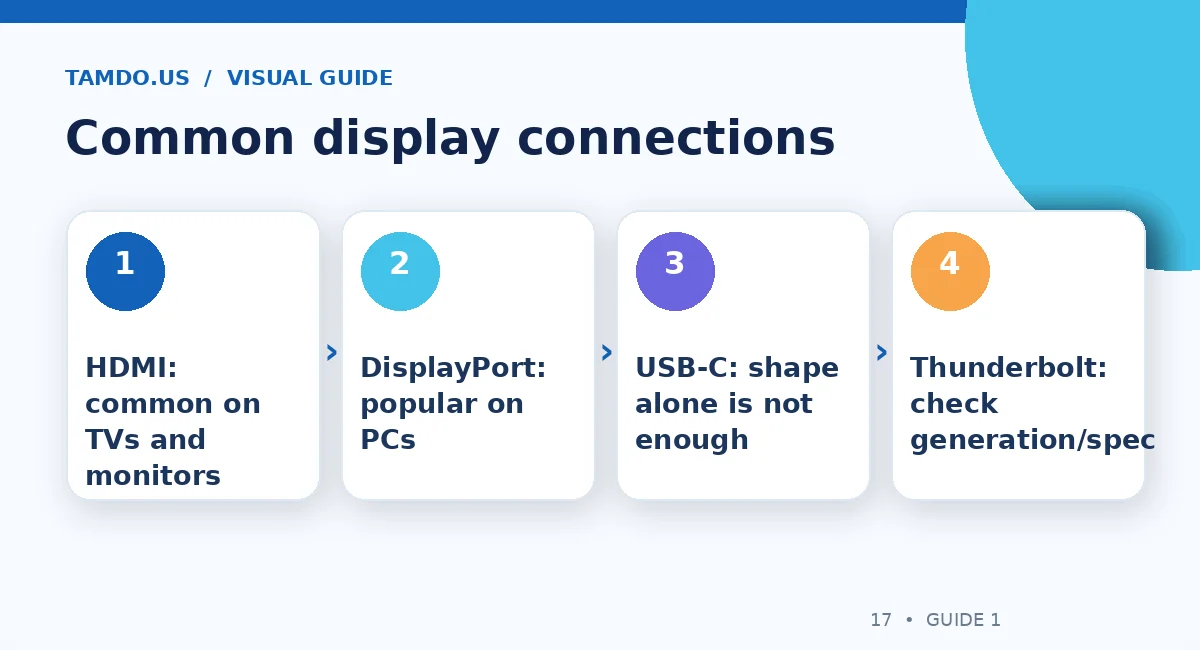
Common display connections — original educational illustration created for TamDo.us.
2. DisplayPort: a strong option for computer monitors
DisplayPort is widely used on desktops, graphics cards, gaming monitors, and professional displays. Like HDMI, its exact performance depends on device capabilities and the cable. DisplayPort can also travel through a compatible USB-C connector using DisplayPort Alternate Mode, often called DP Alt Mode.
A common mistake is assuming any USB-C-to-DisplayPort cable must work. The laptop's USB-C port must actually support video output through the appropriate mode. The VESA DisplayPort organization recommends checking product documentation and recognized port markings.
3. USB-C describes the connector—not every feature
USB-C is a small, reversible connector shape. On one laptop it might handle charging and data; on another, it might also output video; on a third, its functions may be more limited. A USB-C port does not automatically guarantee external-monitor support. Read the exact laptop specification, paying attention to DisplayPort Alt Mode, USB4, or Thunderbolt capabilities.
For a USB-C display, you also need a cable and monitor that support the required video mode. A cable sold for charging a phone is not necessarily the right choice for high-bandwidth video. Some inexpensive USB-C hubs lack video support even when a similarly shaped docking station does support it.
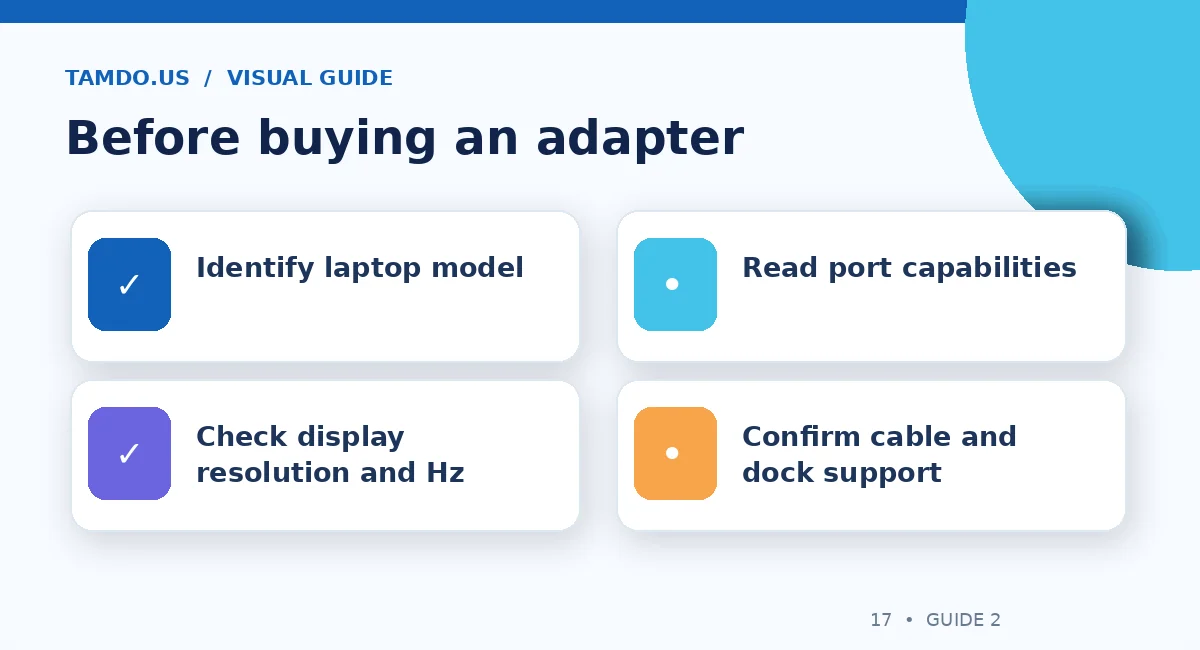
Before buying an adapter — original educational illustration created for TamDo.us.
4. What Thunderbolt adds
Thunderbolt is a higher-capability connection technology with requirements that differ by generation. Supported devices can combine high-speed data, video connections, and other functions over a compact port. However, a Thunderbolt dock still must be matched to the host laptop, the number of displays, and the display resolution and refresh rate you plan to use.
Check the laptop's official technical specifications and the dock maker's host compatibility list. Mac and Windows systems can differ in external-display limits, and some laptops support fewer monitors than the dock physically has connectors for. More ports on a dock do not create extra display pipelines in a computer that does not support them.
5. How to connect two monitors correctly
Start with your laptop's maximum supported display count. Then list the inputs available on each monitor. If you are using Windows, connect the displays and open Settings > System > Display. Choose Identify to match the numbered screens with their physical positions, and select Extend if you want extra desktop space. Windows also offers Windows + P for display-mode selection.
If a monitor is missing, use Detect where available, check the selected input, and try a known-good cable. Do not repeatedly buy new adapters before checking whether the laptop's port supports video output. On macOS, use Displays settings and the model-specific external-display documentation.
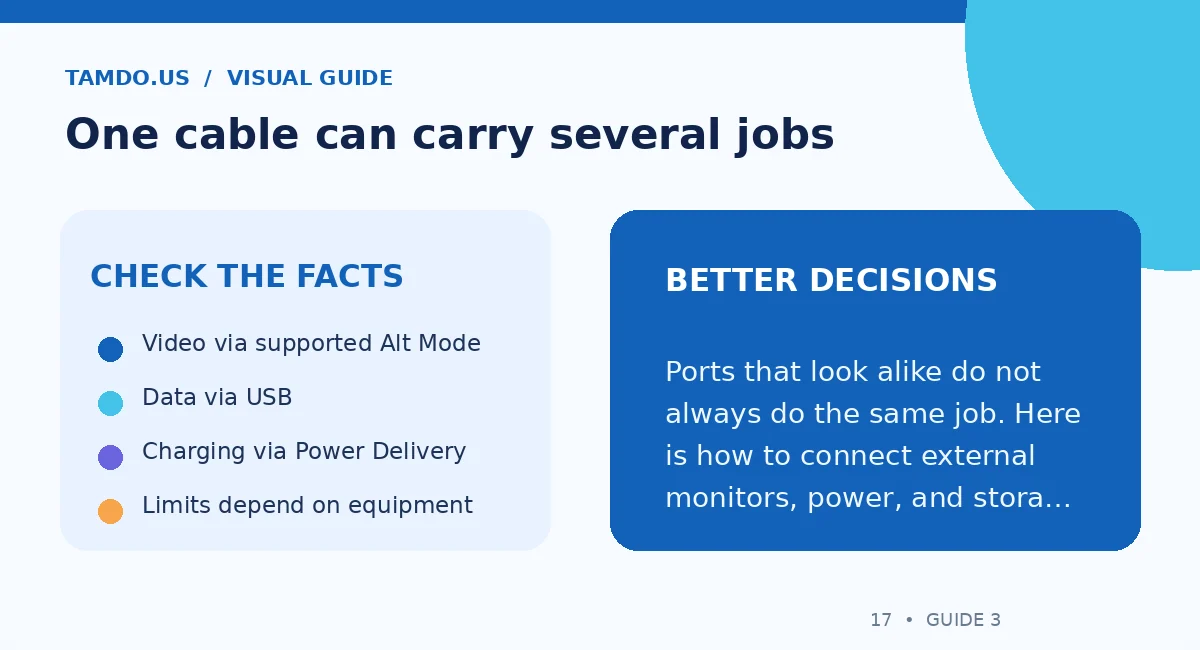
One cable can carry several jobs — original educational illustration created for TamDo.us.
6. Charging through USB-C is a separate issue
USB-C Power Delivery can charge supported laptops, but the charger, cable, and laptop need compatible power profiles. A 30W phone charger is unlikely to deliver the same performance as a laptop's specified 65W, 90W, or higher-power adapter. Some computers only charge through certain USB-C ports, while others have proprietary charging connectors.
A USB-C monitor may supply power back to a laptop, creating a tidy one-cable desk setup. Before relying on this, confirm the monitor's available charging wattage and whether it meets your laptop's needs under load.
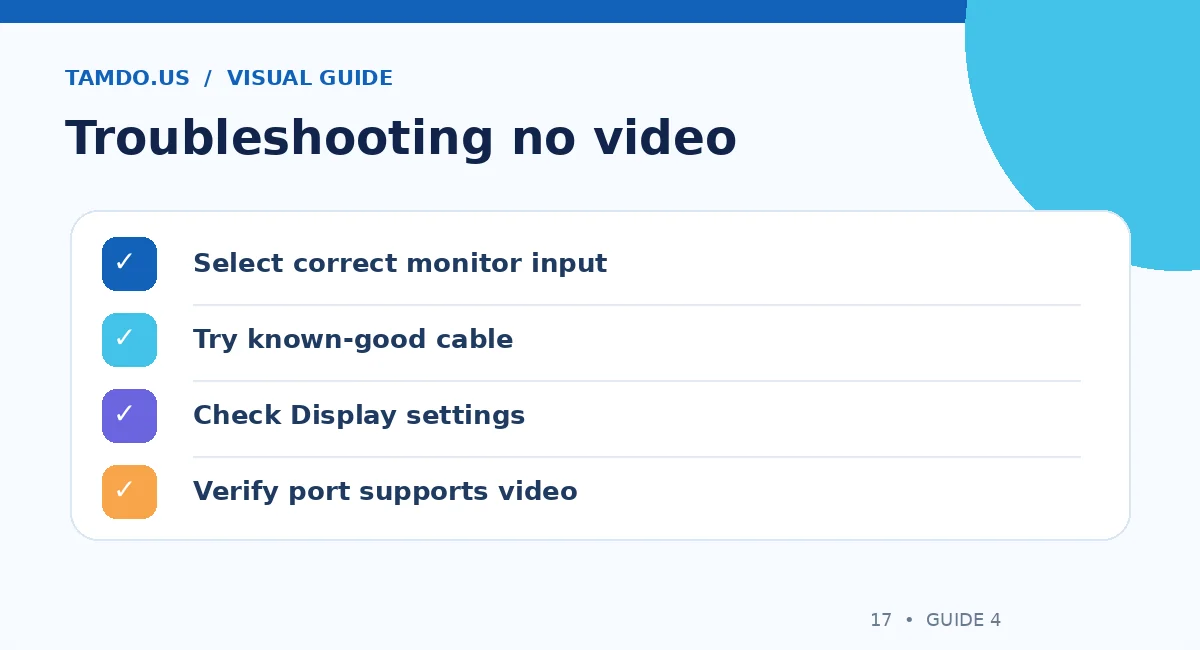
Troubleshooting no video — original educational illustration created for TamDo.us.
7. Buy the monitor, cable, and dock as a system
A monitor advertised as 144Hz may be limited to a lower refresh rate through certain inputs or adapters. A dock may share bandwidth between video and data. A cable may be technically compatible but too limited for the display mode you want. Read specifications for all three parts together.
Explore monitors, computer cables, and docking accessories at TamDo.us, then confirm the exact model numbers before ordering. If uncertain, asking about one real laptop and one real monitor is far better than buying a generic “works with everything” adapter.
Final takeaway
The connector's shape is only the beginning. Verify video capability, the required display mode, charging needs, and host limits before you spend money on cables or docks.
Frequently Asked Questions
Does every USB-C port support a monitor?
No. The host port must support a suitable video mode or another compatible display solution.
Can an HDMI cable carry sound?
Yes, when supported by the devices and their audio settings.
Why does my dock have two HDMI ports but only one display works?
The laptop or dock may have host, bandwidth, or display-count limitations; verify both specifications.