
- 1. What is monitor refresh rate?
- 2. Compare 60Hz, 144Hz and 240Hz without the hype
- 3. Resolution matters just as much as refresh rate
- 4. Your PC decides whether high refresh rate pays off
- 5. HDMI versus DisplayPort: why cables matter
- 6. Buying a used monitor? Check more than the refresh rate
- 7. A simple recommendation by type of buyer
You are shopping for a monitor and three numbers keep appearing: 60Hz, 144Hz and 240Hz. A bigger number sounds better, but is it worth paying more if you mostly browse the web, edit spreadsheets or play a casual game after work?
The answer depends on two things: how much motion smoothness matters to you and whether your computer can send enough frames at the resolution you want. Let us make the decision practical instead of getting lost in marketing terms.
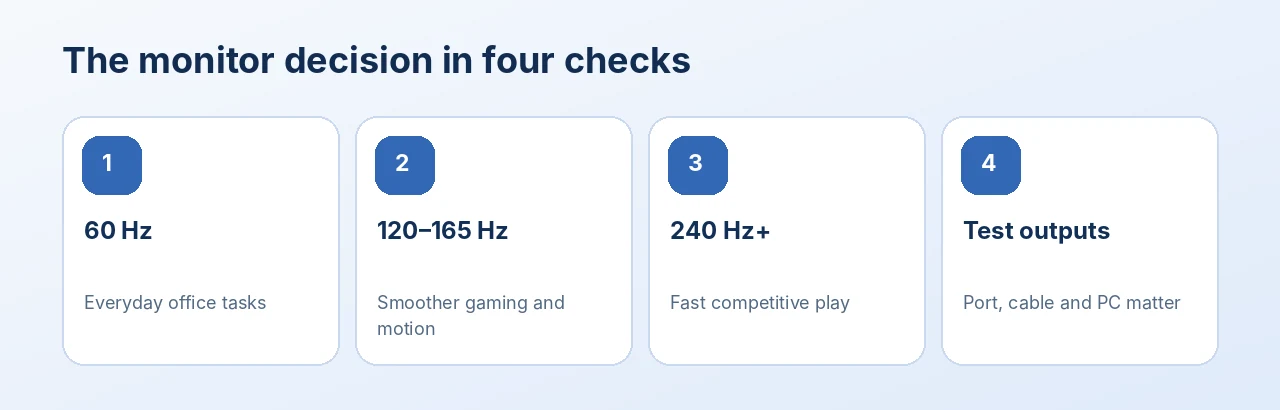
Illustration: an editorial quick-reference guide, not a device settings screenshot.
1. What is monitor refresh rate?
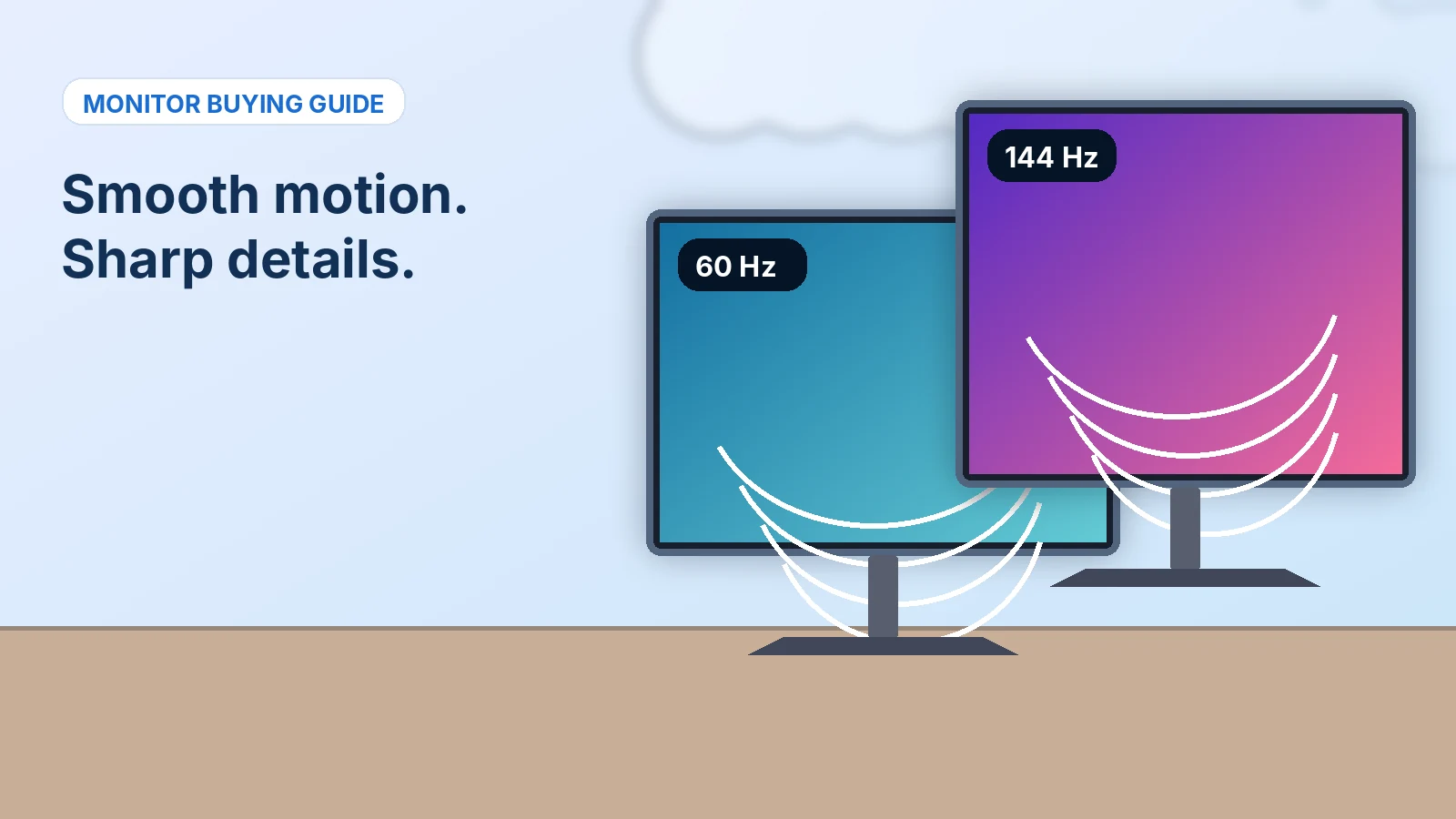
Refresh rate is how many times the display can update its picture per second. A 60Hz screen can refresh up to 60 times each second; a 144Hz screen up to 144 times; a 240Hz screen up to 240 times. All else being equal, higher refresh rates make fast motion and scrolling feel smoother.
Refresh rate is not the same as frames per second (FPS). FPS describes how many new frames your computer or game renders. A 240Hz monitor cannot magically make a game running at 45 FPS become a 240 FPS experience. Your CPU, GPU, game settings and connection all matter.
2. Compare 60Hz, 144Hz and 240Hz without the hype
- 60–75Hz — Office work, email, documents, browsing, basic entertainment. · Focus on resolution, text clarity, panel and connections.
- 120–165Hz — General PC gaming, action games and noticeably smoother scrolling. · Good balance for many gaming PCs if frame rates support it.
- 240Hz and above — Competitive gaming where very high frame rates matter. · Premium pricing and stronger PC performance may be required.
Moving from 60Hz to 144Hz can feel substantial in fast games. Moving from 144Hz to 240Hz can still help, but the difference is less dramatic for many people. If you mostly work in a browser, a crisp, ergonomic 60Hz or 75Hz monitor may be the smarter purchase.
3. Resolution matters just as much as refresh rate
Full HD (1920 × 1080) remains common for budget and esports-focused setups. QHD (2560 × 1440) offers more workspace and sharper detail, especially on many 27-inch displays. 4K (3840 × 2160) can look extremely sharp and useful for detailed work, but high-resolution gaming places more load on the graphics card.
Think about the full combination: screen size, resolution, refresh rate, panel quality and your computer’s capabilities. A high refresh rate will not fix fuzzy text from an unsuitable resolution, and 4K may be unnecessary if you sit far from a smaller screen.
4. Your PC decides whether high refresh rate pays off
Before ordering a gaming monitor, check the frame rates your actual PC achieves in the games you play. If it regularly delivers 120–150 FPS at your preferred settings, a 144Hz or 165Hz display may be a sensible partner. If your game averages 50 FPS, a 240Hz screen offers limited immediate benefit.
Adaptive-sync features such as supported variable-refresh-rate technologies can help reduce visible tearing when frame rates change. Check both the display’s and graphics card’s specific support; do not infer compatibility from the word “gaming.”
5. HDMI versus DisplayPort: why cables matter
Some monitors only reach their advertised maximum refresh rate through a particular input or with certain resolution and color settings. The computer output, cable, adapter and monitor input must all support the desired signal.
For example, a monitor may support a high refresh rate through DisplayPort but offer lower limits through one of its HDMI ports. Another monitor may work fully through HDMI on a compatible system. Check the exact monitor manual and GPU/laptop output specifications—generic assumptions about connector names are not enough.
After connecting it in Windows, open Settings > System > Display > Advanced display and check the selected refresh rate. If the option is missing, inspect the cable, ports, adapter and display settings.
6. Buying a used monitor? Check more than the refresh rate
- Panel: Display solid black, white, red, green and blue screens to look for dead or stuck pixels and uneven patches.
- Physical condition: Inspect the glass, bezels, rear case and input ports for cracks or damage.
- Included stand: Verify whether the original base is present. If a listing says “no stand,” budget for a compatible VESA mount or replacement stand only if the model supports it.
- Input test: Verify the HDMI or DisplayPort connection and choose the monitor’s native resolution and expected refresh rate.
- Power and accessories: Confirm the correct power adapter and video cables included, if any.
- Ergonomics: Consider height adjustment, viewing angle and whether the screen fits your desk.
7. A simple recommendation by type of buyer
For a home office: prioritize a clear IPS or similarly good-quality display, comfortable size, suitable resolution and height adjustment over chasing the highest Hz.
For a student who also games: a 1080p or QHD 120–165Hz monitor can be a practical compromise if their computer supports it and the budget allows.
For an esports enthusiast: investigate 240Hz or higher after confirming the PC can actually generate the frames in relevant titles and settings. Look at latency, panel behavior and adaptive-sync performance too.
Frequently asked questions
Can I use a 144Hz monitor for office work?
Yes. It can make mouse movement and scrolling smoother. Whether that improvement is worth extra cost depends on your budget and priorities.
Will a 240Hz monitor improve a 60 FPS game?
It will not create missing game frames. You need high enough FPS and a compatible display connection to take full advantage of the higher refresh rate.
Do all HDMI cables support 144Hz?
No. The achievable refresh rate depends on resolution, cable capability, the computer’s output and the monitor’s input. Consult model specifications.
Is 27-inch 1080p worse than 24-inch 1080p?
At the same resolution, a larger screen has lower pixel density, so text may appear less sharp at similar viewing distance. Personal preference and desk distance still matter.
Buy the monitor your setup can use
The most expensive refresh-rate number is not always the best value. Balance resolution, smoothness, screen condition, connection support and your actual workload. You can compare available monitors and accessories at TamDo.us, including individual notes about stand and cable inclusion.