
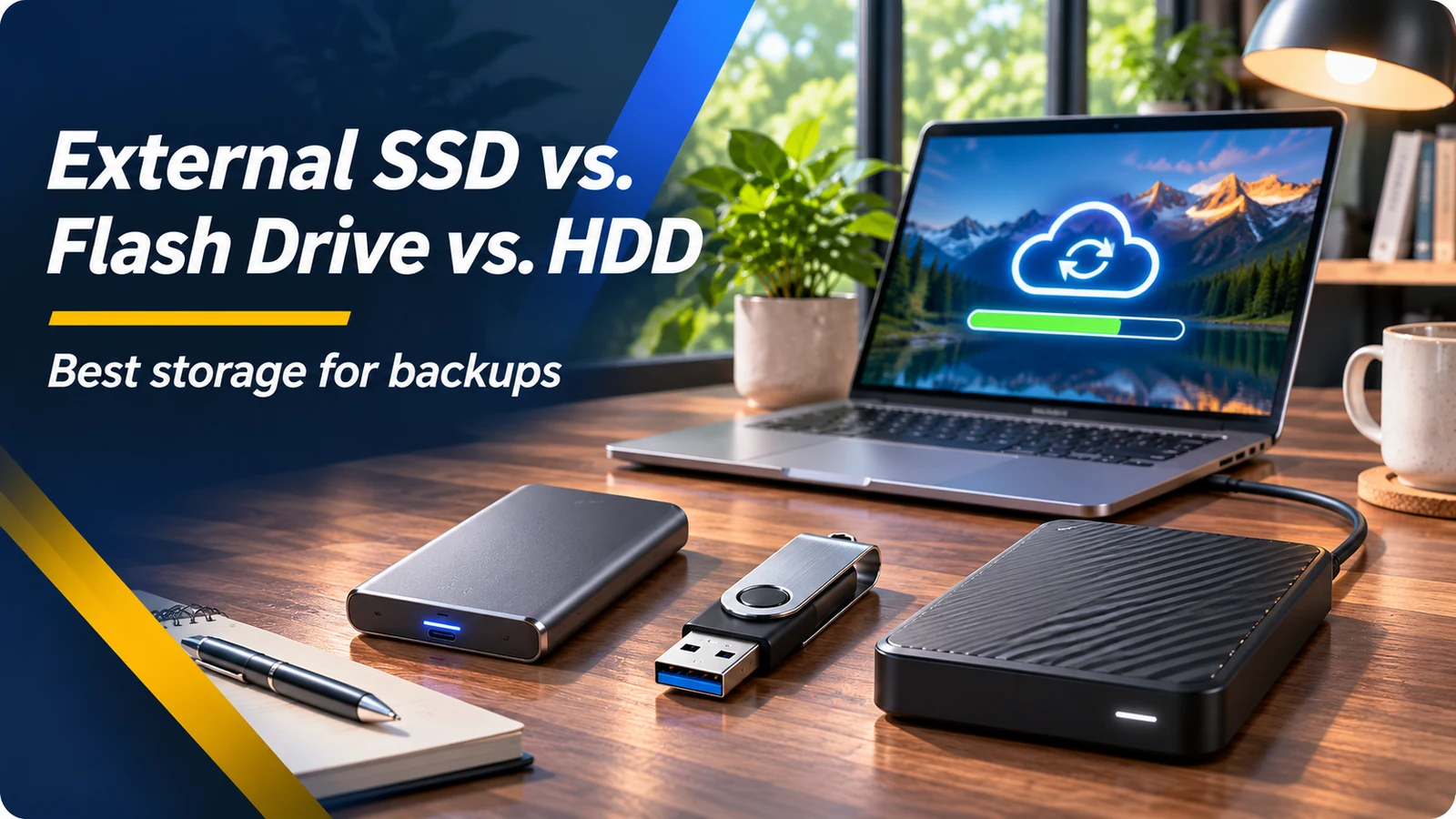
Three devices that store files in different ways
A USB flash drive, an external SSD and an external hard drive can all move files between computers. But they are not equivalent for routine backups. A thumb drive is convenient for small documents or temporary transfers. A portable SSD often provides faster sustained transfers and handles movement well because it has no spinning platters. A traditional external HDD usually offers more capacity per dollar and can be suitable for large photo, video or archive collections.
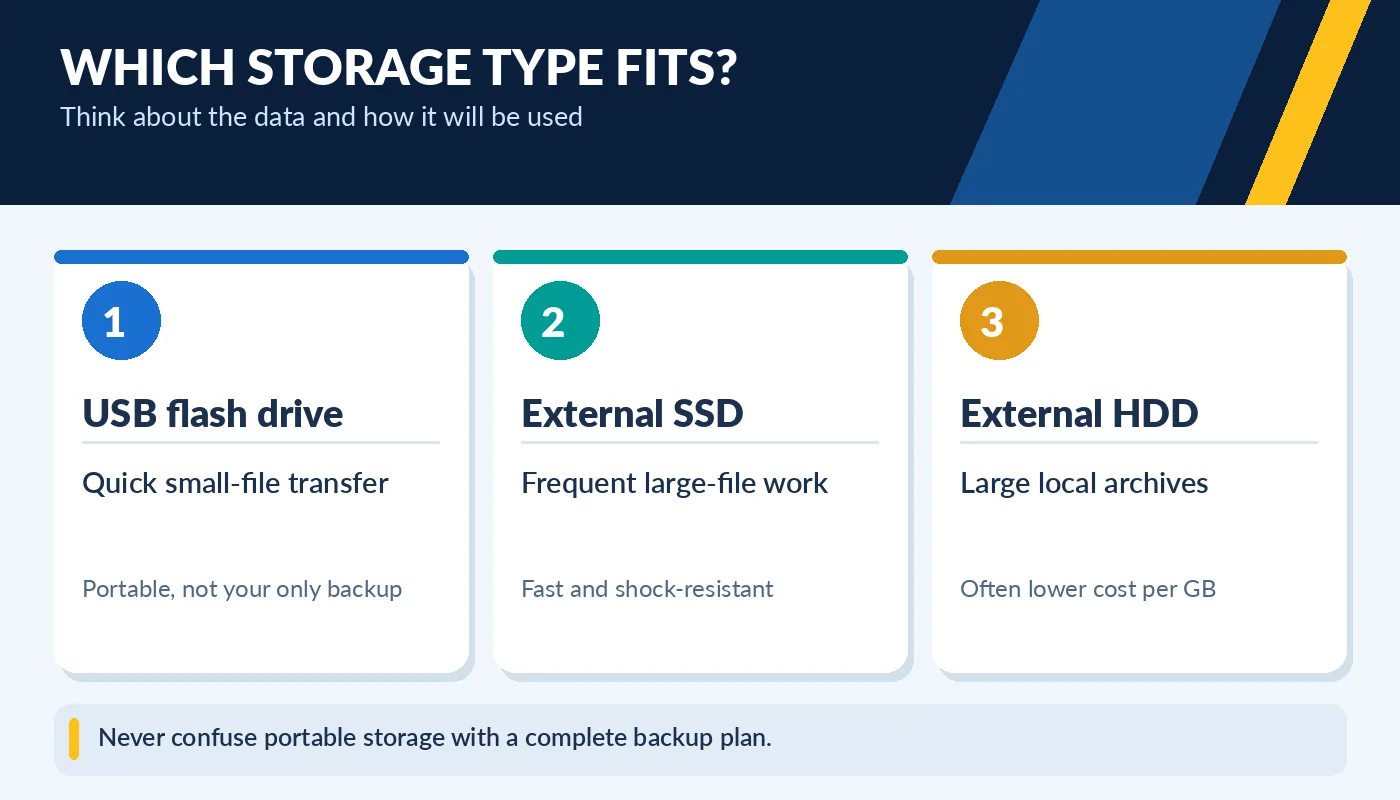
Never confuse portable storage with a complete backup plan.
The actual experience depends on the specific drive, its connection, and the size of the files. A budget flash drive may advertise fast peak reads but slow down considerably during lengthy writes. A portable SSD attached through a slow USB port will not reach its published maximum transfer rate. An HDD is more vulnerable to physical shocks while operating. Choose for how frequently you access the files and the value of your data—not just the largest printed speed.
Why more than one copy matters
A drive with the word “backup” on the box still can fail, be lost, or be overwritten. A useful rule is the 3-2-1 strategy: keep three copies of important data, use at least two types of storage, and store one copy away from your primary location. The precise technology can differ. For example, you might keep photos on a computer, back them up to an external drive, and maintain an off-site or cloud copy.
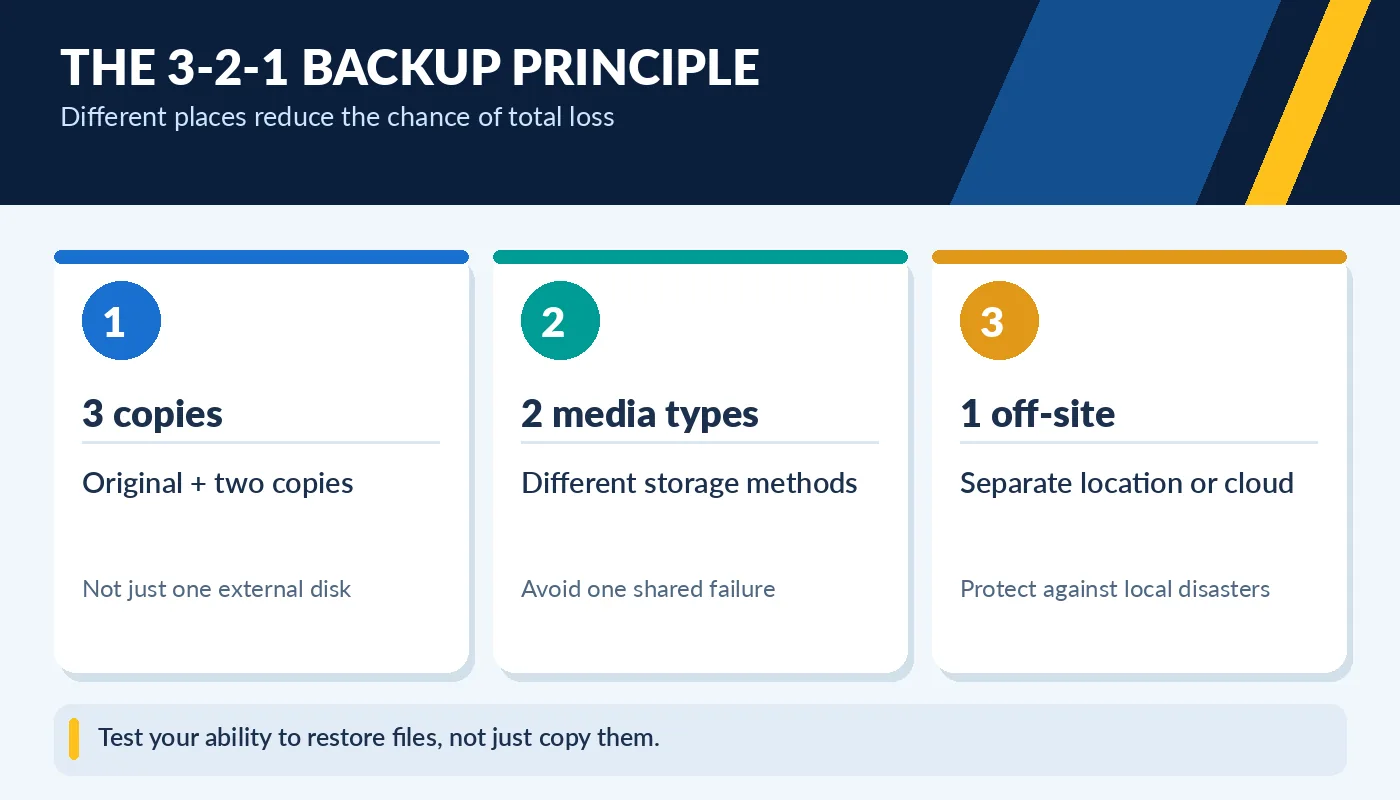
Test your ability to restore files, not just copy them.
A sync service can be helpful, but synchronization is not automatically a historical backup. Accidental deletion or file corruption may also synchronize. Check version history, retention periods, and how restoration works. For business records and family photos, do not wait until a laptop fails to discover that your portable drive contains the only remaining copy. Periodically restore a few sample files to verify the backup.
Connections, encryption and compatibility
Before buying a drive, check the ports on your PC, Mac or tablet. USB-C describes the connector, not necessarily the transfer speed; many devices also accept USB-A with a suitable cable. An external SSD connected through a compatible high-speed port can be convenient for video editing and frequent large transfers, while a basic flash drive can handle occasional assignments. Consider whether the included cable supports the intended data rate.
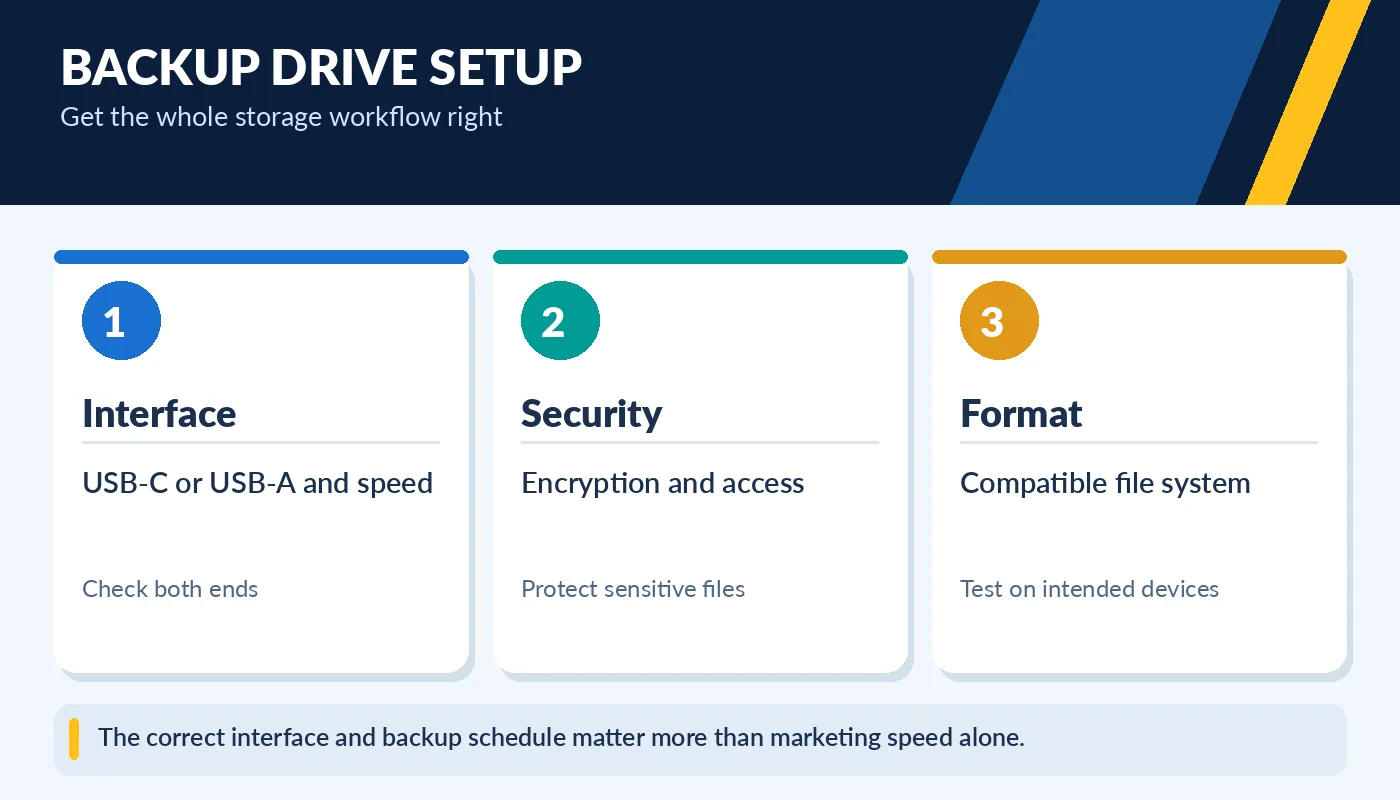
The correct interface and backup schedule matter more than marketing speed alone.
If the drive will hold sensitive personal information, enable an appropriate encryption solution and store recovery information securely. Cross-platform file-system support also matters: some formats are optimized for Windows, others for macOS, while exFAT is often useful for shared file exchange. Always safely eject removable storage when possible. For backups, set up a schedule that you will actually follow.
A purchase decision for home and work
For a student who occasionally carries a few files, a good flash drive may be enough for transfer—but not as the sole storage for assignments. For photographers and remote workers, a portable SSD can make active projects quicker to copy and review. For large libraries that do not need constant access, a high-capacity external HDD may offer cost-effective space when paired with another backup elsewhere.
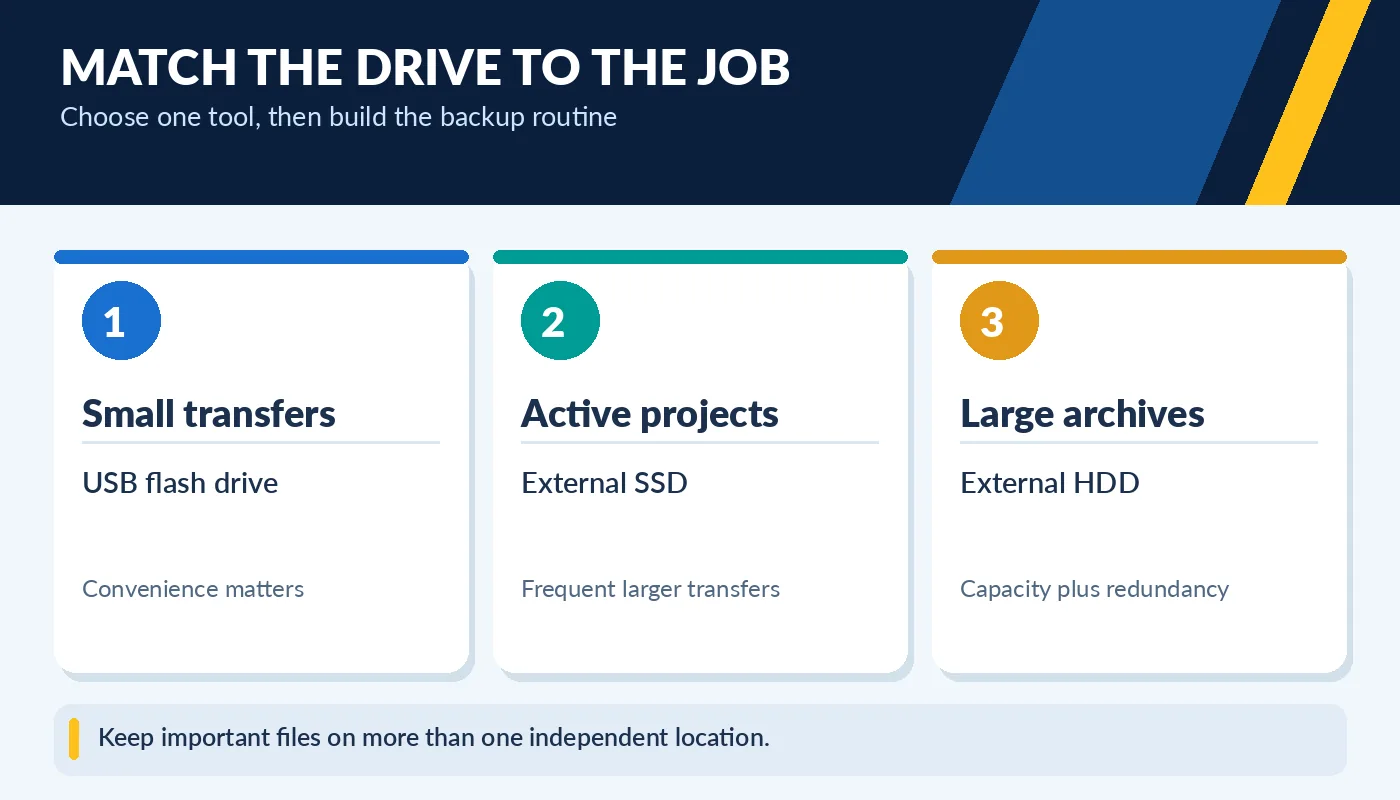
Keep important files on more than one independent location.
For a used external drive, inspect the connector, cable and enclosure. Check reported drive health when supported, and test file transfers before trusting it. Avoid purchasing an unknown used drive as the only place for irreplaceable files. A backup strategy is as much about repeatable habits and independent copies as about which drive is fastest.
Make backups automatic instead of occasional
Many home users own a backup drive but forget to connect it until after something goes wrong. If your operating system offers scheduled file backups, configure a schedule and verify that it completes successfully. Back up photos and documents before major operating-system upgrades, large migrations or hardware repairs. Keep the backup disk disconnected or separately protected when appropriate so accidental changes, malware or physical damage do not affect the only copy.
Label external drives clearly and record what is stored on each one. If you use cloud storage, enable strong account security and make sure your available space is sufficient. For very large photo libraries, an external HDD for bulk archives plus a separate cloud or off-site copy may be economical. For frequent editing, an SSD can be a better working drive while a different medium handles backup. There is no single perfect device; reliability comes from a layered plan.