
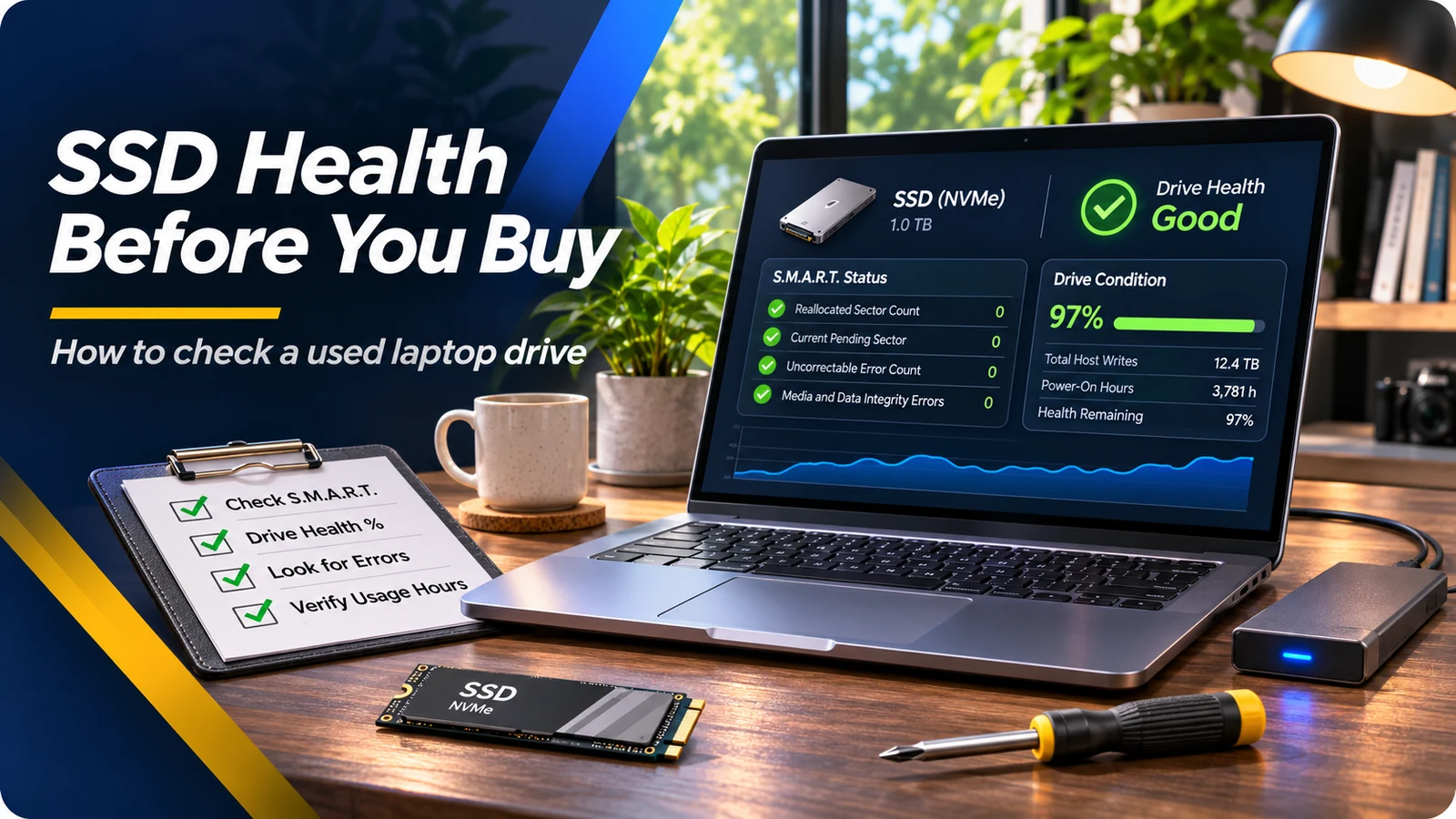
SSD capacity and SSD health are not the same
A listing might say “512GB SSD,” but capacity alone tells you nothing about its condition. Solid-state drives store data in flash memory, and their controllers track various health indicators. Many SSDs can report S.M.A.R.T. information such as usage, temperature, media errors, or a manufacturer-specific remaining-life estimate. These indicators can help you identify warning signs, but they do not predict an exact failure date.
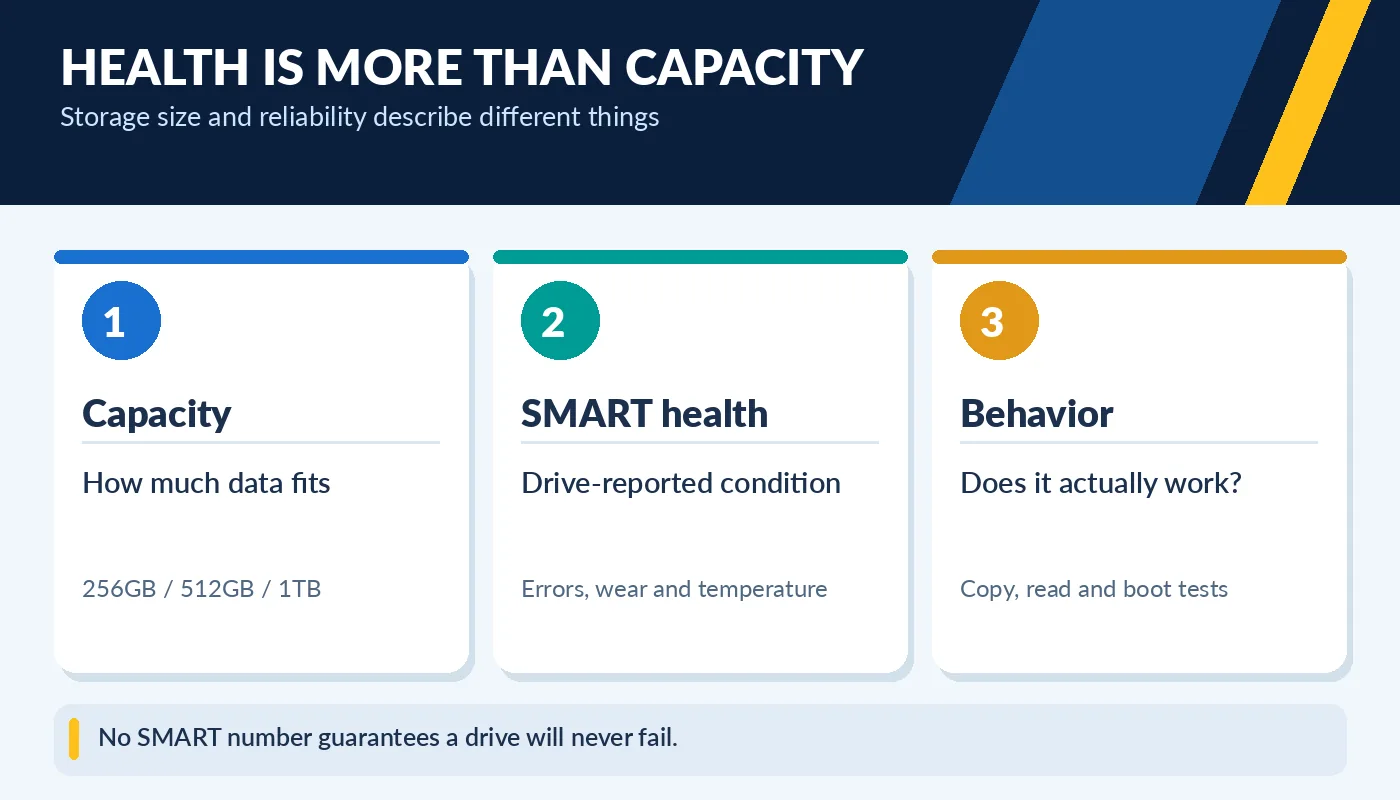
No SMART number guarantees a drive will never fail.
Two drives with the same capacity can have very different usage histories. An older drive may still be operating normally, while a newer drive could be reporting errors. The safest buying approach combines the SSD’s diagnostic information with practical tests, the laptop’s overall operation, and a backup plan. Treat any seller’s percentage as a clue requiring context, not a promise of “years left.”
Where to check drive health on a Windows laptop
First identify the drive model in Task Manager, Device Manager, or System Information. Windows may expose basic storage health information, especially for supported NVMe drives, but the detail varies. A manufacturer’s diagnostic tool can be more informative. Samsung Magician, for example, can show supported Samsung SSD health information, S.M.A.R.T. details and diagnostic options. Use the correct utility for the actual drive; some tools cannot read every OEM or external device.
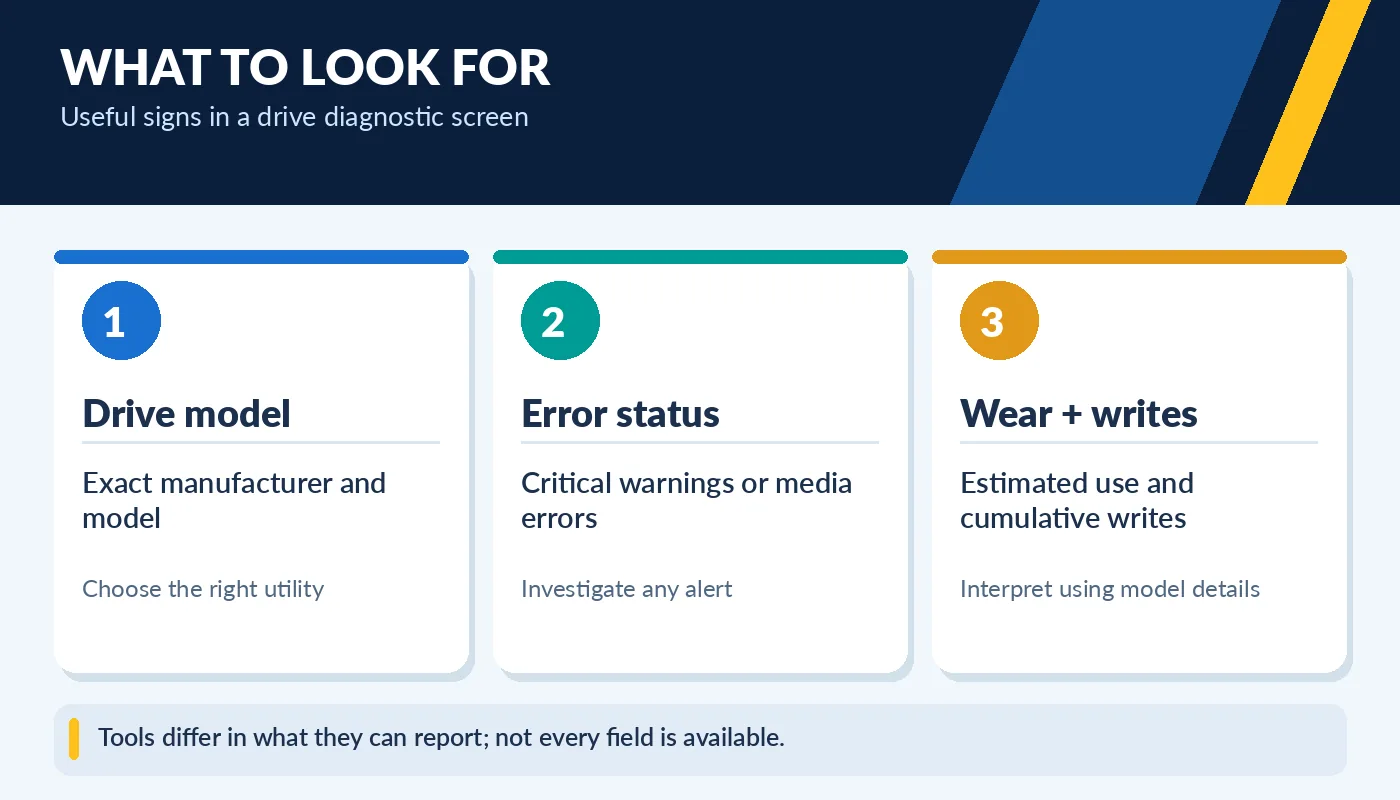
Tools differ in what they can report; not every field is available.
Look for warning states, repeated media errors, abnormal temperature and unexpected instability. Total Bytes Written (TBW in a diagnostic readout) describes recorded data written, while the manufacturer’s rated endurance also may use TBW as a design specification. The two concepts are related but not interchangeable with remaining life. Do not use a single “health %” threshold as an automatic pass/fail rule; investigate concerning values and the drive’s documented specifications.
Test the drive in normal use
A drive status page can look normal even if the system has other problems. Restart the laptop several times and watch for unusually long boot times, recurring storage errors, or spontaneous crashes. Open representative files and, with the owner’s permission, copy a reasonably sized test folder to and from the drive. Watch for repeated I/O failures, not minor speed variation between caches and thermal states.
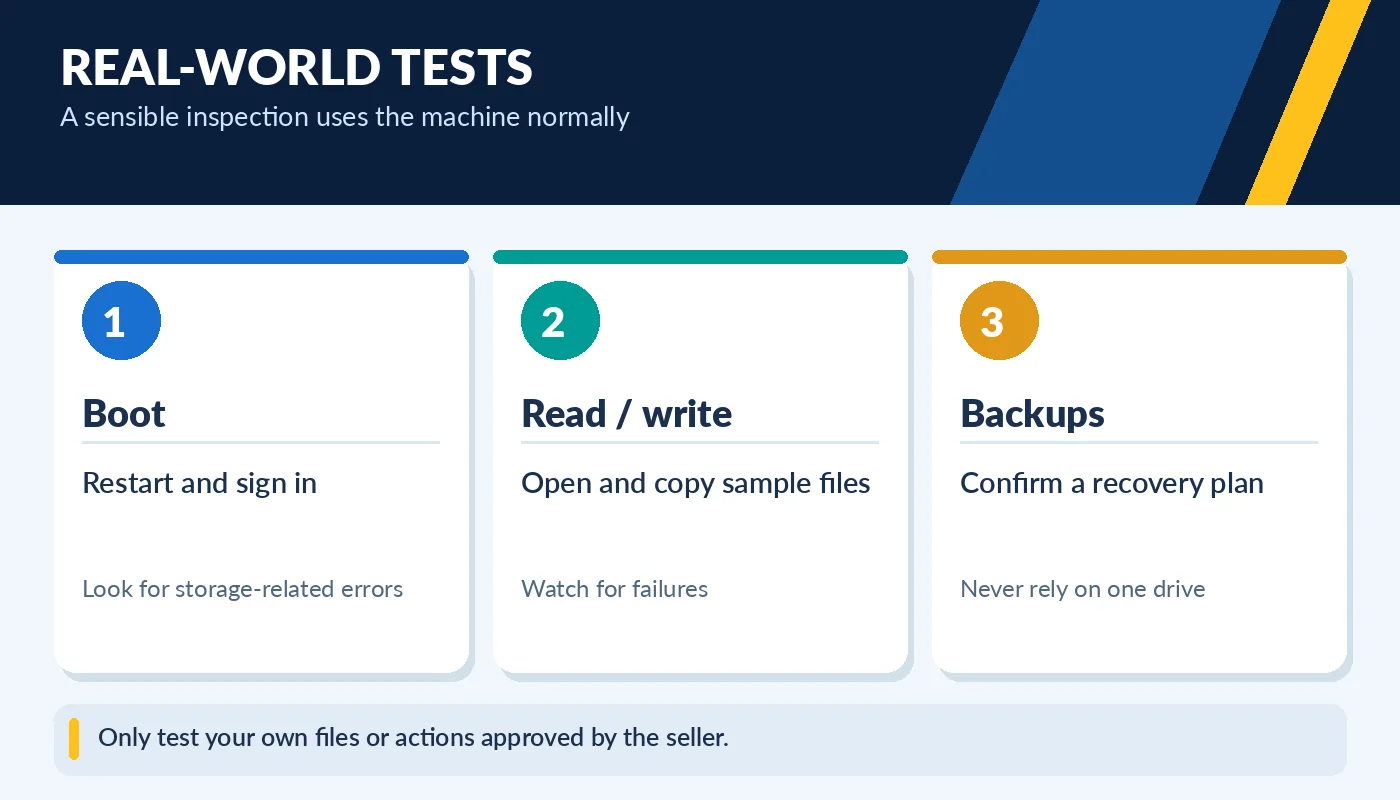
Only test your own files or actions approved by the seller.
Do not run destructive stress tests or secure-erase utilities on a seller’s machine. A full format and SSD firmware update should not be part of an unapproved buying test, because those actions can erase data or create risks. If a drive is already showing signs of failure, the appropriate next action is to back up valuable information rather than repeatedly benchmarking it. Budget for replacement if the laptop is otherwise worthwhile.
When should a used SSD concern you?
Treat critical S.M.A.R.T. warnings, recurring read/write failures, missing drive detection, and unexplained freezes as red flags. A very low reported health score deserves more research, but manufacturers do not all calculate health in the same way. Compare two drives with the same diagnostic method where possible. High usage alone does not always mean imminent failure; the context of wear, error counts and model endurance matters.
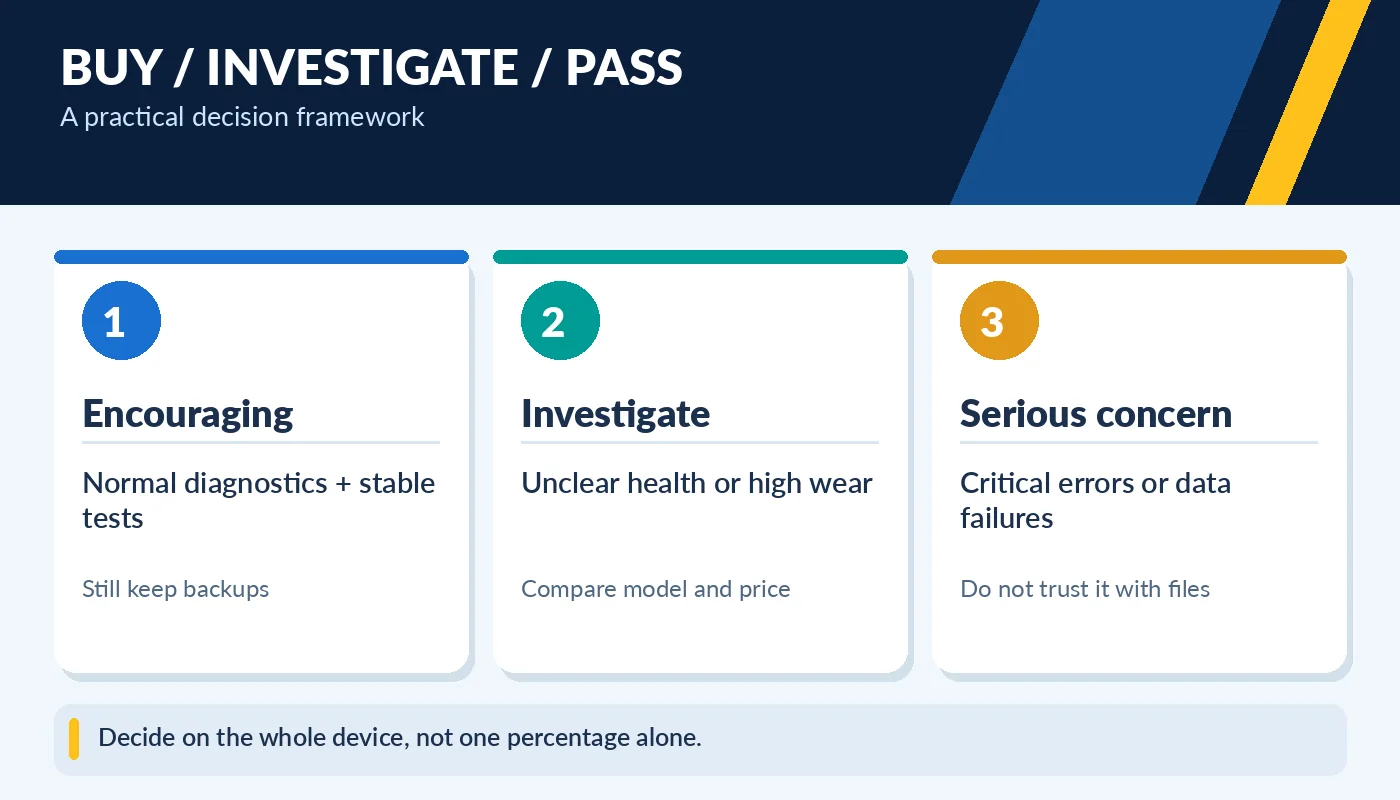
Decide on the whole device, not one percentage alone.
Ask whether the laptop has its original SSD, whether the drive is removable, and whether the price leaves room for an upgrade. Some thin laptops use soldered storage and cannot be upgraded economically. If you buy a good used laptop, configure automatic backups immediately. Drive health tools are helpful for inspection, but copies of your data are what protect you when hardware eventually fails.
What to do after purchasing the laptop
If the SSD passes inspection and you decide to buy, create a fresh backup before moving important work onto it. Keep the operating system, storage driver and firmware updated using the appropriate manufacturer instructions, and maintain enough free disk space for normal operation. A drive that is almost full can feel sluggish during large transfers because many SSDs use spare storage for caching and housekeeping. This is a performance consideration, not a reliable health measurement.
Document the drive model and health information when you receive the laptop, so later checks have a baseline. Do not continuously stress-test the SSD trying to discover its remaining lifespan. Instead, use ordinary workloads and pay attention to new warnings or unexpected file errors. A sensible backup process is the most valuable long-term step: if a drive does fail despite apparently normal diagnostics, your photos, invoices and school assignments remain recoverable.