

Is an iPad only good for watching videos and browsing the internet? Not at all. With the right setup, it can serve as a portable notebook, a planning board, a document-review station and a convenient second screen for certain workflows.
You do not need the most expensive iPad to benefit from these ideas. What matters is finding a model whose software, screen size, storage and accessories support your actual tasks. Feature and Apple Pencil compatibility vary by model and iPadOS version.
1. Turn Notes into your digital class notebook
Open Apple's Notes app and create separate folders for your classes, meetings or projects. Use headings, checklists, photos and sketches to make each note useful later—not just to record what happened.
A simple study method is to write a three-sentence summary at the end of every class, then add a checklist of questions to review. If your iPad supports a compatible Apple Pencil, handwriting and Markup can be especially convenient. Finger-based drawing is an alternative for many basic uses.
2. Scan documents and mark up PDFs
Need to digitize a worksheet, receipt or meeting handout? In Notes, use the attachment menu to scan a document with the camera. Review the crop and page order before saving or sharing it. For existing PDFs, use compatible Markup tools to highlight passages, add notes or sign where supported.
This can reduce paper clutter, but always keep backups of important records and confirm whether your school or employer requires a specific file format.
3. Brainstorm visually with Freeform
Apple's Freeform app gives you a flexible canvas for sketches, photos, notes and idea maps. Use it to plan a class presentation, map a project, arrange research themes or brainstorm with collaborators.
For a group assignment, divide a board into three areas—ideas, decisions and next actions. Move notes between those areas as the project develops. Some collaborative features require supported software, accounts and connectivity.
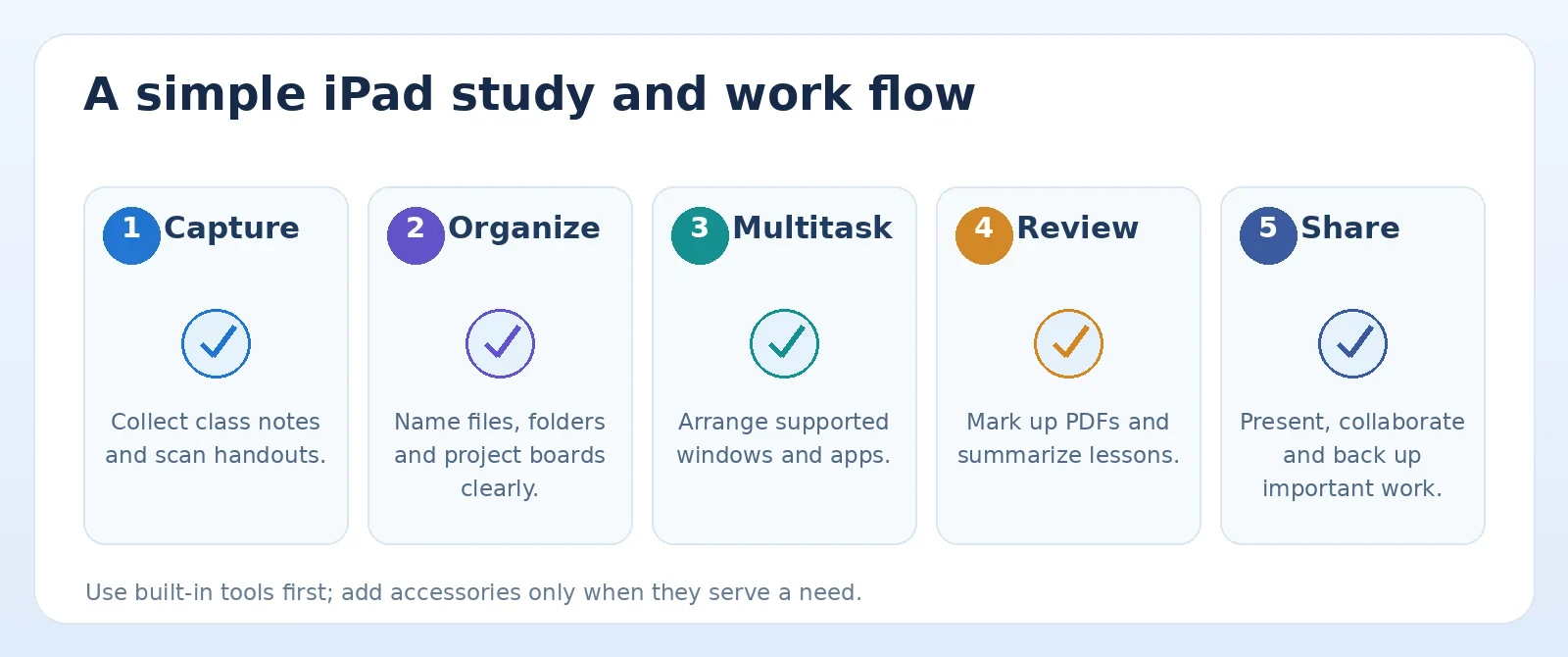
Original TamDo editorial graphic. Illustrations are not screenshots of a specific device or software version.
4. Use multitasking without copying your laptop setup
On compatible models and iPadOS releases, multitasking features let you arrange windows or switch quickly between apps. Apple offers Stage Manager and other windowing options on supported iPads, but the exact controls and supported external displays vary.
Try reading a reference document while taking notes, or keeping a calendar visible while planning a project. If you do not see the expected option, check your model and Settings → Multitasking & Gestures instead of assuming that every iPad supports the same layout.
5. Add a keyboard only when your typing demands it
An external keyboard can make long emails, essays and spreadsheets more comfortable. Before buying a keyboard case, confirm that it fits your exact iPad generation and screen size. A folio designed for one model may not align with another model's camera or connectors.
For occasional messages, the on-screen keyboard may be fine. If you type for hours each day, evaluate the total cost of the iPad, keyboard and accessories against a conventional laptop.
6. Build a simple filing system with Files and cloud storage
Use the Files app to group coursework, work documents and downloads into predictable folders. Choose clear names such as Biology_Lab_Week03.pdf instead of a collection of files called Final2 and Final3.
iCloud Drive and compatible third-party cloud services can help synchronize documents, but sync is not the same as a full backup strategy. Keep a second copy of truly important documents and verify that collaborators have access only to what you intend to share.
7. Create a distraction-light study routine
Try a focused study block: open your notes, activate a suitable Focus mode, set a timer and keep only the necessary apps visible. After the block, write down what you finished and the next action. This creates a useful record of progress, even if you only study for a short period.
Use the iPad as a tool for a specific goal, not as a permanent source of notifications. Many people get more benefit from a consistent routine than from purchasing yet another productivity app.
Before buying a used iPad: five quick questions
- Exact generation: Which iPad, iPad Air, mini or Pro model is it?
- Software: Will your school or work apps run on that model and its supported iPadOS versions?
- Storage: Is the capacity enough for offline files, photos and apps?
- Screen and battery: Are the touch response, charging and physical condition clearly disclosed?
- Accessories and ownership: Does it support the keyboard or Apple Pencil you need, and is any previous owner's Activation Lock removed?
Do not buy an iPad solely because it has the same screen size as a newer model; generation and compatibility often matter more. Compare the exact model number and accessories before making a decision.
Frequently asked questions
Can an iPad replace a laptop for school?
For reading, notes, video calls and many web-based assignments, it may. Specialized desktop applications, complex file workflows and certain exams can still require a laptop or school-managed computer.
Do all iPads support Apple Pencil?
No. Pencil support and the compatible Pencil model vary, so verify the exact match before buying.
Is a used iPad a good choice for students?
It can be, provided the model runs required apps, has enough storage and is sold with clear condition and ownership details.
Find the right device for your needs
Before choosing a pre-owned iPad, check its exact generation, software support, storage, condition and accessory compatibility in the individual listing.
Feature names and availability can change by device model, operating system, region and software release. See the official sources below for current compatibility details.
Explore iPads and other tablets