
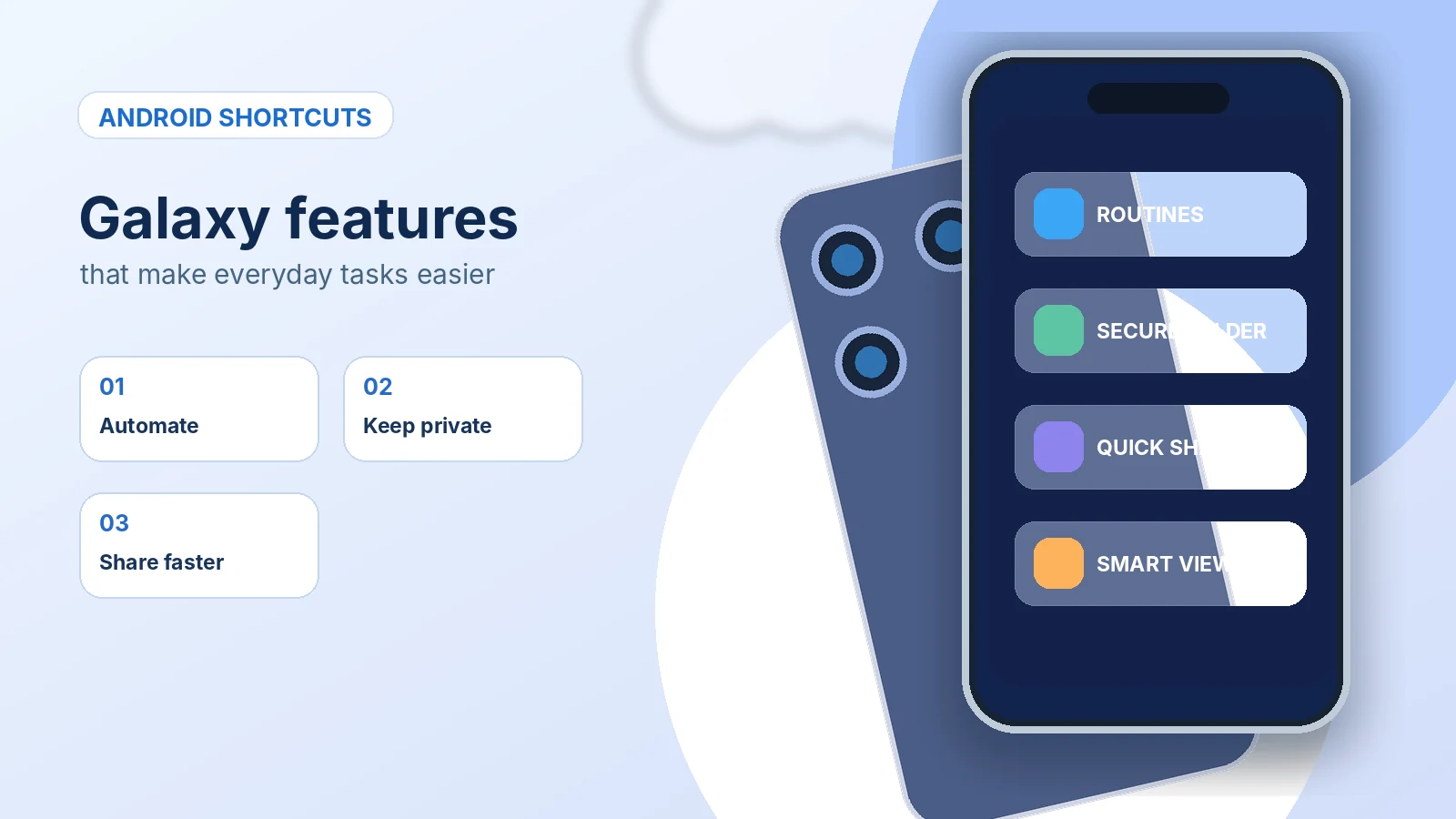
- 1. Create a phone that adjusts automatically with Modes and Routines
- 2. Put sensitive photos and files in Secure Folder
- 3. Transfer photos and documents with Quick Share
- 4. Keep shortcuts one swipe away with Edge panels
- 5. Use split-screen view for real multitasking
- 6. Connect your phone and Windows computer
- 7. Discover Smart View or Samsung DeX for a bigger screen
- Three quick ways to get started today
What if your Samsung Galaxy could silence itself when you arrive at work, protect your private photos behind an extra lock, and turn a compatible television into a bigger screen for your apps? Many Galaxy phones have useful tools already built in. You just need to know where to look.
One important note before we start: Galaxy features vary by model, carrier, Android version and One UI release. Search your phone’s Settings for the feature name if the menu path below looks different. Not every function is available on every Galaxy A, S, Note or Z series phone.
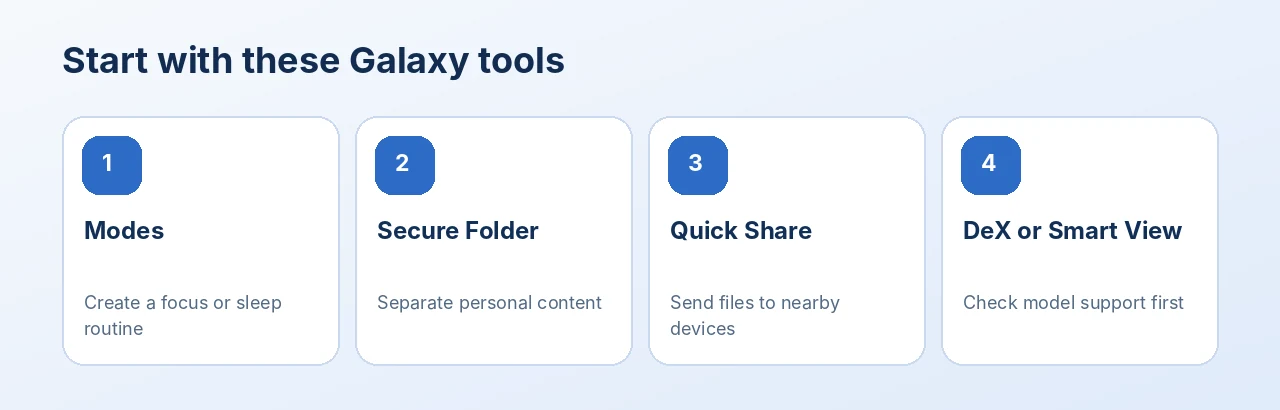
Illustration: an editorial quick-reference guide, not a device settings screenshot.
1. Create a phone that adjusts automatically with Modes and Routines
Imagine your phone automatically turning on Do Not Disturb at bedtime or changing sound settings when you reach the office. On supported devices, open Settings > Modes and Routines. Choose a preset mode or open the Routines tab to create a simple “If this happens, then do that” automation.
A useful first routine is triggered when your home Wi-Fi connects: adjust the sound mode or launch a preferred app. A study mode could silence unnecessary notifications during certain hours. Start with one predictable action and test it rather than enabling a dozen complicated triggers on day one.
Older Galaxy phones may use Bixby Routines or a different location for these controls. Samsung provides model and software compatibility notes in its official guide.
2. Put sensitive photos and files in Secure Folder
Secure Folder provides a separate protected space on supported Galaxy devices. You can use it for personal documents, photos or selected apps that you do not want casually opened when someone borrows your phone.
Look under Settings > Security and privacy > More security settings > Secure Folder on supported recent models. Follow the prompts, choose a strong unlock method and learn how to move items in and out. It is not a substitute for backing up important information or securing your Samsung account.
Do not assume Secure Folder automatically backs up everything. Samsung’s backup and transfer options have changed across versions. Check the current instructions for your device before resetting or replacing it.
3. Transfer photos and documents with Quick Share
Emailing yourself a video is slow and can reduce convenience. Quick Share makes it easier to send eligible files between nearby compatible devices. Open a picture or document, choose Share > Quick Share, then select an available recipient.
Before sending a personal file, check who can discover your device. Settings commonly include controls for your devices, contacts and temporary visibility to others. Availability and cross-platform features depend on device software. For a shared workspace, start with a small file and confirm the correct recipient before sending anything sensitive.
4. Keep shortcuts one swipe away with Edge panels
On supported Galaxy devices, Edge panels provide a slim handle near the side of the display that opens shortcuts to selected apps, contacts or tools. Search Settings for Edge panels, turn it on if available, then move the handle to a comfortable location.
This is particularly handy on large-screen phones when you switch frequently between Messages, Calendar and Notes. Some downloadable Edge panels are no longer offered on newer One UI versions, so focus on the built-in panels available on your device rather than assuming older tutorials will match.
5. Use split-screen view for real multitasking
If your Galaxy supports multi-window, try viewing two compatible apps at once. For example, place a browser above Samsung Notes to reference a recipe or meeting agenda while taking notes. The exact gesture differs by software version, but you can often start through the Recent apps view or by dragging a compatible app in a supported interface.
Not every app allows multi-window, and split-screen is most comfortable on a larger display. The benefit is simple: fewer repeated trips between two apps.
6. Connect your phone and Windows computer
On supported phones, Link to Windows helps bring selected phone features into a compatible Windows PC through Microsoft’s Phone Link experience. Depending on your devices and permissions, you may handle messages, notifications or pictures without reaching for the phone as often.
Look for Link to Windows in your phone settings or Quick settings, then follow the pairing instructions on the computer. Grant only permissions you need, especially on a shared PC. Compatibility and available functions differ by device, region and software.
7. Discover Smart View or Samsung DeX for a bigger screen
Smart View can mirror a supported Galaxy phone’s screen to a compatible television or display. Open Quick settings, look for Smart View and follow the prompts. Your TV and phone typically need to be on the same network, and some protected video content may not mirror.
Samsung DeX is different: certain Galaxy models support a desktop-style experience on a compatible monitor or TV. Do not assume all Galaxy phones support DeX or that older DeX-for-PC instructions work on current One UI releases. Check the official compatibility list for your exact model before purchasing a dock or cable.
Three quick ways to get started today
- For work: Try a single Modes and Routines automation that cuts distractions when your workday begins.
- For privacy: Set up Secure Folder and move one noncritical test file first.
- For convenience: Try Quick Share with a nearby compatible device, then review visibility settings.
Frequently asked questions
Do all Samsung Galaxy phones have Secure Folder?
No. Support varies by model and software. If the option does not appear in the Security and privacy menu, confirm compatibility in Samsung’s support documentation.
Is Samsung DeX available on every Galaxy A phone?
No. Support is model-specific, and the connection method matters. Consult Samsung’s current DeX compatibility list before buying accessories.
Can Quick Share send files to any device?
Supported recipients and methods depend on device software and updates. Check your phone’s current options and recipient visibility before a transfer.
Can these features work on an older used Galaxy?
Some can. Verify the model’s One UI version, available security updates and feature support instead of assuming a feature shown on a new model is present on an older one.
Make more of the phone you already own
Small shortcuts are often more valuable than buying a new accessory. If you are comparing replacement phones, browse available smartphones at TamDo.us, confirm model-specific features and read the individual product description carefully.