

A gaming PC can have three glowing fans and a fancy case yet struggle with the games you actually play. Another desktop may look plain but deliver a much better experience. When shopping pre-owned, understanding the core parts—and the questions to ask about them—is more useful than judging the color of the lights.
Here is a practical checklist for first-time PC buyers, students, casual gamers and anyone considering a secondhand desktop. Performance depends on your specific games, settings, monitor, drivers and complete hardware configuration; no single part number guarantees a fixed frame rate.
1. Decide what you want to play and at what resolution
Make a short list of your most important games, then note whether you will use a 1080p or 1440p monitor and whether you care more about smooth competitive play or detailed visuals. Check each game's current recommended system requirements. A gaming PC suited to esports at 1080p is not automatically a good choice for demanding new titles at high 1440p settings.
Your monitor matters, too. A 60Hz display cannot show the full visual benefit of rendering many more than 60 unique frames per second, although higher rendering rates can still improve responsiveness in some situations.
2. Compare the exact graphics card, not just the brand
For many games, the graphics card or GPU is the primary performance component. The complete model matters: for example, a GeForce GTX 1660 SUPER and a GeForce RTX 4060 Ti are different classes of hardware, even though both are NVIDIA cards. Also consider video memory (VRAM), supported display outputs and power requirements.
Avoid vague descriptions such as “8GB gaming graphics” without a model number. Ask for the exact GPU name, not merely its VRAM amount. Then check independent benchmarks for the particular games you intend to run.
3. Check the CPU generation and exact model
The CPU handles game logic, background applications and many tasks that keep a game running smoothly. A system may be held back by a much older processor even if it includes a relatively powerful GPU. Compare the full Intel Core or AMD Ryzen model and generation, rather than assuming every “i7” is faster than every “i5.”
If you plan to stream, edit video or run several applications while playing, factor those jobs into your processor choice. Balanced components are usually more valuable than one high-end component paired with several weak ones.
4. Look for enough system memory—and how it is installed
16GB RAM is a practical starting point for many current gaming setups; 32GB can help when a game, creative workload or heavy multitasking needs more. Check whether the memory is DDR4 or DDR5 and whether the board has open slots for a future upgrade.
Two compatible memory modules may offer benefits over a single module on systems that support dual-channel operation. But do not buy based only on a large number of gigabytes: the platform, speed and installed configuration matter.
5. Prefer SSD storage and confirm usable capacity
A solid-state drive can improve loading and general responsiveness compared with an old mechanical hard drive. A 1TB SSD is convenient for a growing library, while 512GB may work for lighter use if you manage space carefully. New games and updates can be large, so check the installed storage after accounting for Windows and applications.
Ask whether the drive is an NVMe M.2 SSD, SATA SSD or HDD, and whether any extra drive bays or M.2 slots are available.
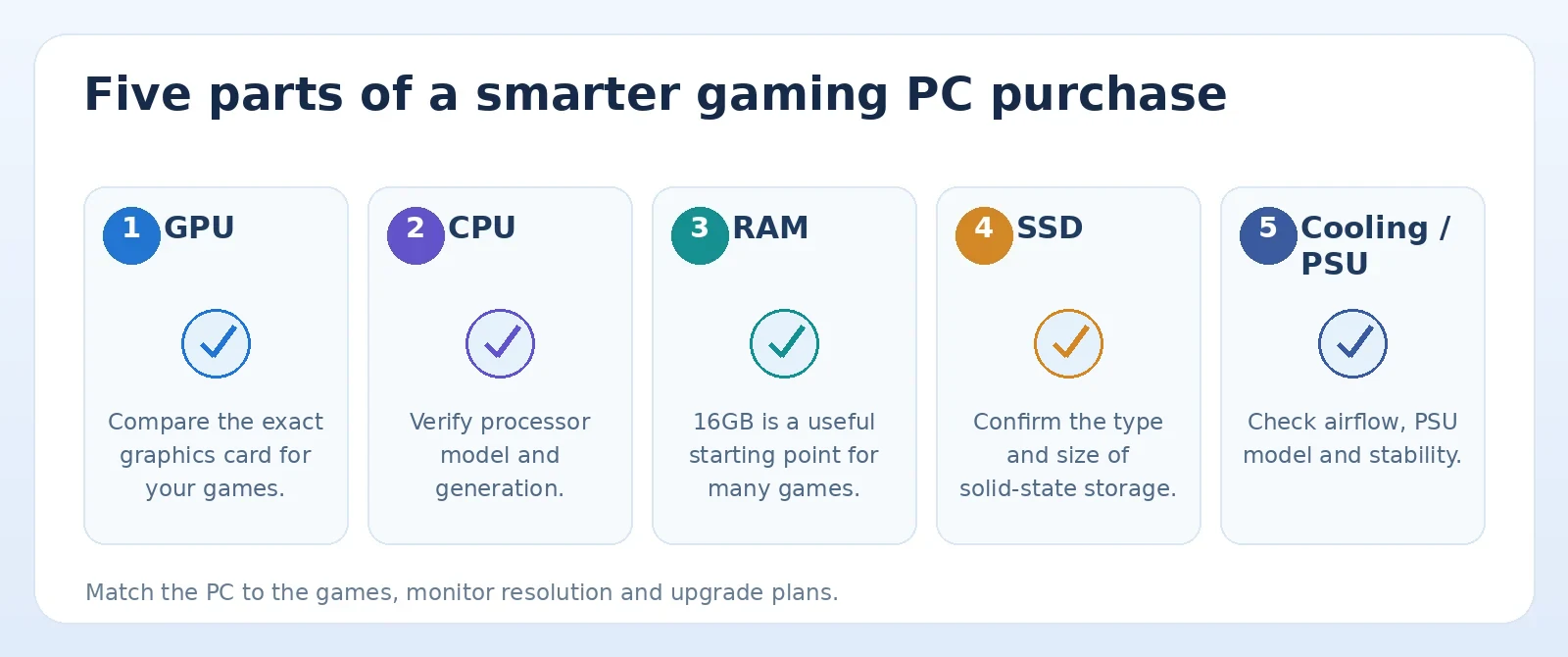
Original TamDo editorial graphic. Illustrations are not screenshots of a specific device or software version.
6. Inspect the power supply and cooling
A dependable power supply (PSU) is less exciting than a graphics card but just as important to the system's reliability. Ask for the PSU brand and exact model when possible, especially if you plan to upgrade the GPU. Check that cooling fans spin normally, air intakes are not blocked and the PC is not packed with heavy dust.
During a short supervised game or benchmark test, listen for unusual rattling and watch for abrupt shutdowns, graphical glitches or excessive noise. A seller should not need to disable basic cooling or remove safety protections to make a demonstration pass.
7. Verify the installed operating system and Windows 11 compatibility
Do not assume an older gaming computer officially supports Windows 11 just because it currently boots. Microsoft's baseline requirements include a supported processor, TPM 2.0, UEFI Secure Boot capability and other specifications. Use the manufacturer's documentation and Microsoft's PC Health Check guidance to confirm support for the exact system.
Ask which Windows edition is included, whether the OS is properly activated and whether the buyer will need to perform first-time setup. Do not base a purchase on an unofficial compatibility workaround without understanding the support tradeoffs.
8. Check ports, networking and your monitor connection
Confirm the computer has the right HDMI or DisplayPort output for your monitor, plus enough USB ports for a keyboard, mouse, headset and other accessories. If you need wireless networking, verify that Wi-Fi is included; some desktop systems rely only on Ethernet.
9. Ask for evidence that the complete system works
A good used-PC inspection includes booting to the operating system, confirming the installed CPU/GPU/RAM/storage matches the description, checking temperatures during a normal workload and verifying audio, networking and display outputs. Request recent photos of the actual unit rather than relying entirely on stock images.
Ask whether the machine has been modified, whether any parts were replaced, and which accessories come with it. A monitor, keyboard and mouse are not necessarily included in a “gaming desktop” listing.
A simple comparison before checkout
- What exact GPU model is installed? — Gaming performance and display capability
- What CPU and generation? — Game smoothness and upgrade compatibility
- How much RAM, and in how many sticks? — Multitasking and memory performance
- What type and size of SSD? — Loading time and game-library capacity
- What PSU and cooling? — Stability and safe upgrade planning
- What was tested, and what is included? — Real condition and total cost
Bottom line: the right used gaming PC matches your games and monitor, uses balanced components and has a clearly documented condition. If an attractive listing skips the exact GPU or CPU model, ask for the information before comparing prices.
Frequently asked questions
Is 16GB RAM enough for a budget gaming PC?
It is a reasonable starting point for many games, but check your specific games and other workloads. Some users benefit from 32GB or more.
Should I buy a pre-built or custom gaming PC?
Either can be a good choice. With custom systems, verify all component brands and compatibility; with pre-builts, check the power supply, case clearance and upgrade limitations.
Is a newer GPU always worth more?
Not automatically. Compare the exact GPU model, memory, condition, efficiency and measured performance in the games you care about.
Find the right device for your needs
Look at the complete CPU, GPU, RAM and storage configuration on each listing, then confirm the condition and included items before ordering.
Feature names and availability can change by device model, operating system, region and software release. See the official sources below for current compatibility details.
Compare gaming desktops and PCs