
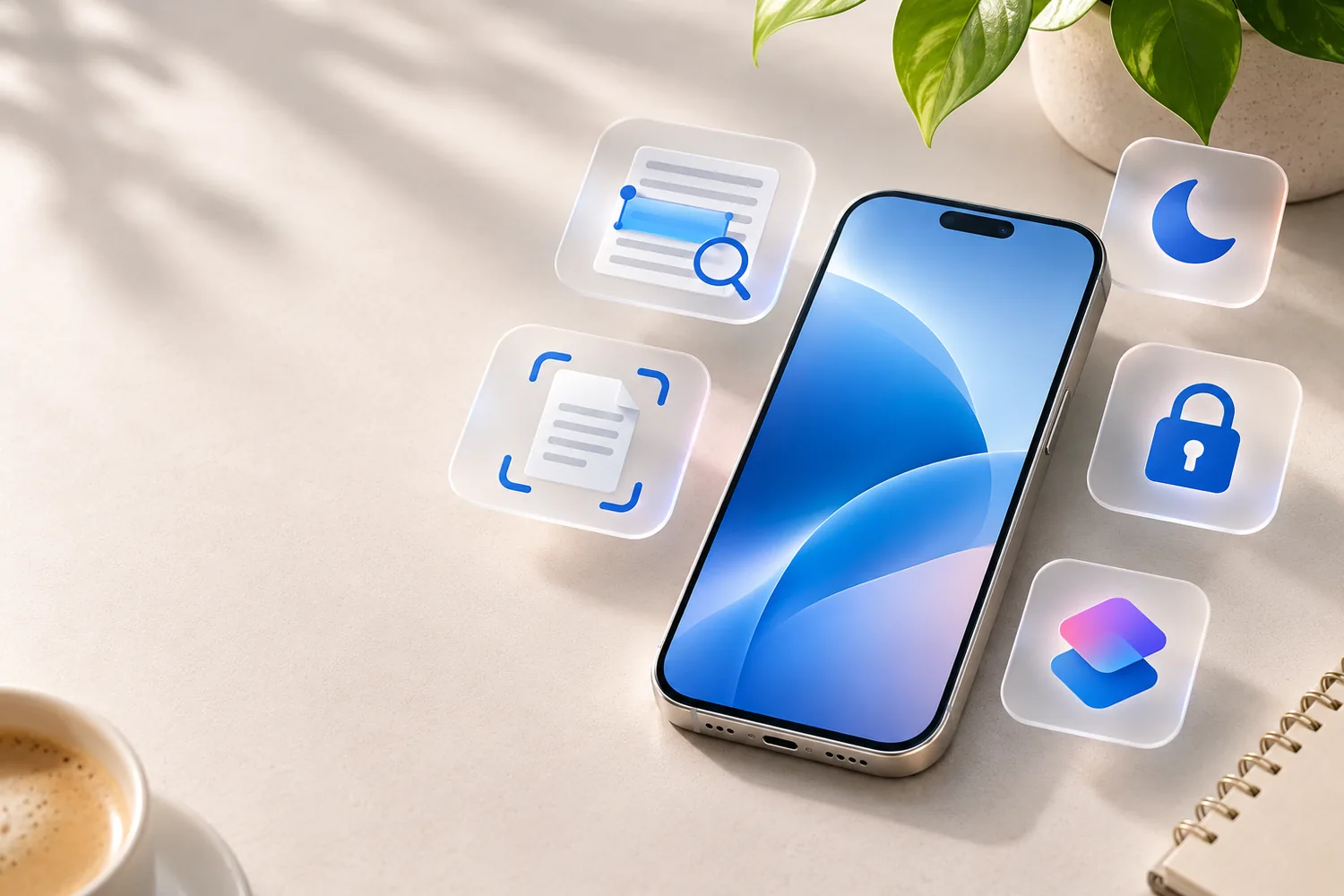
You probably know how to take a photo, send a message and browse the web. But some of the most useful iPhone features are hiding in plain sight. With a few taps, your phone can become a document scanner, a study assistant, a quick-access remote and a more private place to keep information.
Try these nine tools before downloading another app. Exact menus and availability depend on your iPhone model, iOS version, language and region; not every feature works on every device.
1. Turn the back of your iPhone into a shortcut with Back Tap
Imagine double-tapping the back of your phone to capture a screenshot. That is what Back Tap can do on supported models. Open Settings → Accessibility → Touch → Back Tap, then assign an action to Double Tap or Triple Tap. You can choose a screenshot, Control Center, certain accessibility actions or a compatible shortcut.
When it helps: you are carrying groceries, taking notes or trying to perform an action without reaching across the screen. Apple lists Back Tap support for iPhone 8 and later running supported iOS versions.
2. Copy real-world text with Live Text
Need an email address from a flyer or a Wi-Fi password printed on paper? Open Camera, point it at readable text and select the detected text icon. You can copy the text into Notes, translate it, or use a recognized phone number without retyping. Live Text also works with compatible photos and paused videos.
This feature is particularly handy for students, travelers and anyone who processes paperwork. Live Text requires supported hardware, software and languages; Apple originally introduced it on iPhone XS, XR and later with iOS 15.
3. Scan a signed form in the Notes app
Before buying a scanning app, try the one built into your iPhone. Open Notes, start a note, tap the attachments option and choose Scan Documents. Hold the camera over the page, adjust the corners and add more pages if needed. The resulting scan can be stored as a PDF and shared when appropriate.
Practical tip: place the paper on a dark, flat surface with indirect lighting. It makes the document edges easier to recognize and reduces glare.
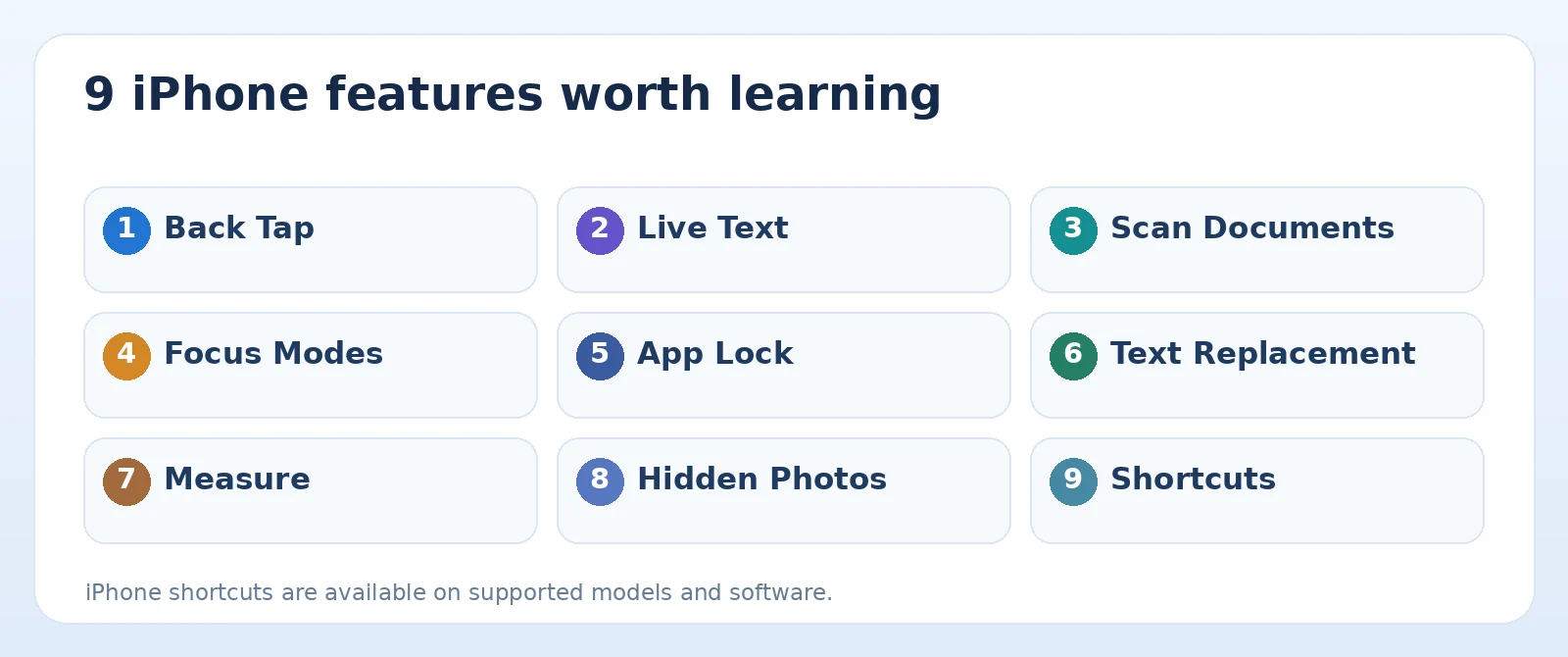
Original TamDo editorial graphic. Illustrations are not screenshots of a specific device or software version.
4. Build a Focus mode for work, school or family time
Do Not Disturb is only the beginning. In Settings → Focus, configure a Work, Personal, Sleep or custom Focus. Allow important people to reach you while quieter notifications wait. On supported versions, you can associate Focus with a Lock Screen or automate when it activates.
For example, you might allow family calls during your work Focus while muting shopping and social media notifications. Remember that silenced notifications are not necessarily blocked calls or emergency controls.
5. Add an extra layer of protection to sensitive apps
On compatible iPhones and iOS versions, certain apps can be locked so opening them requires Face ID, Touch ID or a passcode. In supported versions, touch and hold an app icon and look for an option such as Require Face ID. Some apps may also offer a hide option.
Menus and app eligibility vary. This is a useful privacy measure for an app you may occasionally open in front of others, but it is not a substitute for using a strong device passcode, keeping iOS updated or securing your Apple Account.
6. Type a long phrase with just a few letters
Go to Settings → General → Keyboard → Text Replacement. Add a phrase you type repeatedly and a short trigger. For instance, typing addr1 could suggest your preferred mailing-address text. This can speed up routine, non-sensitive replies and reduce spelling mistakes.
Avoid saving passwords, payment details or other secrets as keyboard shortcuts. A short signature or common business phrase is a better use case.
7. Use Measure for quick size estimates
The built-in Measure app uses the camera to estimate dimensions of objects. Place the on-screen points at the start and end of an object to get an approximate measurement; on supported devices you can also use the Level tool.
It is helpful when deciding whether a shelf, small package or picture frame may fit. For shipping labels, cutting materials or anything that requires precision, use a real measuring tape rather than relying on camera estimates.
8. Hide photos you do not want in your main library
In Photos, select an image and use the Hide command from the available options. On current supported versions, the Hidden collection is normally protected by the device's authentication method. You can access it from Photos under Utilities, although the exact navigation can change.
Important: hiding a photo is not the same as permanently deleting it. Understand how iCloud Photos and shared devices are configured before assuming an image is private everywhere.
9. Automate a repetitive task with Shortcuts
Apple's Shortcuts app can chain supported actions together. A simple shortcut might open your notes, launch a timer and start your preferred Focus mode. Start with a single useful action, test it and only then add steps.
Shortcuts can request permissions or depend on other apps. Review an imported shortcut before running it, especially if it requests access to photos, contacts or messages.
Where should you start?
Start with Back Tap if you often need screenshots, Live Text if you work with printed information, or Focus if notifications break your concentration. The point is not to turn on everything—it is to make your existing iPhone fit your day a little better.
Frequently asked questions
Do these tips work on older iPhones?
Several do, but support depends on the specific feature and iOS version. For example, Back Tap and Live Text have different minimum device requirements. Check Apple's feature notes for your model.
Do I need paid apps for these features?
No. The tools described here are part of compatible iPhone system software, although certain capabilities, languages or third-party actions may have additional requirements.
Will these tips make a used iPhone better?
They can make a compatible device more useful. Hardware condition, battery capacity, storage and update support still matter when choosing a pre-owned phone.
Find the right device for your needs
If you are shopping for a pre-owned iPhone, compare the exact model, battery details, cosmetic condition and included accessories in each listing.
Feature names and availability can change by device model, operating system, region and software release. See the official sources below for current compatibility details.
Browse iPhones and other smartphones