
- The quick answer: what each computer does best
- 1. Chromebook: a practical option for web-first classes
- 2. Windows laptop: flexibility for the widest range of classes
- 3. MacBook: strong fit when the Apple ecosystem matches the course
- 4. Which specs matter most for school?
- 5. Match a laptop to the actual student
- 6. The used-student-laptop checklist
It is tempting to shop for a student laptop by brand or price alone. But a Chromebook that is perfect for online homework can be the wrong choice for a course that requires Windows software. A powerful MacBook can be an excellent computer, yet unnecessary if your student only needs a browser, documents and video calls.
The smartest first step is to list the applications the school actually requires. Then think about portability, battery life, storage, update support and the condition of any used device you are considering.
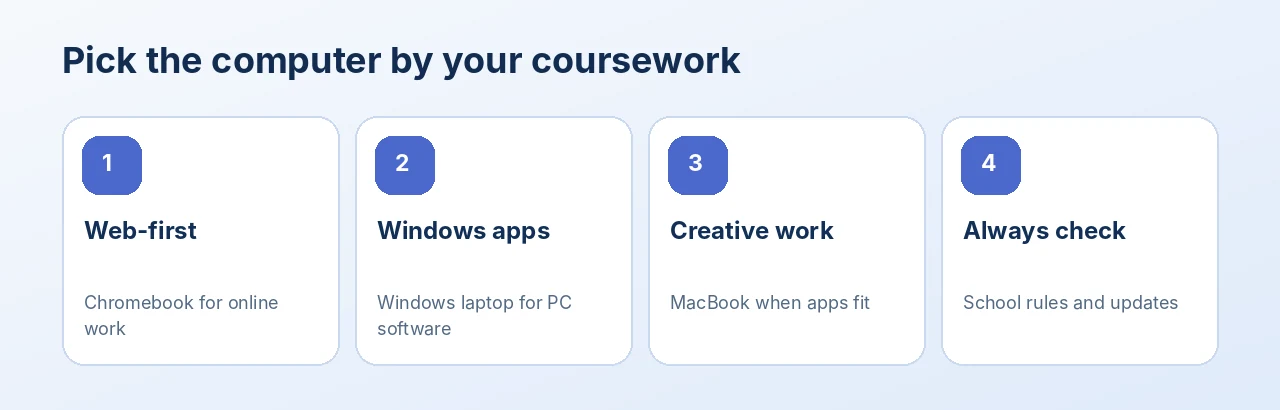
Illustration: an editorial quick-reference guide, not a device settings screenshot.
The quick answer: what each computer does best
- Chromebook — Browser-based schoolwork, Google Workspace, straightforward web classes. · School app compatibility, ChromeOS update end date and storage.
- Windows laptop — Programs that require Windows, broad peripheral support, mixed school and work use. · Windows 11 eligibility, RAM, SSD, battery and operating-system license.
- MacBook — Apple-friendly workflows, writing, coding and creative projects when apps support macOS. · Required school apps, macOS support, memory, battery and account locks.
1. Chromebook: a practical option for web-first classes
Chromebooks tend to make the most sense when schoolwork happens primarily in a browser: research, Google Docs, assignments, email and virtual classrooms. Students who do not need locally installed specialist software may appreciate a simpler workflow.
But not every Windows or Mac program can run on ChromeOS. If a course requires a particular exam application, Adobe desktop app, engineering program or specialized software, check the school’s published requirements before ordering.
Used Chromebook shoppers should also check the Auto Update Expiration (AUE) or update schedule for the exact model. Open Settings > About ChromeOS > Additional details to find its update information. Google generally provides up to 10 years of automatic updates from a device platform’s release, with important details for older models. A very inexpensive Chromebook with little update life left may be poor value.
2. Windows laptop: flexibility for the widest range of classes
For many high school and college students, a Windows 11 laptop is the safest general-purpose choice when teachers specify Windows-compatible software. It handles the familiar mix of office work, browser research, presentations and many specialized applications.
When shopping used, do not assume any laptop running Windows 10 is officially eligible for Windows 11. Microsoft lists requirements including a supported 64-bit processor, TPM 2.0, Secure Boot capability, at least 4GB RAM and 64GB storage. Those are minimum installation requirements, not a comfortable recommendation for heavy multitasking.
For several years of everyday work, 16GB RAM and a 256GB or larger SSD are useful shopping targets when the budget allows. Lighter workloads can still be served by smaller configurations. For specialized design or engineering courses, check whether the software needs a dedicated GPU.
3. MacBook: strong fit when the Apple ecosystem matches the course
MacBooks can be especially appealing for students who already use an iPhone, prefer macOS or need tools supported by their school’s department. Some coding, media and creative workflows are very comfortable on a Mac. However, not every Windows-only application has a reliable macOS version.
With a used MacBook, verify the exact year, chip, memory and storage. On some models memory or SSD capacity cannot be upgraded later, so choose carefully. Review battery condition, keyboard, ports and display, and confirm the device is not tied to someone else’s Apple Account or an organization’s management system.
4. Which specs matter most for school?
- Memory: 8GB may be enough for a light web-first routine; 16GB gives more breathing room for frequent multitasking, especially on Windows or for demanding projects.
- Storage: 128GB can fill quickly with local files. A 256GB SSD or larger is a comfortable starting point for many students, but actual requirements vary.
- Screen: 13–14 inches is portable; 15–16 inches provides room for side-by-side windows. Check resolution and readability rather than size alone.
- Battery: Ask for battery condition and expected real use. Used battery runtime varies by age, workload and settings.
- Ports: Confirm the charger, USB-C, HDMI or adapter needs for school equipment.
5. Match a laptop to the actual student
Middle-school student: If the district uses browser tools and has no Windows-only exam software, a supported Chromebook can offer good value. Check the school’s device policy first.
College student taking mixed courses: A Windows laptop with a capable SSD and sufficient RAM is a versatile starting point, provided the specific required apps are Windows-compatible.
Creative media student: Make a list of the video, audio and design applications you will use. Compare a MacBook and a Windows laptop by supported apps, display quality, RAM and storage rather than brand alone.
Engineering or architecture student: Consult the department’s minimum GPU, CPU, software and RAM requirements. Some course tools may only support Windows or may need more graphics power than a basic laptop offers.
6. The used-student-laptop checklist
- Confirm the school’s required operating system and applications.
- Verify the computer’s model, CPU, RAM and storage.
- Check ChromeOS AUE, Windows 11 eligibility or macOS support.
- Inspect the display for defects, then test keyboard, trackpad, webcam, Wi-Fi and ports.
- Ask about battery health and charger inclusion.
- Confirm it is not account-locked or organization-managed in a way that prevents your use.
- Compare the real condition notes and return terms, not just photos of a similar model.
Frequently asked questions
Is a Chromebook good enough for college?
Sometimes. It depends on your major, required software and testing systems. Confirm course requirements first.
How much RAM should a student laptop have?
For ordinary web work, 8GB can be serviceable. For frequent multitasking or more demanding programs, 16GB is a useful target when affordable.
What should I check first on a used Chromebook?
Check the device’s official Auto Update Expiration date and the school’s app compatibility requirements before comparing cosmetic condition or price.
Can an older Windows laptop run Windows 11?
Not necessarily. Verify the model and hardware against Microsoft’s official requirements rather than relying on a seller’s assumption.
Choose the workload, then the laptop
There is no one best student computer for everyone. A modest machine matched to the right coursework can be more useful than an expensive model that does not run the required apps. Compare available laptops and Chromebooks at TamDo.us, and use each listing’s exact specifications as your starting point.