
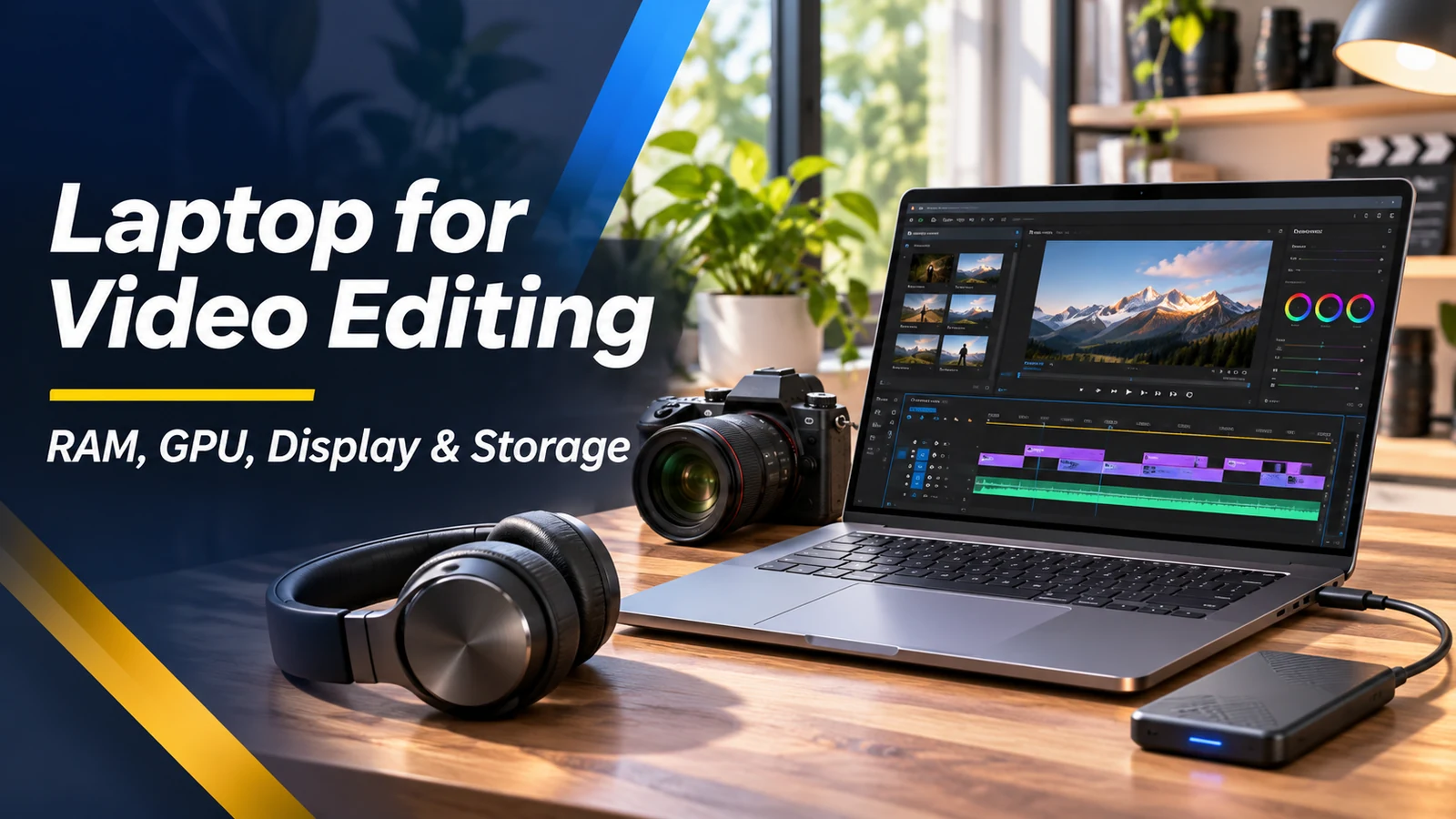
A laptop can feel fast in a browser and still struggle with a few layers of 4K video. Editing pushes several components at once: the processor decodes footage, memory holds the project, the GPU handles effects, and the SSD feeds large files. Before shopping for a used mobile workstation or a new creator laptop, start with the videos you actually make. A weekly 1080p class project needs a different machine from a professional multicamera timeline. This guide turns the specs into practical buying decisions.
Start with your footage, not the laptop badge
Write down your usual recording resolution, codec, frame rate, number of video tracks, and editing app. Short 1080p social clips place less demand on a system than 4K 10-bit video with color grades and noise reduction. Some camera formats are harder to decode than their file size suggests. Two laptops with similar marketing labels may behave differently depending on media engines, available RAM, thermals and app support. Test your own footage whenever possible instead of relying only on a synthetic benchmark.
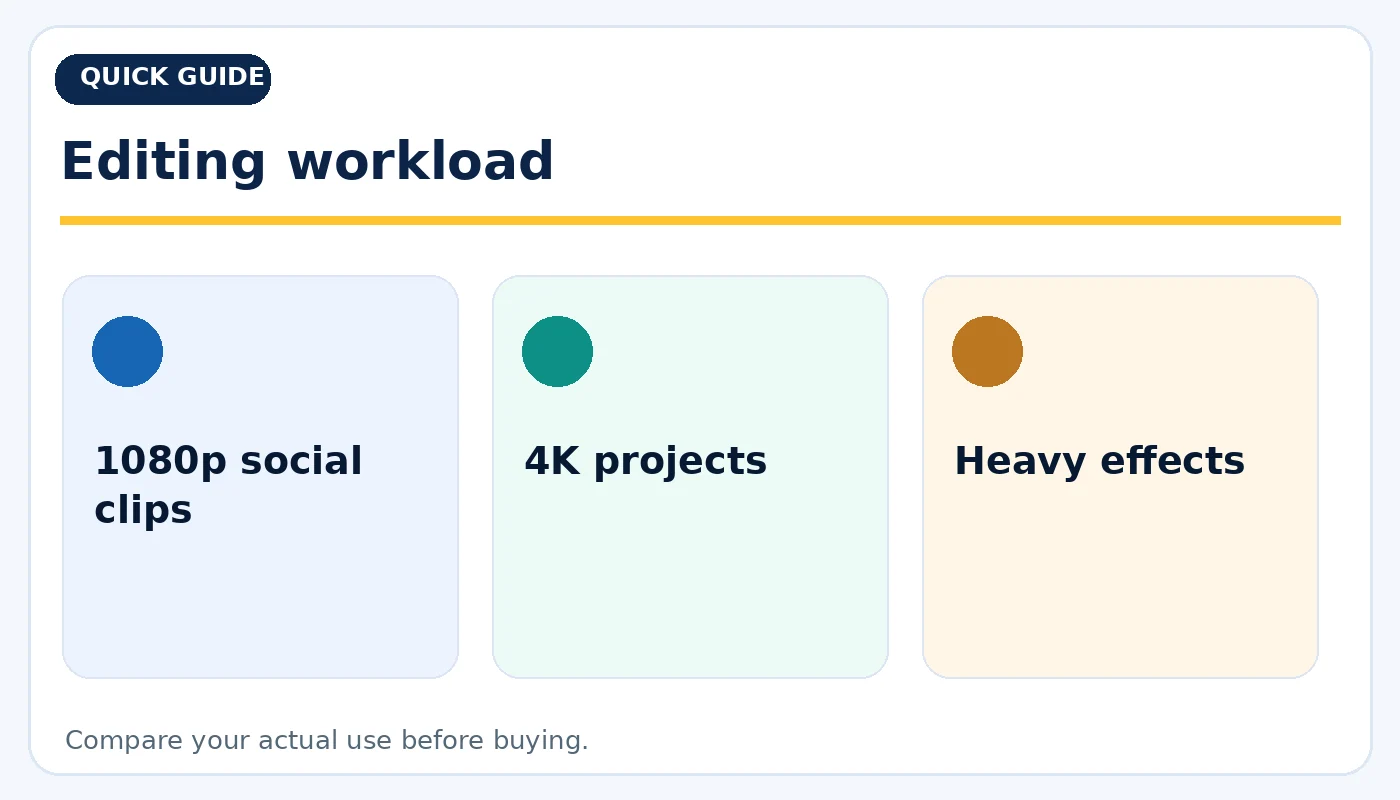
Editing workload: practical considerations before buying.
RAM: why 16GB and 32GB feel different
For uncomplicated HD editing, 16GB can be workable with a sensible timeline and modest background applications. For frequent 4K editing, 32GB gives the editor more breathing room for effects, browser tabs and preview caches. Adobe's November 2026 Premiere requirements recommend 16GB for HD and 32GB or more for 4K on Windows. Do not confuse this recommendation with an absolute rule for every editing app. On thin laptops, memory may be soldered; confirm whether future upgrades are possible before paying.
GPU matters—but it is not the whole computer
A dedicated GPU can accelerate supported effects, scaling, color processing and exports. However, adding a large GPU to an aging processor does not guarantee smooth playback. Hardware decoding for your specific video format can matter just as much. Compare the exact GPU model, memory capacity and the editor's supported acceleration features. For casual editors, modern integrated graphics may be enough; creators working with heavy effects or multiple monitors benefit more from dedicated graphics. Verify performance on the actual software version you use.
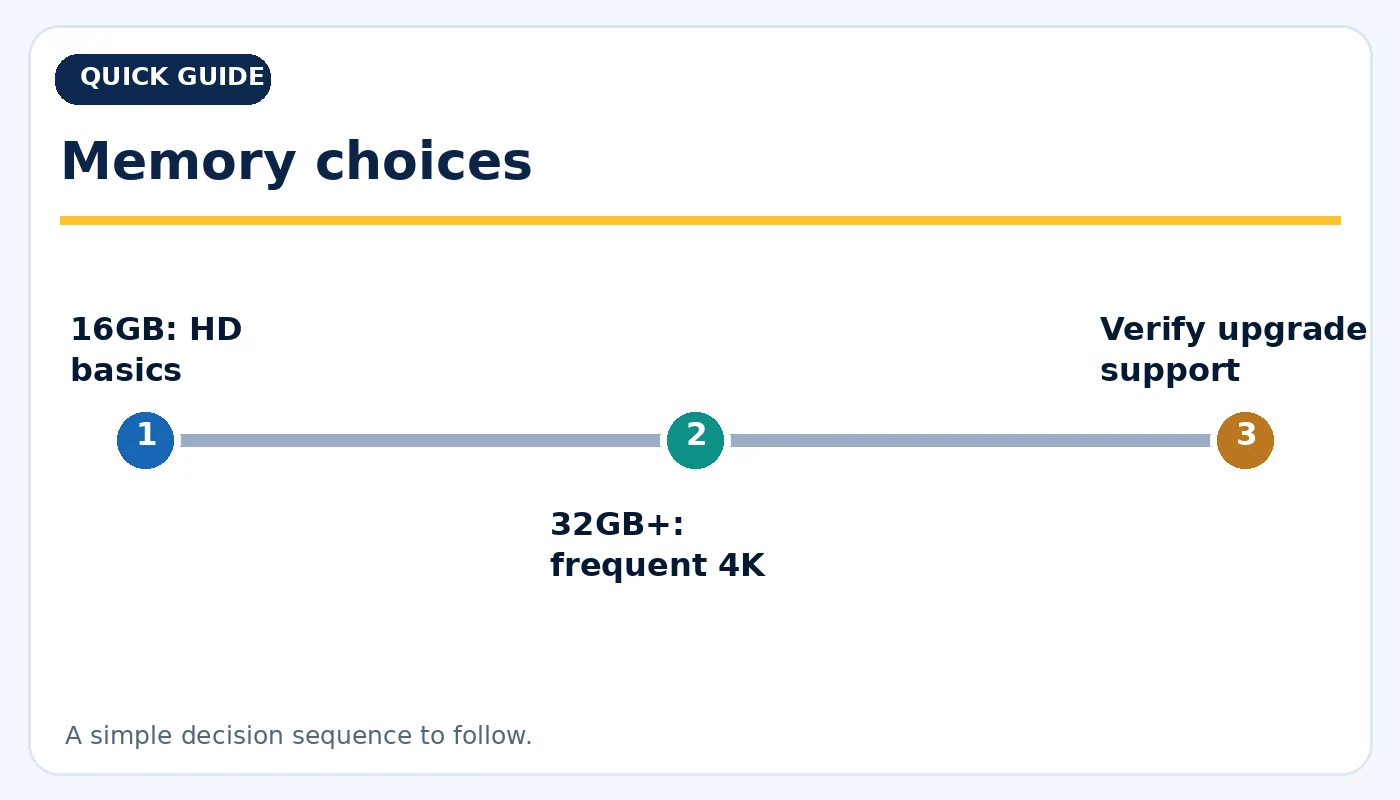
Memory choices: practical considerations before buying.
Fast SSDs and a practical media workflow
An SSD improves project launches, media access, cache handling and file copying. Keep space free for scratch files and automatic backups; a nearly full drive can become an avoidable bottleneck. Ideally, store the operating system and apps on a fast internal SSD and active video media on an adequately fast internal or external drive. Do not judge external speed by a USB-C connector alone: the port, enclosure, cable and SSD must support the transfer rate together. Back up the project to a separate location.
Screen accuracy, cooling and ports
A high-resolution display is useful, but color coverage, calibration and brightness matter more than marketing adjectives. An accurate external monitor can be a better investment than upgrading the built-in screen alone. Long exports also reveal cooling limits: thin machines can slow under sustained load. Check fan noise, airflow and the supplied charger during a realistic export. Note the card reader, display outputs, headphones jack and fast USB or Thunderbolt support you actually need in your workflow.
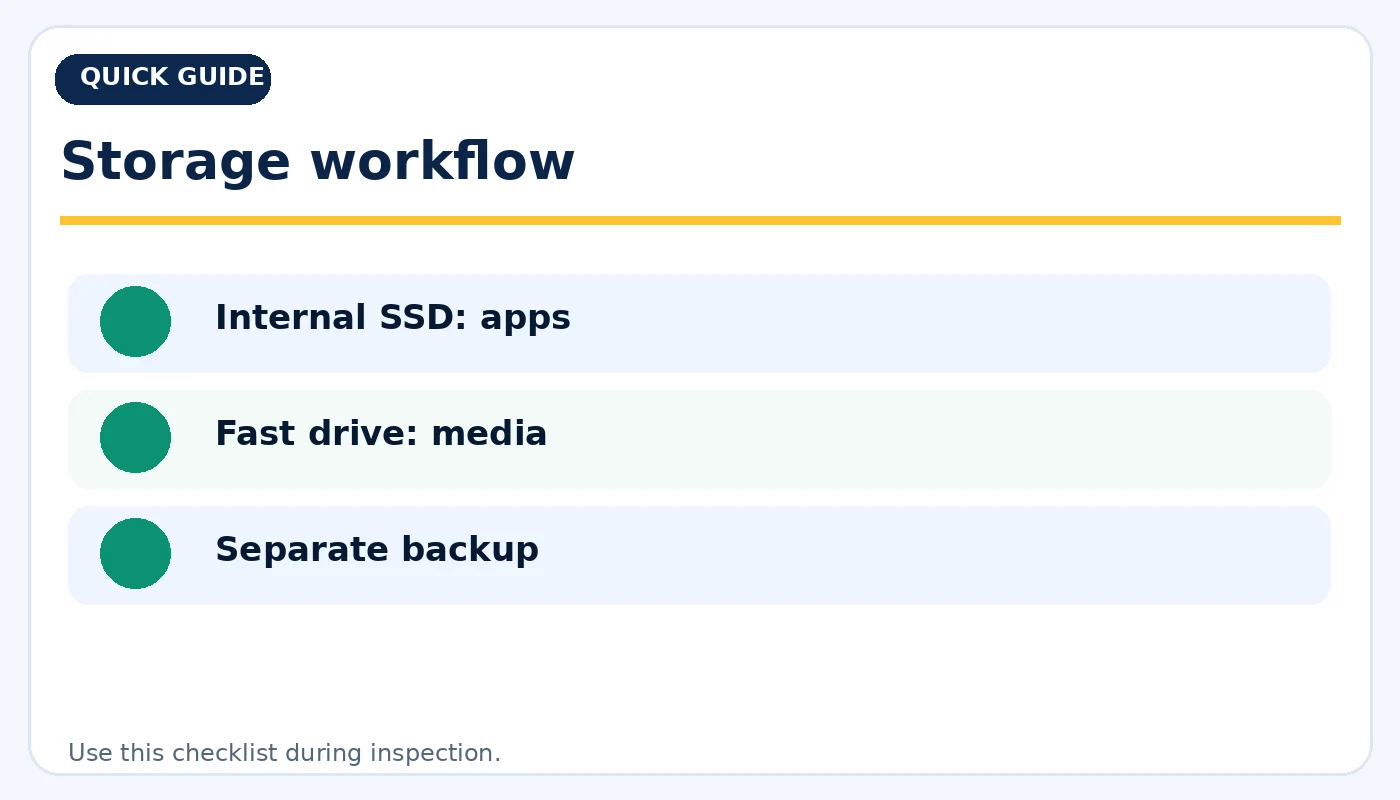
Storage workflow: practical considerations before buying.
How to inspect a used editing laptop
Request the exact CPU, GPU, RAM and storage configuration—not merely the model family. Open a real sample project, scrub the timeline, preview effects, render a short sequence and watch for crashes or thermal shutdowns. Check dead pixels, bright spots, hinge tension, keyboard, speakers, battery condition and every connection port. Ask whether the charger is original or fully compatible. A workstation with cosmetic wear can offer excellent value if its hardware is verified and the listing clearly describes the condition.
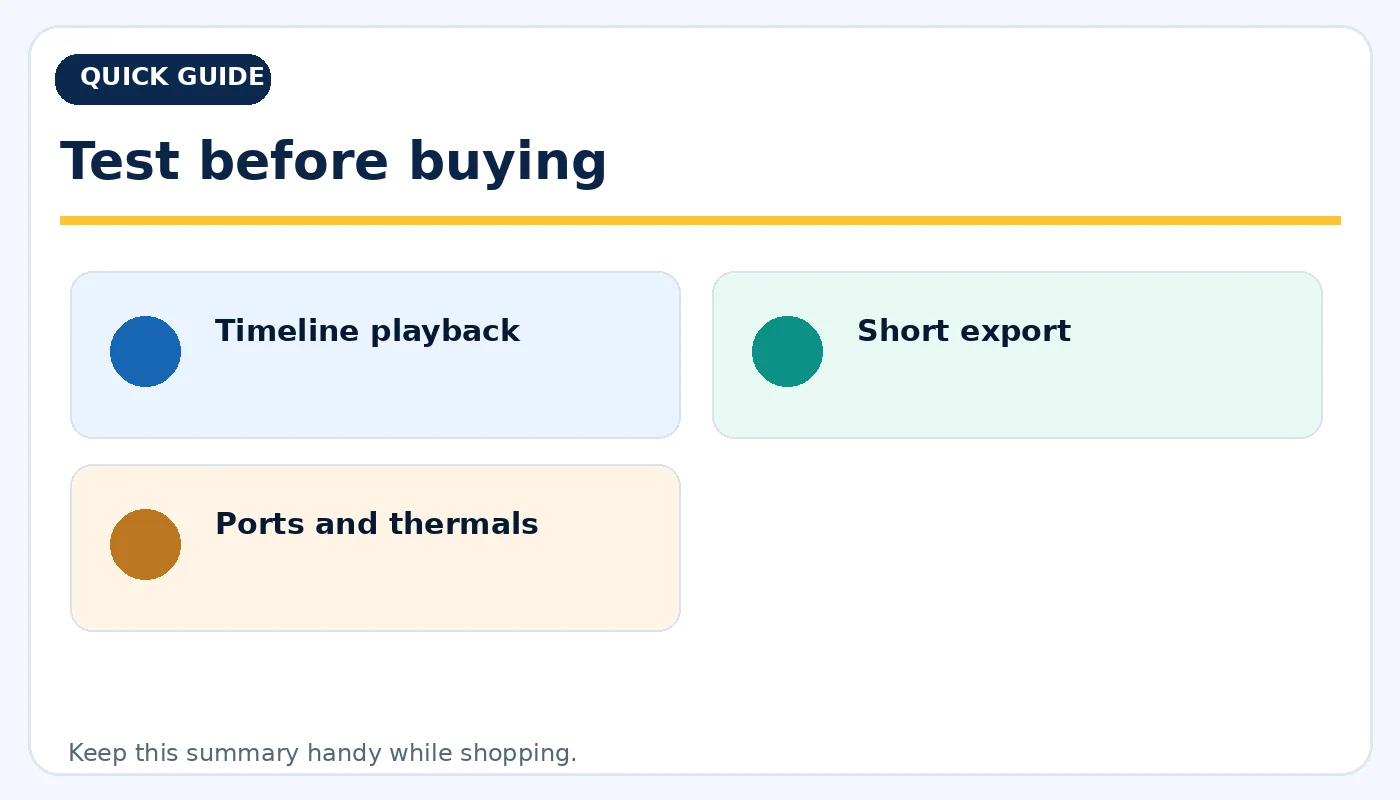
Test before buying: practical considerations before buying.
A buying decision that matches your work
A practical student setup emphasizes enough memory, an SSD and a reliable screen. A serious 4K creator should prioritize ample RAM, balanced CPU/GPU performance, cooling and extra media storage. Professional users may also need calibrated external displays, fast networking and dependable backup hardware. Compare the full cost including adapters, storage and accessories rather than the laptop price alone. A used business or mobile workstation can be smart if performance and condition meet your needs.
Quick buying checklist
- 1080p social clips
- 4K projects
- Heavy effects
- 16GB: HD basics
- 32GB+: frequent 4K
- Verify upgrade support
- Internal SSD: apps
- Fast drive: media
- Separate backup
- Timeline playback
- Short export
- Ports and thermals
Frequently asked questions
Is 16GB RAM enough for 4K video editing?
It can run lighter projects in some apps, but 32GB or more provides more comfortable headroom for frequent 4K work, especially on Windows.
Does a powerful GPU replace a good processor?
No. Editing performance depends on decoding, memory, storage, software and cooling as well as the GPU.
Can an external SSD improve editing?
Yes, when the drive, enclosure, cable and laptop port provide suitable sustained transfer speed.
Explore related tech at TamDo.us
Ready to compare real listings? Shop laptops and workstations or browse more News & Guides. Listings change frequently; check each item’s condition, included accessories and availability before ordering.