
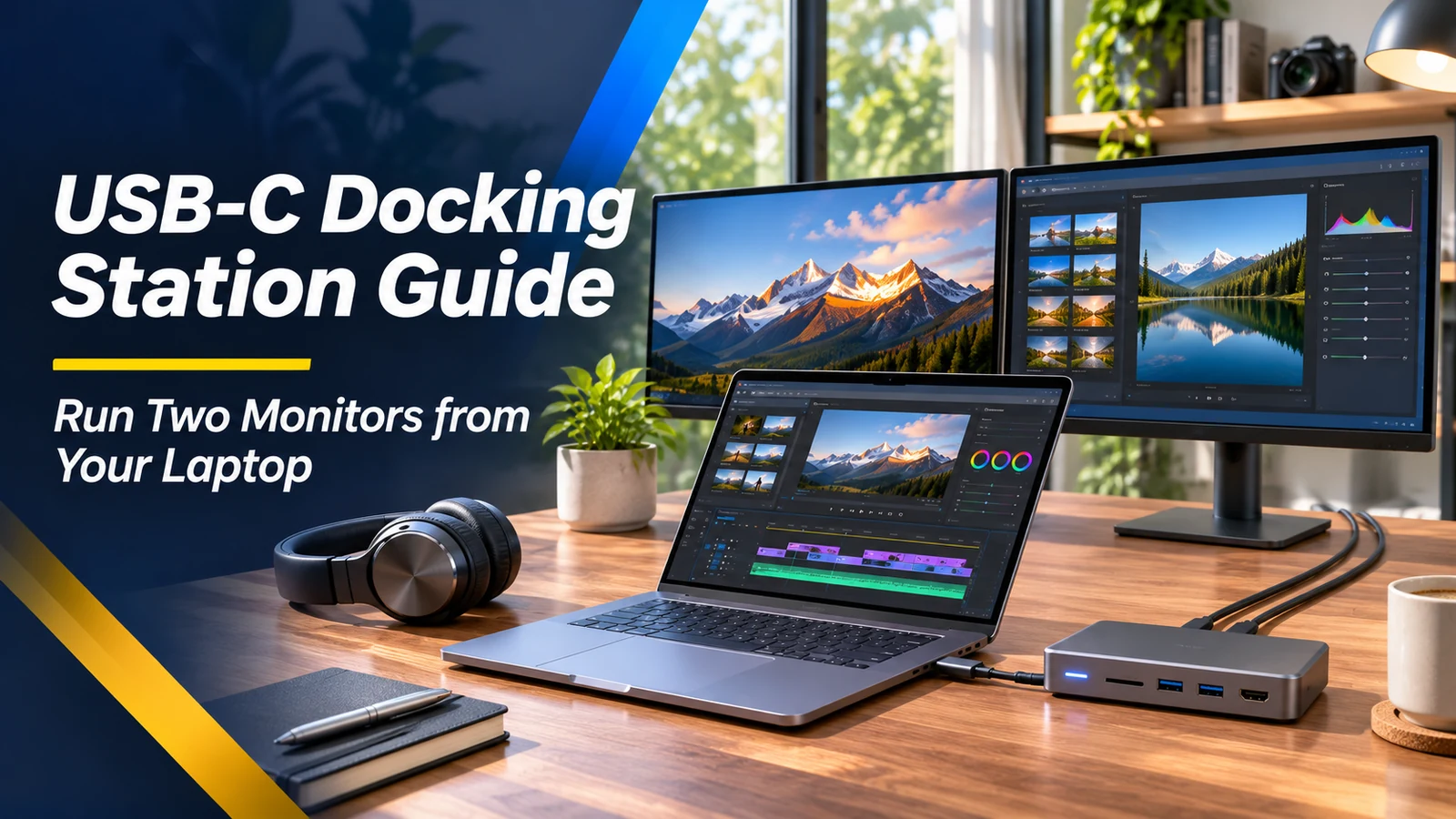
The dream of a single-cable desk is simple: arrive, connect one USB-C cable and instantly use two monitors, a keyboard, mouse, wired internet and laptop power. The reality depends on the laptop's graphics support, the port's video capabilities, the dock's chipset and the monitors' resolution and refresh rate. Buying a dock by its port count alone can lead to two mirrored screens, black displays or slow charging. This guide helps you verify the entire connection path before spending money.
Start with your laptop’s display limits
Look up the exact laptop model and its maximum number of supported external displays, resolutions and refresh rates. The CPU and graphics configuration can change the answer, even when two laptops share a similar name. On some Macs, a compatible hub or daisy chain can share a connection but cannot increase the machine's official maximum external display count. On Windows laptops, supported video technologies also vary. Verify built-in and external display combinations in the manufacturer's specification rather than guessing from the presence of a USB-C port.
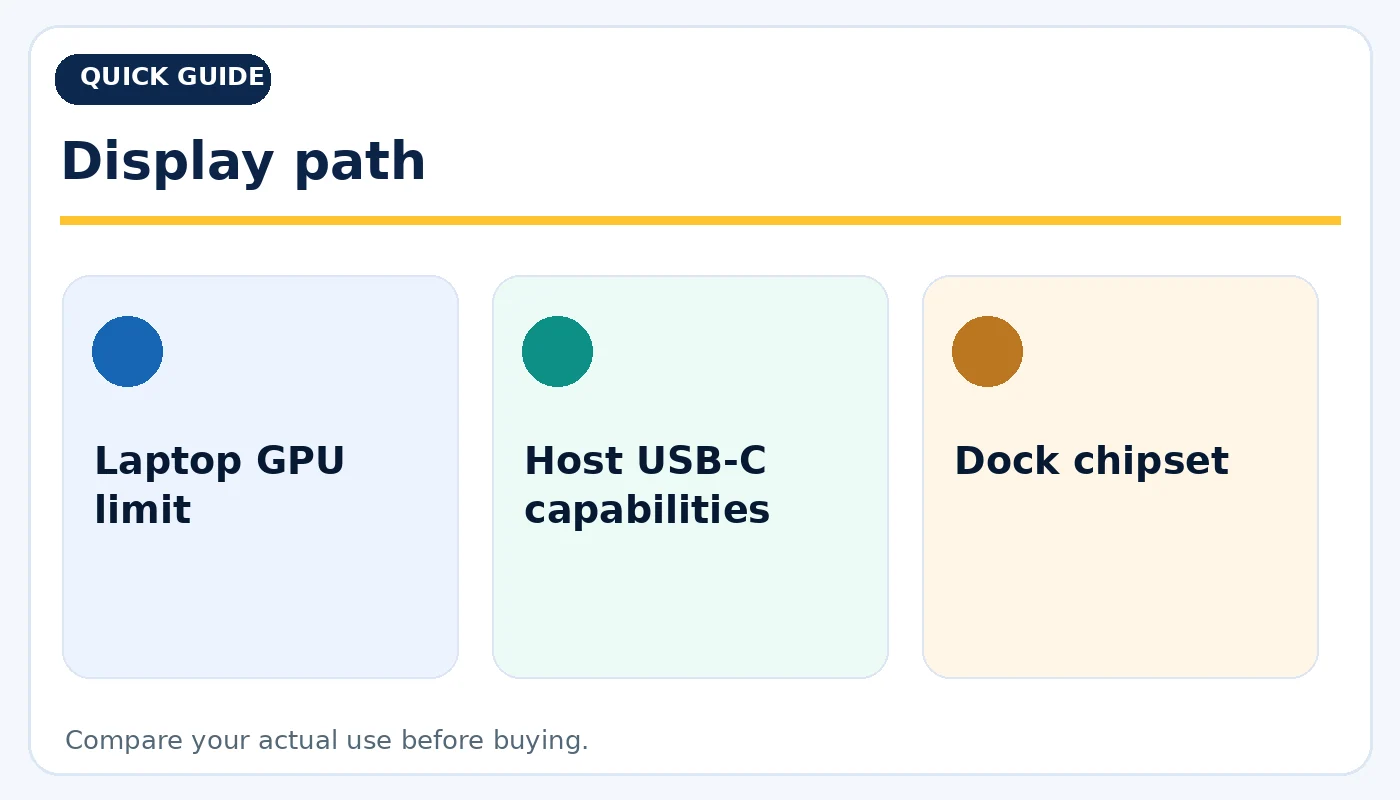
Display path: practical considerations before buying.
USB-C is a connector, not a promise of video
A USB-C port may support charging, data, DisplayPort Alt Mode, Thunderbolt or a combination of features. A dock cannot create features that the host laptop does not offer without additional technology. Check whether the port carries native video and what link bandwidth is available. A dock advertised as dual HDMI may rely on Multi-Stream Transport, Thunderbolt or software-based DisplayLink. Each method has different operating-system compatibility, resolution limits and potential driver requirements.
Understand MST, Thunderbolt and DisplayLink
Multi-Stream Transport can carry multiple display signals over one suitable DisplayPort connection, but behavior varies by operating system. Thunderbolt docks can offer greater bandwidth and sophisticated display routing when the laptop supports the relevant standard. DisplayLink docks use software and USB graphics processing; they can extend displays on otherwise limited systems but may involve driver installation, video compression and special handling of protected video. Neither solution should be assumed to work universally. Read the exact model's requirements before choosing.
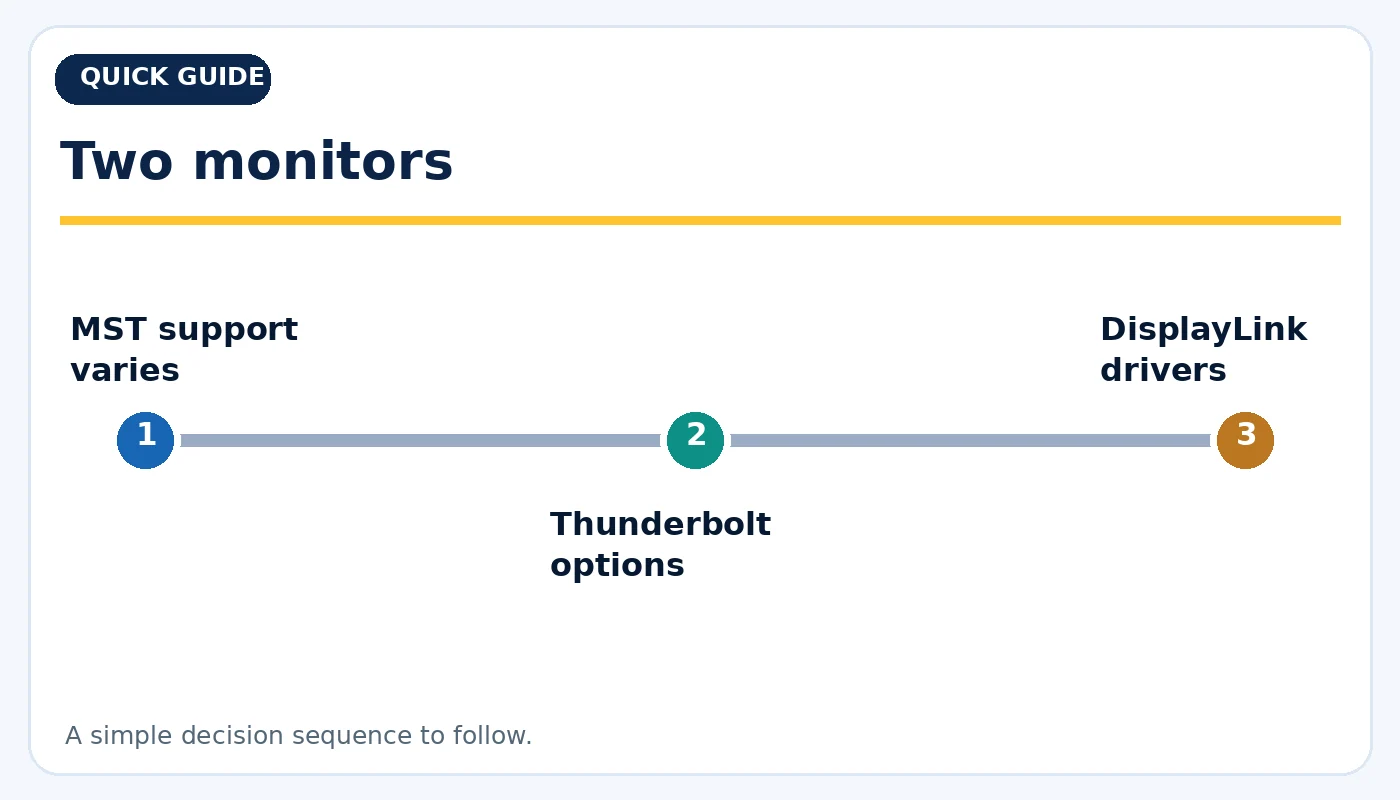
Two monitors: practical considerations before buying.
Match the monitors, cables and resolutions
A desk with two 1080p screens has a very different bandwidth requirement from two 4K displays at high refresh rates. Verify each monitor's HDMI or DisplayPort version, the dock's per-port output mode and the laptop's overall limitations. Some docks reduce refresh rate when both outputs operate. Cables matter: an inexpensive USB-C cable intended for charging may not support the needed data and video performance. Test the full setup at the actual target resolution, not only whether the screens light up.
Power delivery and charging safety
Check the laptop's required USB-C Power Delivery wattage and the dock's rated host output, not just the total input wattage printed on the power brick. A high-performance workstation may need a separate proprietary charger during heavy work even if the dock connects its displays and USB devices. Use certified, compatible power supplies and avoid damaged or overheated connectors. If a laptop shows a slow-charger warning, verify the dock's output specification and the cable before assuming the dock is defective.

Power and data: practical considerations before buying.
Ethernet, peripherals and daily reliability
A good dock can keep printers, external drives, webcams and Ethernet attached while you move the laptop between locations. Check USB speeds and whether ports share bandwidth with displays. During a test, copy a large file from an external drive while both monitors and a webcam are running. Watch for random disconnects after sleep and wake. Firmware updates may fix compatibility issues, but used docks can lack the correct power adapter or specialized host cable. Confirm those items are included.
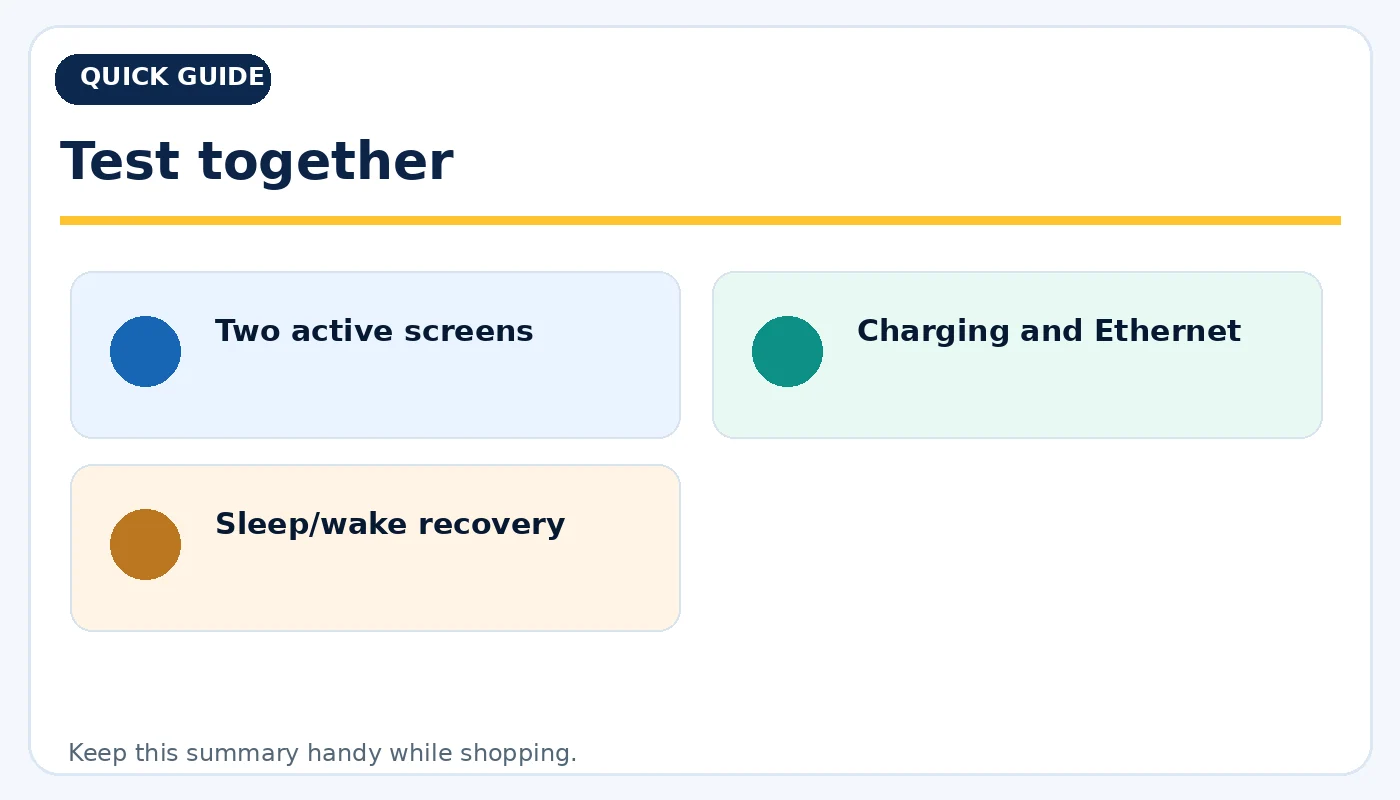
Test together: practical considerations before buying.
A smart used-dock buying checklist
Find the complete manufacturer model number. Verify operating-system support, driver requirements, maximum displays, charging output and return terms. Inspect the dock housing and ports, then connect two monitors at the desired settings. Test Ethernet, USB and charging together. A reliable used dock can cost less than a new premium model, but avoid a unit whose features depend on an unavailable power supply or unsupported software. The goal is a clean desk that works every morning, not merely a large list of ports.
Quick buying checklist
- Laptop GPU limit
- Host USB-C capabilities
- Dock chipset
- MST support varies
- Thunderbolt options
- DisplayLink drivers
- Check host watts
- Use suitable cables
- Share bandwidth wisely
- Two active screens
- Charging and Ethernet
- Sleep/wake recovery
Frequently asked questions
Does any USB-C dock support two monitors?
No. The laptop, dock, cable and operating system must support the chosen dual-display method.
Will a dock add more displays to every MacBook?
No. A native dock cannot bypass the model’s documented display limits; software-based solutions are separate and have trade-offs.
Can a dock charge a gaming laptop?
Some can, but higher-power gaming laptops may require their original power adapter under load.
Explore related tech at TamDo.us
Ready to compare real listings? Shop laptop accessories or browse more News & Guides. Listings change frequently; check each item’s condition, included accessories and availability before ordering.