
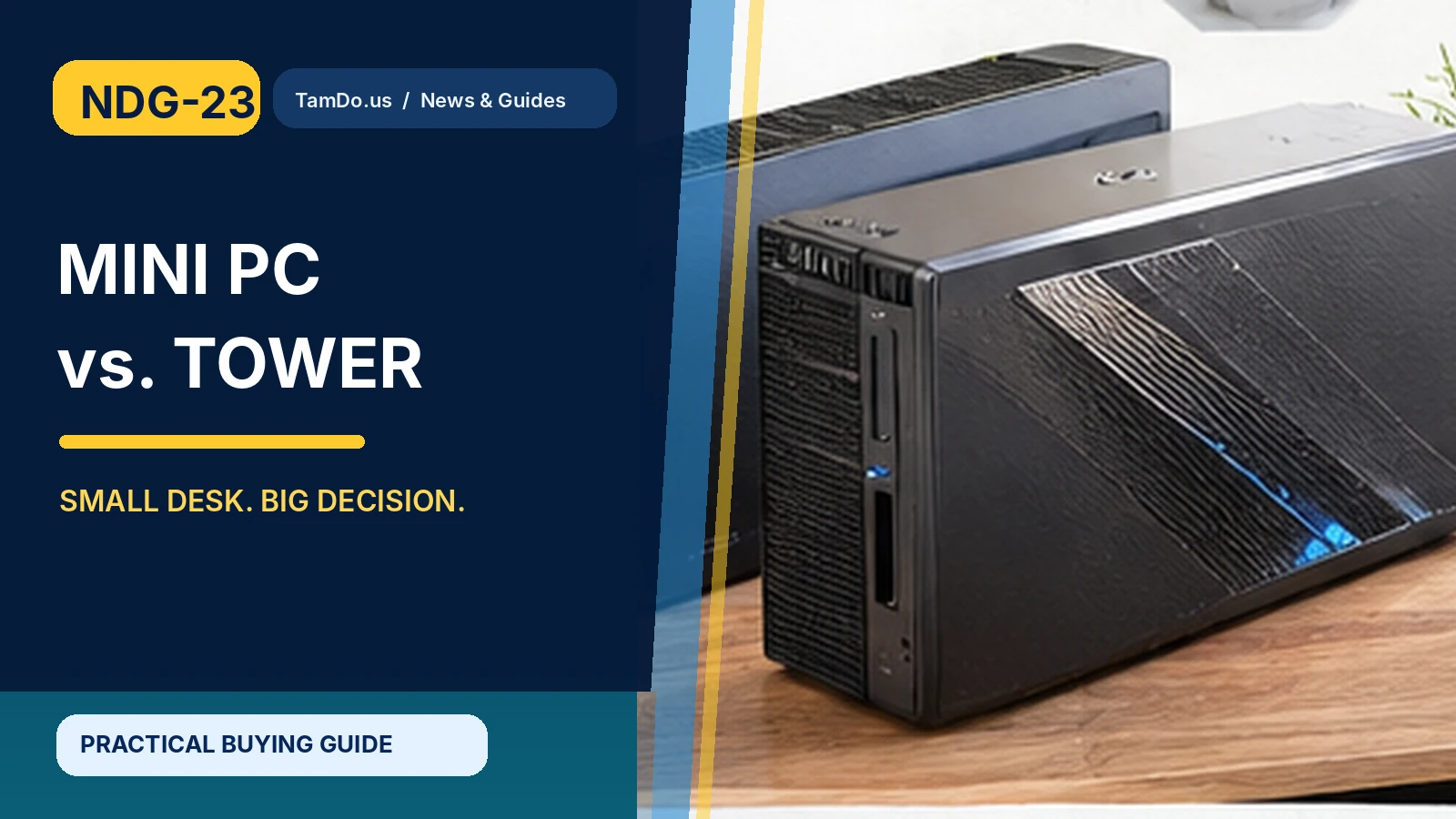
Desktop computers do not have to be enormous boxes under a desk. A mini PC may fit behind a monitor, while a conventional tower can occupy an entire corner. Both can run common office software, browse the web, make video calls, and power a home workstation. The better option depends on what you need to connect and whether you expect to upgrade later.
When shopping used, it is especially important to look beyond physical size. Two computers with similar processor names can have very different performance limits, storage access, cooling systems, and connection options.
What counts as a mini PC or a tower?
A mini PC is a compact computer with a small case, often using efficient laptop-class processors or specially designed components. It is attractive for reception desks, point-of-sale use, digital signage, web browsing, and small workspaces where low clutter matters. Some units can mount behind compatible monitors.
A desktop tower has more internal volume. This may provide room for full-size graphics cards, multiple storage devices, larger cooling hardware, and additional expansion slots. But do not assume every tower is easily upgradeable: small-form-factor office desktops and proprietary systems can also restrict power supplies, cooling, and expansion.
- Mini PC: compact and simple.
- Tower: potentially more internal expansion.
- Check each chassis, not just its category name.
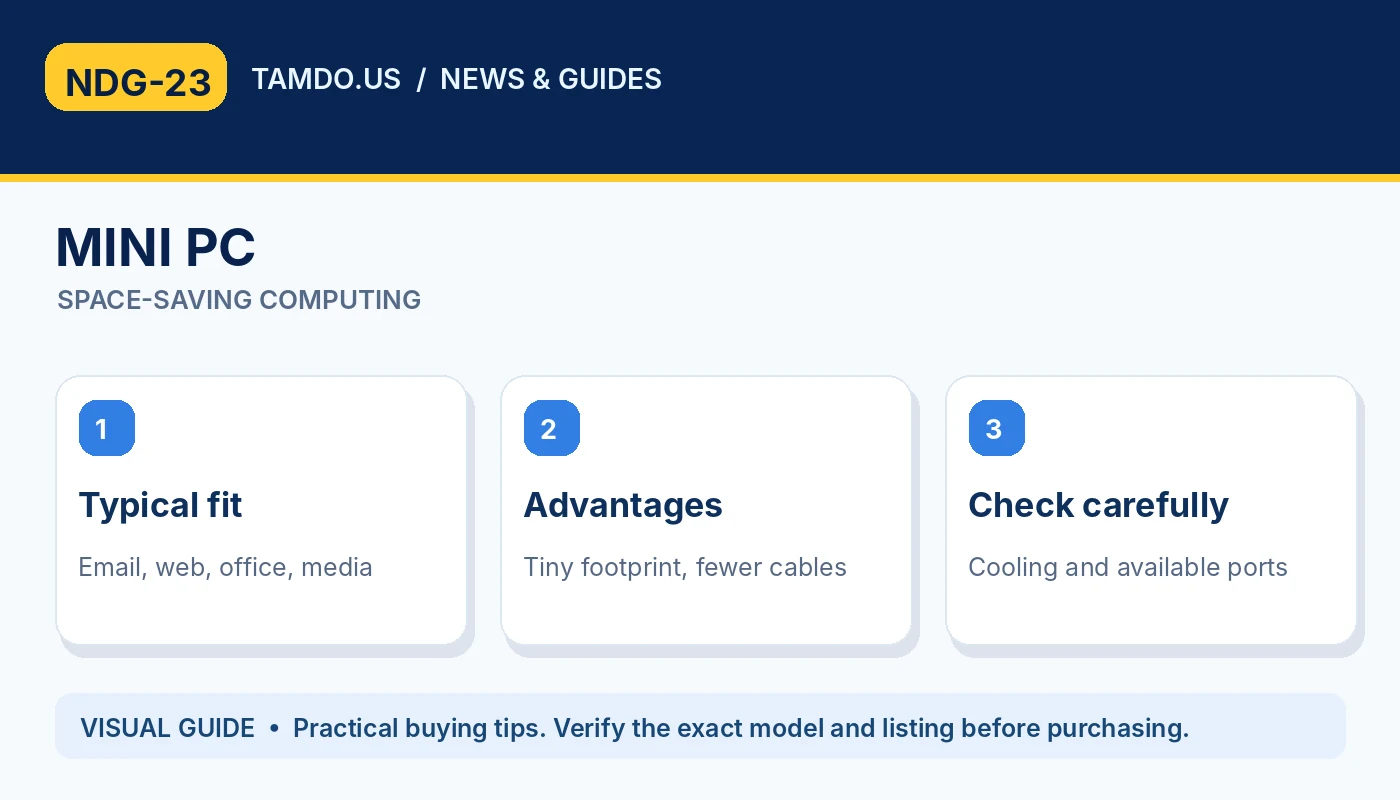
MINI PC — SPACE-SAVING COMPUTING
Performance depends on the components, not the box
For email, basic accounting, online forms, and office documents, a well-configured mini PC can feel fast and responsive. An SSD and adequate RAM usually matter more for these tasks than having an oversized case. A slow, older tower with a hard drive may feel worse than a newer, compact machine.
For workstation rendering, extensive local storage, specialized add-in cards, or serious gaming, towers typically offer more options. Some powerful mini PCs exist, but their cooling, power, and upgrade choices still need individual review. Benchmark results should match the exact CPU, memory, and power configuration, rather than a similar name on a different device.
- Office tasks: RAM plus SSD are often enough.
- Heavy graphics: confirm GPU and cooling.
- Do not equate bigger with automatically faster.
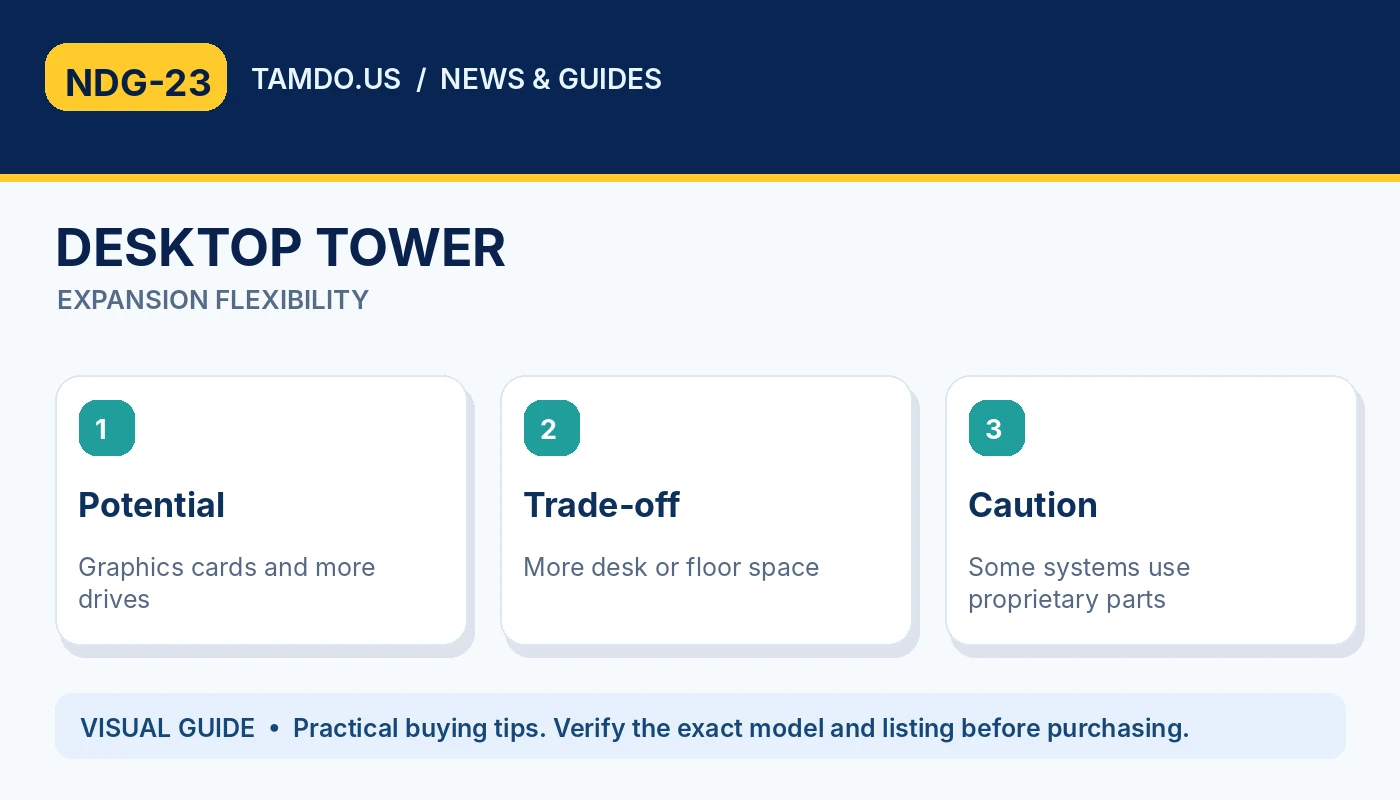
DESKTOP TOWER — EXPANSION FLEXIBILITY
Ports and monitors: count everything first
Write down your monitor connections, USB devices, wired Ethernet needs, headset, webcam, printer, and external storage. Compact computers can have useful port selections, but some rely on USB-C docks or adapters. A tower may provide more conventional front and rear connectors, yet model differences are substantial.
Check whether a device can run two monitors simultaneously at your desired resolution and refresh rate. A port that looks like USB-C may not support video output. With a used mini PC, be certain the correct power adapter is included. Specialized power supplies can change the true cost of an otherwise attractive deal.
- Confirm HDMI, DisplayPort and USB-C capabilities.
- Count simultaneous displays, not just sockets.
- Check power adapter and network connections.
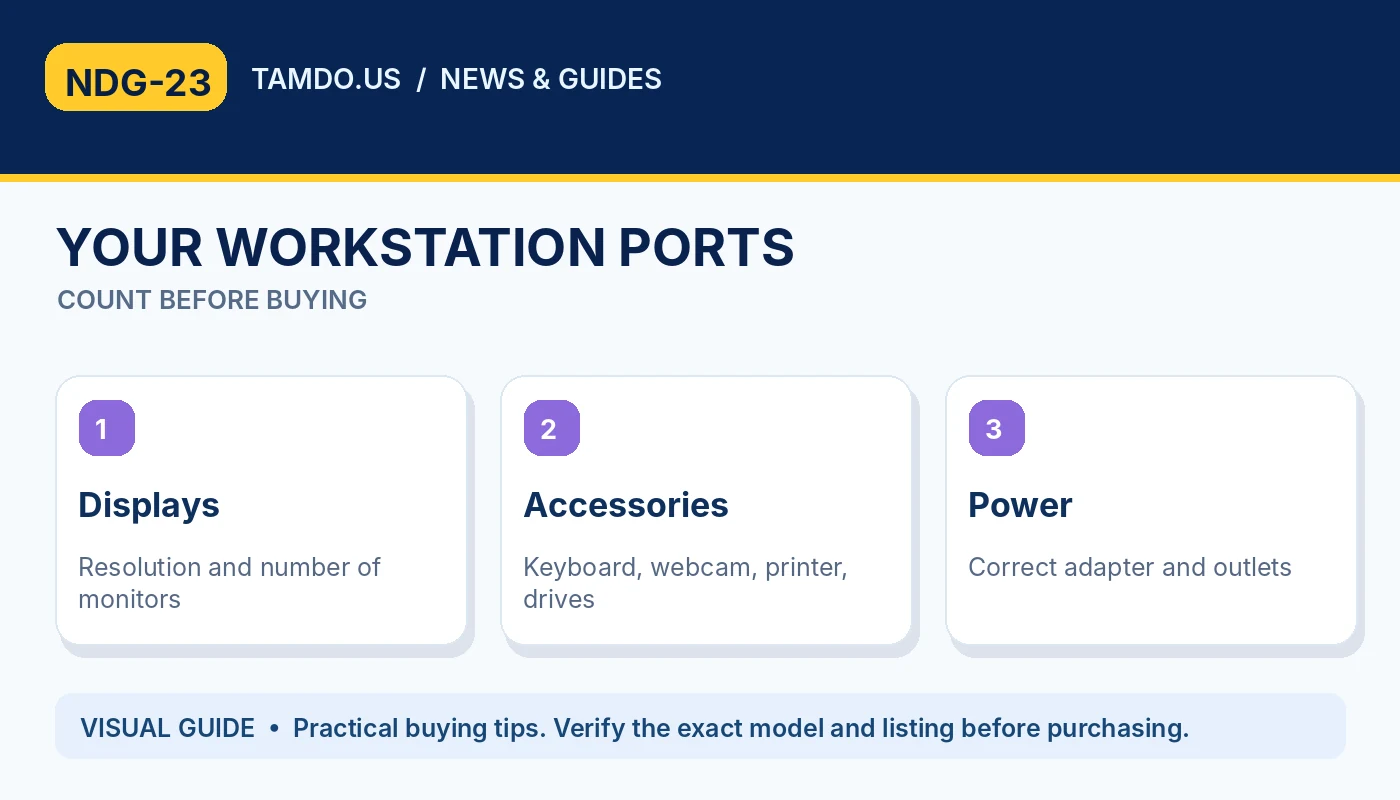
YOUR WORKSTATION PORTS — COUNT BEFORE BUYING
Noise, heat, electricity, and desk space
Many mini PCs use relatively low-power components and occupy very little space. However, a tiny fan can become noticeable under sustained load, and performance may throttle if cooling is inadequate. A tower with larger fans may be quieter at some loads, though a gaming tower can consume much more power.
Compare actual usage patterns: a compact office machine left on daily may be sensible for light work, while a large workstation is better used when its capabilities are required. Also measure available clearance and airflow. Squeezing a small computer into an enclosed shelf can reduce cooling effectiveness.
- Allow ventilation even for small machines.
- Check fan noise during sustained tasks.
- Power use depends on hardware and workload.
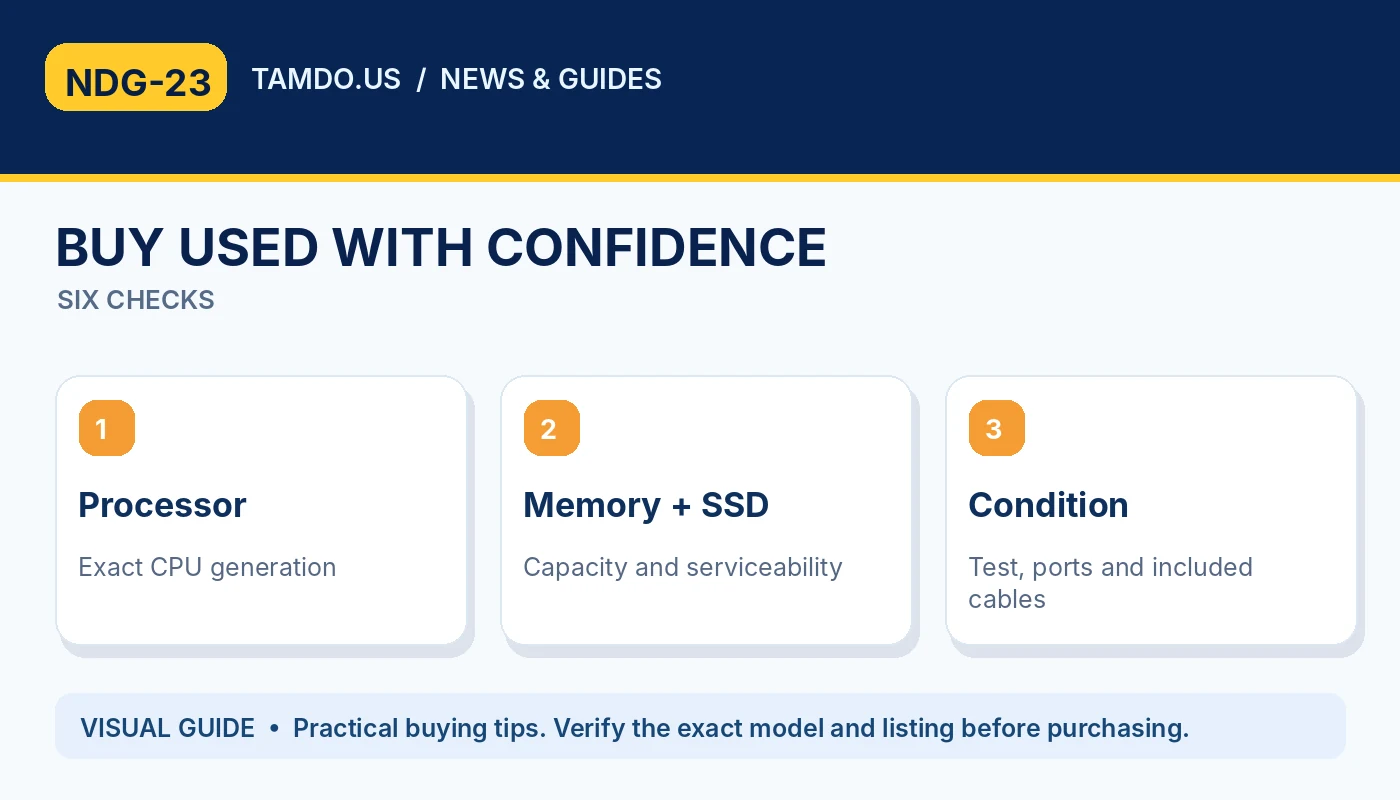
BUY USED WITH CONFIDENCE — SIX CHECKS
Upgrade paths and repair options
Some mini PCs allow a storage drive or memory module to be replaced, but others solder their memory or use hard-to-source parts. Towers often make component access easier, particularly standard ATX systems, yet branded business desktops may use proprietary power or motherboard connectors.
If you plan to keep a computer for many years, consider its repairability before paying. Examine photographs of the rear ports and interior when available, check whether it supports an additional drive, and investigate the exact memory type. Never purchase an expansion card or GPU before verifying available space, power, and compatibility.
- Ask whether RAM is socketed or soldered.
- Look for standard versus proprietary components.
- Budget for potential replacement accessories.
A practical buying checklist
For a home office, start with an SSD, enough memory for the applications you run, and the right monitor ports. For a family computer, consider accessibility, noise, location, and whether children need a larger screen. For a creative or gaming workstation, account for GPU capacity, cooling, and future expansion.
When evaluating a used desktop at TamDo.us, check its exact processor generation, installed memory, storage type, available video outputs, condition, and included accessories. Inventory can include compact systems, all-in-ones, and towers; compare the whole setup rather than one dimension.
- Measure the space and list peripherals.
- Match CPU, RAM and SSD to actual tasks.
- Check exact specifications in each listing.
Frequently asked questions
Can a mini PC replace a desktop tower?
For many everyday and office tasks, yes. For heavy graphics, numerous internal drives, or broad expansion, a tower may be preferable.
Are mini PCs quieter?
Not always. Lower-power designs can be quiet, but small fans may be audible under sustained load.
Can I upgrade a mini PC?
It depends on the exact model. Some accept RAM and SSD upgrades; others have soldered memory or limited serviceability.
Bottom line
Browse available desktops and compare ports, RAM, SSD, power supplies, and size rather than judging a computer only by its case.
Explore related products
Shop desktops and all-in-one computers · Browse computer parts