

A used MacBook can be a sensible way to get a capable computer at a lower cost. But two laptops with the same model name can have very different stories. One may have a healthy battery and a clean account history; another may need expensive repairs or be unusable after a reset.
This checklist applies to pre-owned MacBook Air and MacBook Pro models. If you are buying remotely, ask the seller for clear photos and answers to the same questions you would ask in person. Do not assume a higher cosmetic grade guarantees a healthy battery or a clean activation status.
1. Confirm the exact model, year and chip
Open Apple menu → About This Mac. Check the displayed model, chip or processor, installed memory and macOS version against the listing. “MacBook Pro” alone is not a complete specification: screen size, generation, CPU/GPU and memory can change the value substantially.
For many shoppers, Apple silicon MacBooks are worth prioritizing for compatibility and efficiency. Older Intel Macs may still suit a specialized budget or legacy-software need, but verify the exact applications and macOS support you require instead of assuming every older Mac runs the latest software.
2. Confirm Activation Lock is removed
This is the deal-breaker. On compatible Macs, Activation Lock can prevent a new owner from activating a device without the previous owner's Apple Account credentials. Ask the seller to turn off Find My, sign out of their account and complete the appropriate erase and setup process. The buyer should be able to activate the computer without being prompted for the previous owner's credentials.
Do not buy a MacBook whose previous owner cannot remove Activation Lock. A seller's promise that “you can fix the lock later” is not a safe substitute.
3. Look for unexpected Remote Management
During initial setup, watch for a Remote Management or organization-enrollment screen. Business or school-owned Macs may be managed by an organization. If a device unexpectedly asks to enroll with someone else's organization, stop and ask for documented resolution before paying. A factory reset by itself does not guarantee that organization enrollment disappears.
4. Check battery condition and maximum capacity
Open System Settings → Battery and review Battery Health where that menu is available. Normal means the system reports ordinary operation; Service Recommended is a reason to investigate replacement cost and practical runtime. On supported systems, you may also see Maximum Capacity.
Do not treat a single percentage as a complete diagnosis. Battery runtime depends on brightness, age, workload, system settings and the physical battery. A device with a lower battery capacity may still meet your needs at the right disclosed price.
5. Look at battery cycle count
Open System Information → Power (the location may vary with macOS version), then look for Cycle Count. A cycle is the cumulative use of an amount of energy equal to one full battery capacity, not simply the number of times a charger was plugged in.
Apple publishes model-specific cycle-count limits. Many modern MacBooks are designed around a 1,000-cycle limit, but some older models have lower published limits. Compare the number to the correct model's specification; do not assume every MacBook has the same threshold.
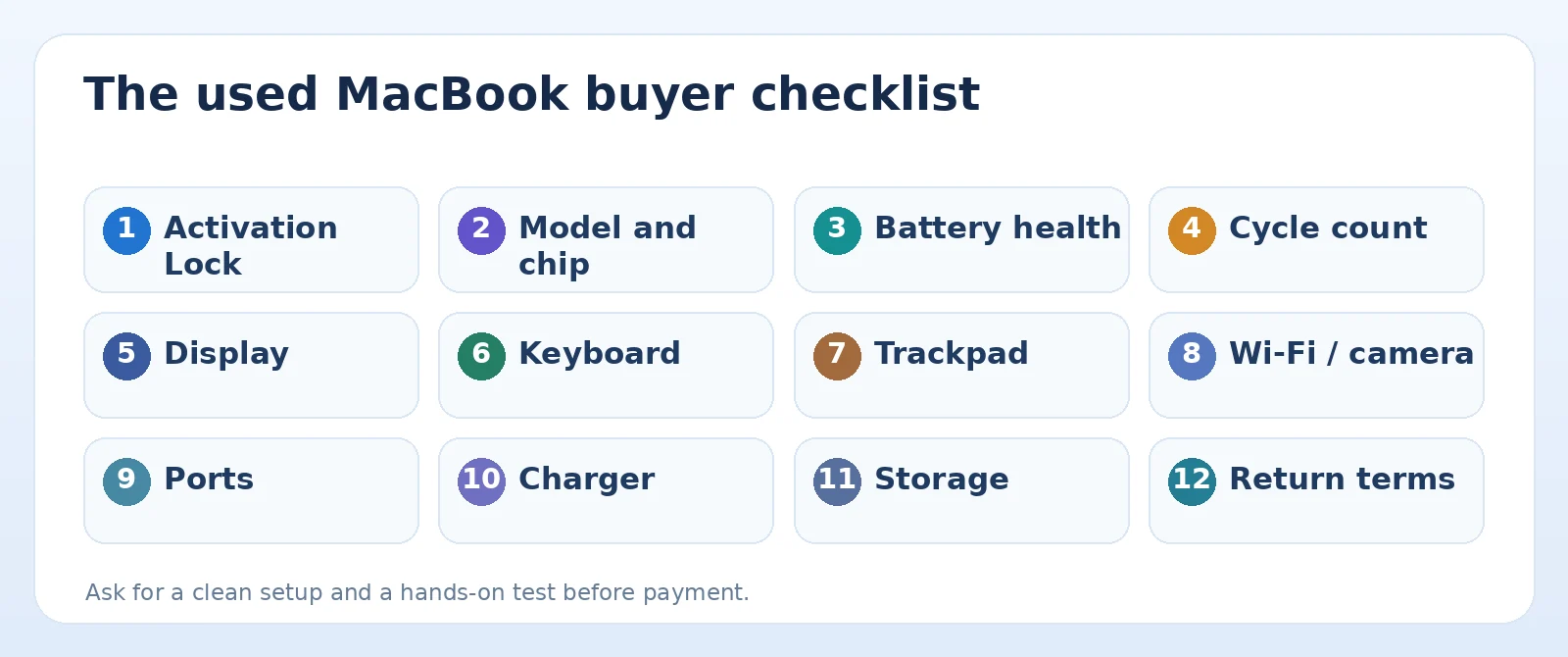
Original TamDo editorial graphic. Illustrations are not screenshots of a specific device or software version.
6. Inspect the display in more than one lighting condition
Use light and dark backgrounds to reveal bright spots, discoloration, uneven backlighting or lines. Check for deep scratches, pressure marks and the condition of the display coating. If buying online, ask for a photograph of the powered-on display with a neutral background, not just a beauty shot of the closed lid.
7. Test every key and the trackpad
Open a blank text document and press each key, including modifier and function keys. Try the trackpad across its full surface, scrolling and clicking where supported. A sticky key or unreliable trackpad can be more frustrating than a small scratch on the case.
8. Test the charging port and connectivity ports
Plug in the supplied charger and confirm stable charging. If practical, test USB-C, Thunderbolt, MagSafe, HDMI and headphone connections that the specific model provides. Also verify Wi-Fi and Bluetooth. Loose ports and intermittent connections can be hard to spot in product photos.
9. Check the camera, speakers and microphone
Make a short local test recording or use a video-call preview. Listen for crackling, overly quiet output or a microphone that cuts out. These components matter to remote work and school even if you rarely edit video or play games.
10. Choose enough memory and storage for your actual work
For everyday web browsing, school and office tasks, a modest configuration may be sufficient. Heavy photo editing, professional design or development may justify more memory and storage. Many Apple silicon MacBook configurations cannot have their memory upgraded afterward, so buy the capacity you will reasonably need.
Also ask whether the advertised SSD capacity is the built-in capacity and check available free space, not just the number in the product title.
11. Understand what is included and what is cosmetic
Confirm the charger type and wattage, accessories, keyboard layout and any reported repairs. Inspect the chassis corners, hinge movement and bottom cover screws. A minor exterior scuff may be acceptable; a bent case that affects ports or the lid is a different issue.
12. Read the seller's return and condition details
Before checkout, review the actual listing photos, defects, shipping terms and return policy. Check whether the seller has documented anything that does not work. If a listing includes a phrase such as “Please Read”, read that explanation first and compare the price against the limitation.
The 15-minute in-person test
- Minutes 1–3: verify model, chip, memory, storage and account sign-out.
- Minutes 4–6: review battery condition and cycle count.
- Minutes 7–10: inspect screen, test every key and try the trackpad.
- Minutes 11–13: test charging, Wi-Fi, speaker and webcam.
- Minutes 14–15: confirm clean setup status, accessories and return terms.
Bottom line: your best used MacBook is the one with a configuration that suits your tasks, an understandable condition history and no unresolved ownership lock—not simply the one with the newest chip or shiniest lid.
Frequently asked questions
Is a high battery cycle count always a reason to walk away?
No. Interpret it together with battery condition, the published model limit, your expected runtime and possible service cost.
Can a seller remove Activation Lock after I buy the laptop?
That may require action by the previous owner, so it is much safer to verify a clean activation process before paying.
Should I choose MacBook Air or MacBook Pro?
For portable everyday tasks, an Air may be enough. A Pro can be useful for sustained demanding work, but compare the specific chip, cooling, ports, display and price rather than relying on the name alone.
Find the right device for your needs
Compare the precise configuration and listing notes. A good used laptop purchase is about verified fit and clear expectations, not just a low asking price.
Feature names and availability can change by device model, operating system, region and software release. See the official sources below for current compatibility details.
Shop MacBooks and other laptops